
The console does not have a screen yet to create log sources and feeds: the SecureAI team sets them up with you and gives you the IDs and tokens.
How it works
- The firewall sends its URL Filtering and Traffic logs to SecureAI, by syslog through the SecureAI collector or straight through HTTP log forwarding.
- From each log, SecureAI reads the source device, the user (when the firewall knows it), the destination, the
action and the Palo Alto classification: the App-ID and the PAN-DB category. App-IDs tagged Generative AI
(
openai-chatgpt,claude-base,google-gemini,github-copilotand about 500 more) and theartificial-intelligenceandAI-*categories count as AI. - You see the result in Inventory > Network Sources.
- When you prohibit a provider or block domains, SecureAI adds them to the EDLs. The firewall downloads them every five minutes and blocks with a URL Filtering profile, a Security policy rule and the DNS policy of an Anti-Spyware profile.
What SecureAI sees and what it does not
- Without TLS decryption, the firewall sees the domain, not the content. It reads the SNI of the HTTPS connection and the DNS query. SecureAI knows that someone used ChatGPT, from which device and how many times; not what they wrote.
- The URL Filtering log carries the domain (
chatgpt.com/). The Traffic log carries the destination IP and the App-ID: when that is all that arrives, SecureAI shows the IP and names the provider from the App-ID. - The user shows up when the firewall has User-ID (agent, Cloud Identity Engine or the User-ID API) and the
source zone has Enable User Identification. SecureAI shows it without the domain (
ACME\ana.perezshows asana.perez) and does not take machine accounts as people. Without User-ID, SecureAI groups by the device IP.
Which license each piece needs
From the Palo Alto documentation. In the SecureAI lab we use VM-Series with the Bundle2 license, which includes every subscription: we could not test what happens without each one.
With only the support contract, SecureAI sees AI through the App-ID in the Traffic log. To block with the SecureAI
EDLs you need Advanced URL Filtering or Threat Prevention.
What you need
- PAN-OS 11.1 or later, and an administrator with write access to Device, Objects and Policies.
- HTTPS access from the firewall to your tenant (
https://<tenant>.hiperai.com) from its management interface, or from the one you set in Device > Setup > Services > Service Route Configuration. - For syslog, a Linux machine with Docker on the firewall’s network, where the SecureAI collector runs. HTTP log forwarding does not need it.
- From the SecureAI team: the ID and token of the log source, and the ID and token of the two feeds (
panos-urlandpanos-domain). Keep the tokens in your secrets manager.
1. Send the logs to SecureAI
Pick one of the two paths.Option A: HTTP log forwarding, no collector
Device > Server Profiles > HTTP > Add. In Servers:
In Payload Format, set one format for Traffic and one for URL, each with:
Traffic payload:
,"url":"$misc" before the closing brace.
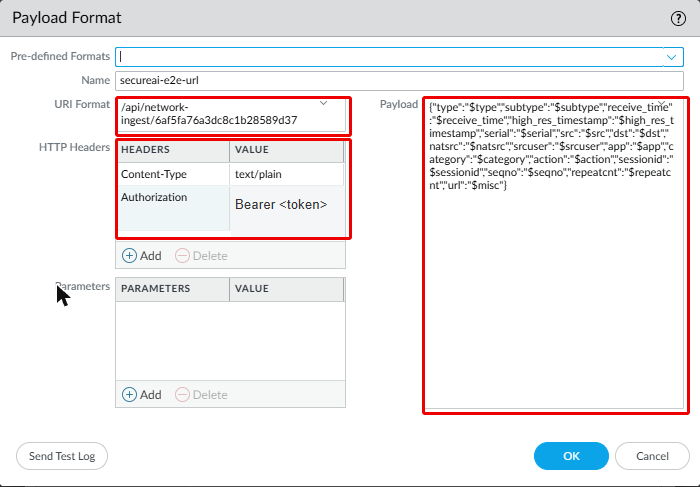
text/plain, not application/json: PAN-OS does not escape
the values it fills in (a user ACME\ana arrives with an unescaped backslash, and $misc brings its own quotes),
and SecureAI fixes each line when it reads it.
PAN-OS checks the server certificate against its trusted root CAs (Device > Certificate Management >
Certificates > Default Trusted Certificate Authorities). Your tenant’s certificate comes from a public CA.
Option B: syslog to the collector
-
Install the SecureAI collector: in the console, Integrations > Network / SWG > Palo Alto Networks > Connect
downloads the
.zipwith the log source ID and token. Unzip it on a Linux machine with Docker and rundocker compose up -d. -
Device > Server Profiles > Syslog > Add: the collector IP, UDP or TCP 514, BSD format. With the default
format (CSV) there is nothing else to set. If your SIEM already expects CEF or LEEF, enter in Custom Log
Format, for Traffic and URL:
CEF (Traffic; for URL, append
request=$misc):LEEF (Traffic; for URL, append|Miscellaneous=$misc):
Log Forwarding
Objects > Log Forwarding > Add, with two entries: Log Typetraffic and url, filter All Logs, and the
server profile from option A or B. With HTTP log forwarding you can filter on the firewall, for example
(category eq artificial-intelligence) on the url entry.
On every Security policy rule that carries traffic to the internet (Policies > Security), in Actions, pick
the profile under Log Forwarding and check Log at Session End.
2. Log AI in the URL Filtering log
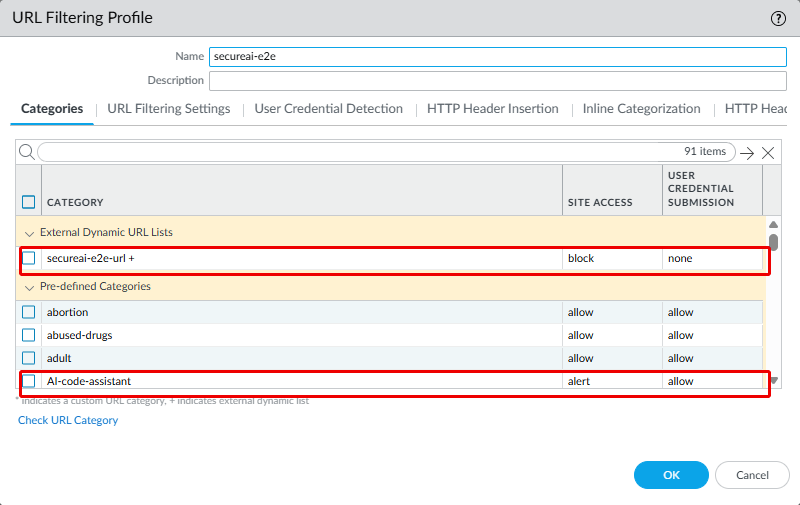
Objects > Security Profiles > URL Filtering: in your profile, set theartificial-intelligence category, the
AI-* ones (AI-conversational-assistant, AI-code-assistant and the rest) and computer-and-internet-info to
Alert. Categories on Allow do not log. Assign the profile to the rules that go to the internet.
You need computer-and-internet-info for the APIs: PAN-DB puts most inference endpoints there, such as
api.anthropic.com, generativelanguage.googleapis.com (Gemini) and Azure OpenAI. Without Alert on that category,
calling a model from a script or a developer tool leaves no log. The collector forwards only AI domains: the rest of
those logs stays in your network.
3. Block with the SecureAI EDLs
The two EDLs
Objects > External Dynamic Lists > Add: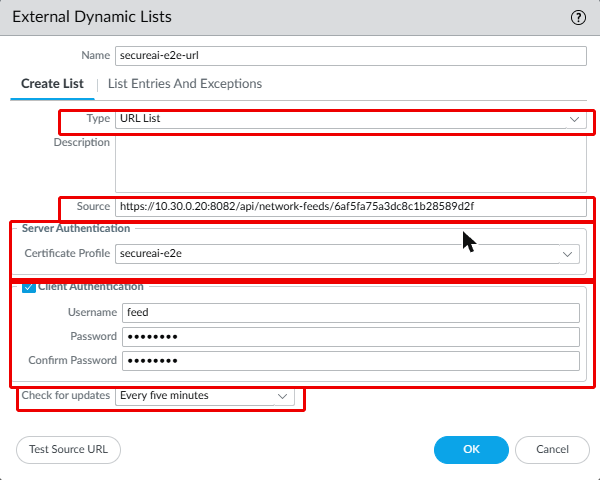
secureai certificate profile: GTS Root R1, GTS Root R4, ISRG Root X1 and ISRG Root X2. With a
single root, the day the CA changes the EDLs stop updating and the firewall stays on the old list. If SecureAI runs on
your own domain, use the root CA of that certificate.
PAN-OS downloads the EDLs from its management interface. For Actions → Allowed IP, use the public address that
interface goes out with, which can differ from the data interfaces. It takes IPv4 and IPv6; if you leave it empty,
anyone with the token can download the list. New tokens keeps the allowed IP.
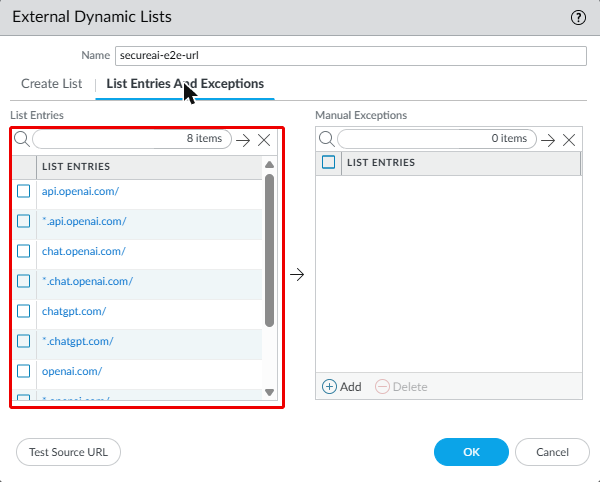
List Entries And Exceptions shows what the firewall downloaded. SecureAI writes each domain twice in the URL EDL
(chatgpt.com/ and *.chatgpt.com/) and once in the domain EDL (chatgpt.com; the subdomain option covers the
rest). While nothing is prohibited, the lists are empty.
Where they are used
- URL Filtering profile: in the profile from step 2, the URL EDL shows up among the categories. Set it to Block.
-
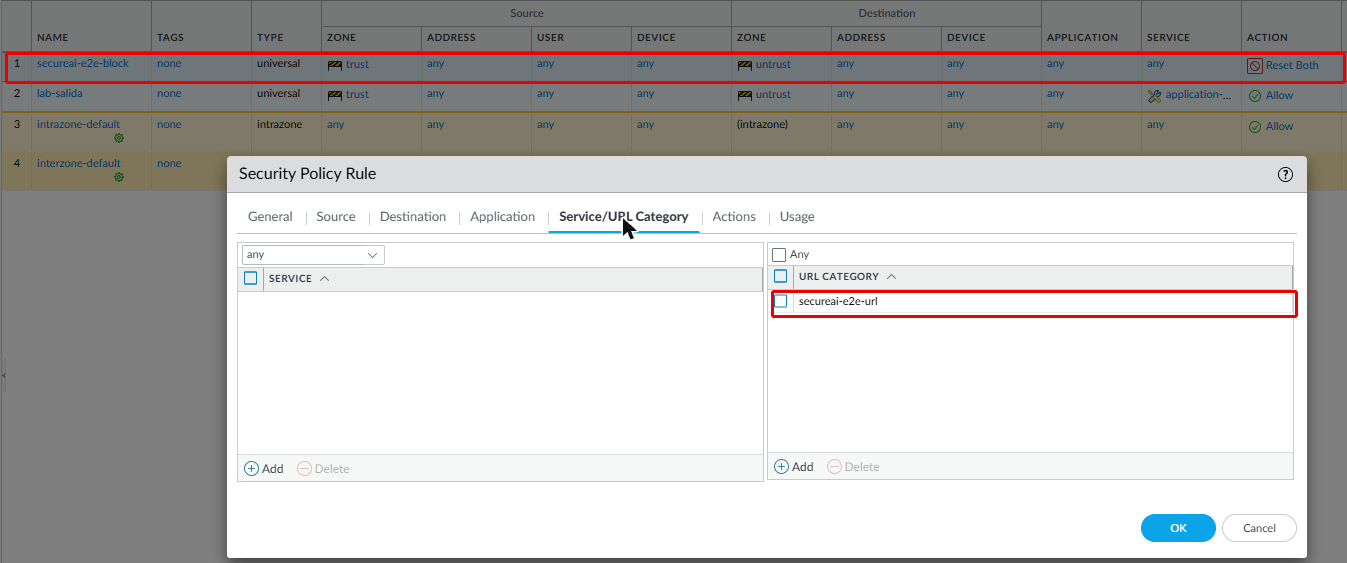
Security policy rule: a rule above the internet rules, with the URL EDL in Service/URL Category and the
Reset both or Deny action. It blocks even when the rule below has no URL Filtering profile.
- Anti-Spyware: in Objects > Security Profiles > Anti-Spyware > DNS Policies, add the domain EDL with the Sinkhole action. Assign the profile to the rules the devices’ DNS goes through.
4. Check
-
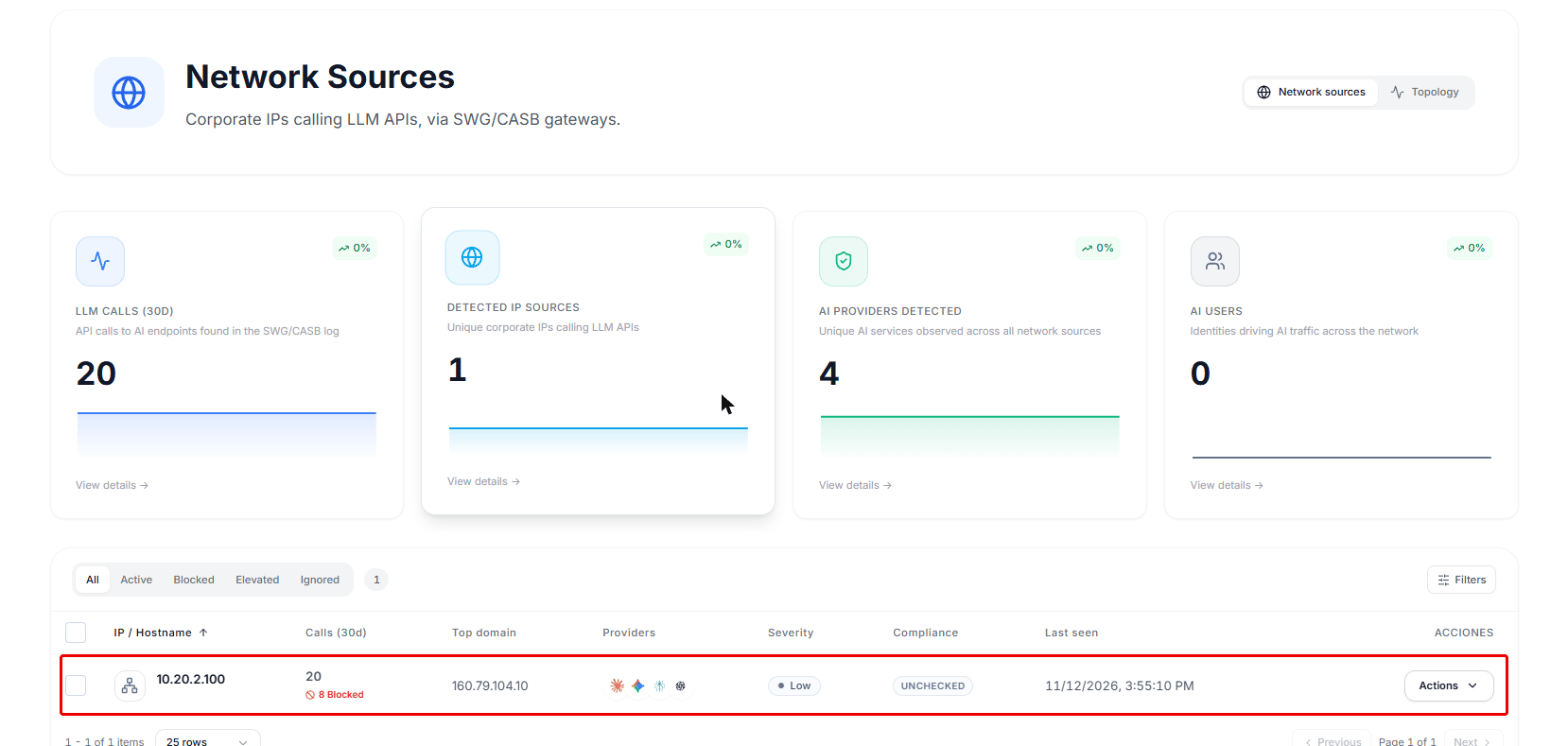
From a device behind the firewall, open chatgpt.com. Within a minute or two the device shows up in
Inventory > Network Sources in SecureAI.
paloalto-panos.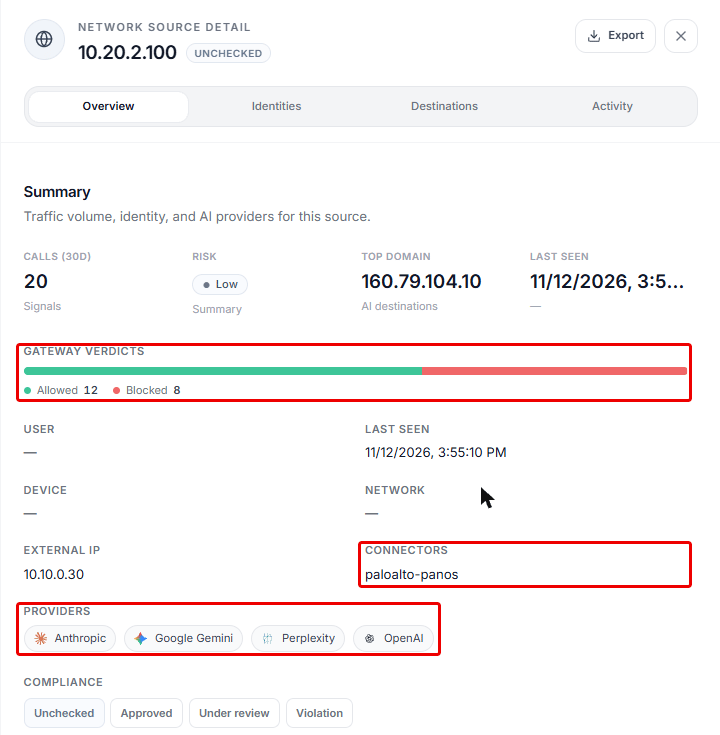
-
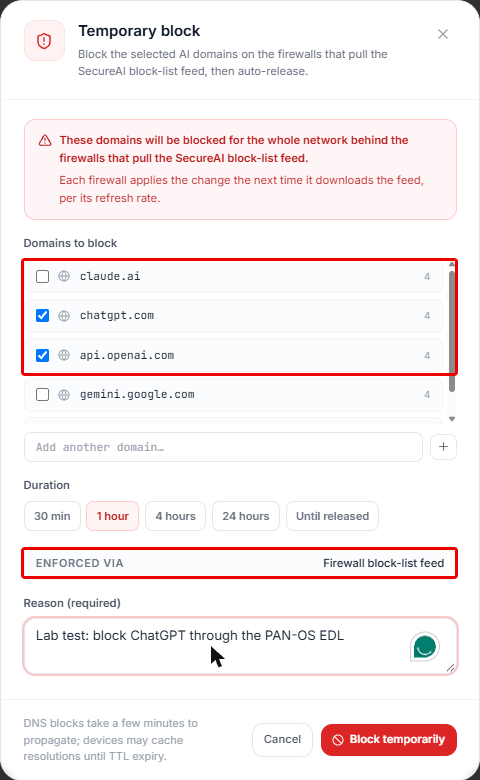
On the device’s row, Actions > Block: pick the domains, the duration and the reason. Enforced via must say
Firewall block-list feed.
-
To skip the wait, on the firewall:
- The device can no longer open chatgpt.com, and the block comes back to SecureAI as a blocked call.
- Release on the same row takes the domains out of the list, and the firewall lets them through on its next refresh.
Automatic block
In Response & auto-block, above the Network Sources list, turn on Auto-block sources that exceed the threshold and set the call threshold (per day or per 7 days), how long the block lasts and how many automatic blocks can be active at once. When a device crosses the threshold, SecureAI blocks the AI domains it uses most and releases them when the block expires, with nobody touching the console.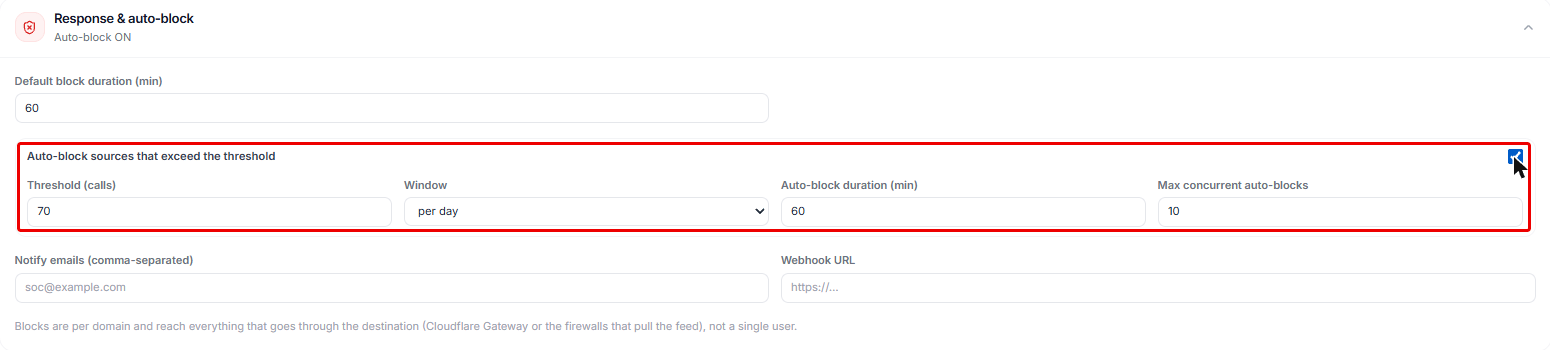
When the feed fails
In our lab tests, with the feed disabled, with a SecureAI server error and with a wrong token, the firewall kept the last list it downloaded and kept blocking. SecureAI never answers an empty list because of an error. For a wrong token, the Palo Alto documentation says the firewall stops enforcing the EDL; in our tests that did not happen during the minute we measured. If you rotate a feed token, update the EDL in the same change. After New tokens, the panel warns on each EDL and on the log source until the firewall and the collector use the new tokens. When nothing is blocked, the EDL carries a single entry,secureai-empty.invalid. PAN-OS does not accept an empty
EDL (it keeps the previous one and would never unblock), and .invalid is a reserved domain that matches no real
site.
Disabling or deleting a feed unblocks nothing, and neither does Disconnect: the firewall keeps blocking with the
last list it downloaded. To unblock, release the block in SecureAI before you disconnect, or remove the EDLs from the
policy.
Panorama
The integration runs on each firewall, so with Panorama it is the same: the EDLs, the URL Filtering profile, the log forwarding profile and the blocking rule go in a device group (and the server profile in a template), and Panorama pushes them to the firewalls. Logs can leave from each firewall or be forwarded from Panorama to a syslog server profile.Limits
- A block reaches the whole network behind the firewall: the EDLs are lists of domains, not of users.
- Counters are approximate. SecureAI counts each session once per firewall and log type, with a 10-minute memory.
- IPs are not blocked. The SecureAI EDLs are domain lists. An IP that came from the Traffic log shows up in the console but does not go into the list.
- Entries per model: from 50,000 URLs on VM-50 and PA-220 to 250,000 on PA-5200 and PA-5400 (External Dynamic List). The SecureAI list has tens to hundreds of entries.
- Prisma Access: SecureAI also has a Prisma Access connector that reads Strata Logging. It has not been validated against a real account yet.