

Reading through Logpush requires Cloudflare Zero Trust Enterprise and is in beta: it hasn’t been
validated against a real account yet.
What SecureAI sees on each Cloudflare plan
Three rows in this table change what you see in the console:
- DNS has no user. Cloudflare’s analytics API returns the queried domain, the DNS location and the category,
with no source IP or user. SecureAI shows each location as a source (
cf-location:<name>). To know who made the query, the traffic has to go through WARP. - HTTP has a user only through WARP. The WARP client identifies the person, and Gateway logs their email and
device. Without TLS inspection, Gateway doesn’t see the HTTPS request: it logs it as a network session with the
SNI, and SecureAI reads it from there. A device enrolled with a service token, with no person behind it, shows
as
non_identity@<your-team>: SecureAI shows its device and no user. - Source-IP proxy endpoints are Enterprise only. On Free and Standard, the proxy endpoint requires every browser to sign in and to have the Cloudflare certificate installed.
What it reads and what it doesn’t
- SecureAI reads the domain (DNS), the host (HTTP) and the SNI (network). It never requests URLs, paths or content, even if you have TLS inspection on.
- The query filters on Cloudflare’s side: SecureAI asks only for traffic in the Artificial Intelligence category or to the domains in its AI catalog. The rest of your browsing stays in Cloudflare.
- The counts are Cloudflare’s estimates, from sampled traffic. At low volume, a domain queried a few times may not show up. Logpush delivers every record.
- Cloudflare publishes analytics a few minutes late. A query usually shows up in SecureAI 15 to 45 minutes later.
1. Create the API token
In the Cloudflare dashboard: My Profile → API Tokens → Create Token → Custom token.
Under Account Resources, pick only your account. Also copy the Account ID (account home → account menu →
Copy account ID).
2. Connect in SecureAI
In Integrations, filter Network / SWG, open Cloudflare Zero Trust and paste the Account ID and the token, then click Connect. SecureAI first checks that the token can read Zero Trust and analytics; if it can’t, nothing is saved and you see what’s missing. From then on SecureAI queries Gateway every 30 minutes, and what it finds shows up in Network Sources. To skip the wait, click Sync now in Network Sources: it reads the last 30 days in the background.3. Turn on blocking
In Network Sources → Response & auto-block → Blocking through Cloudflare Gateway. Before you turn it on, the console asks you to confirm this: Turning it on requires a recent MFA and is recorded in the Activity Log with your user.What SecureAI creates in your account
You’ll find them under Traffic controls → Firewall policies and Reusable components → Lists (Cloudflare
shows the Domain type as “Hostnames”):
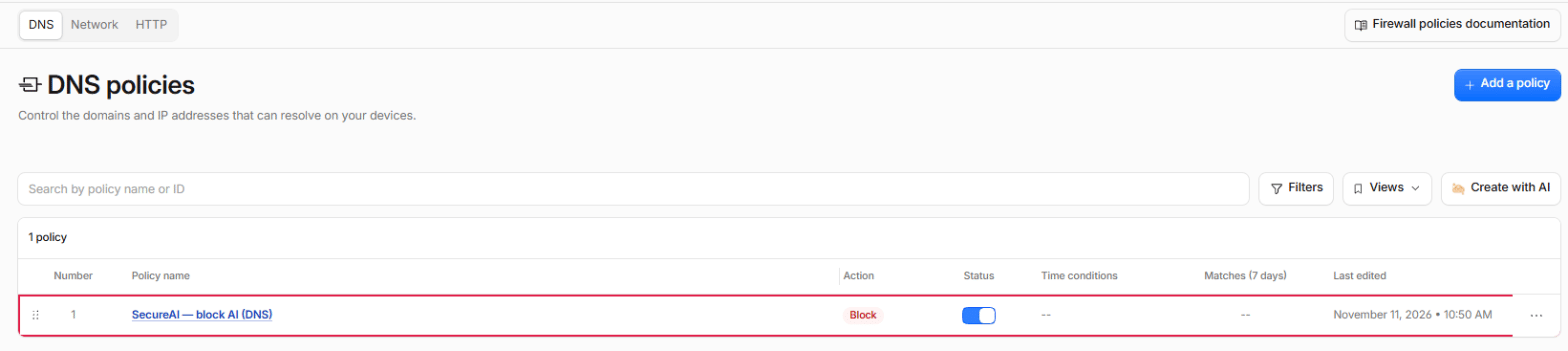

openai.com also blocks api.openai.com.
The list comes from the providers you mark as prohibited (Network Sources → AI governance), the
extension’s blocked sites and the active temporary blocks, minus the approved sites.
Check that it blocks
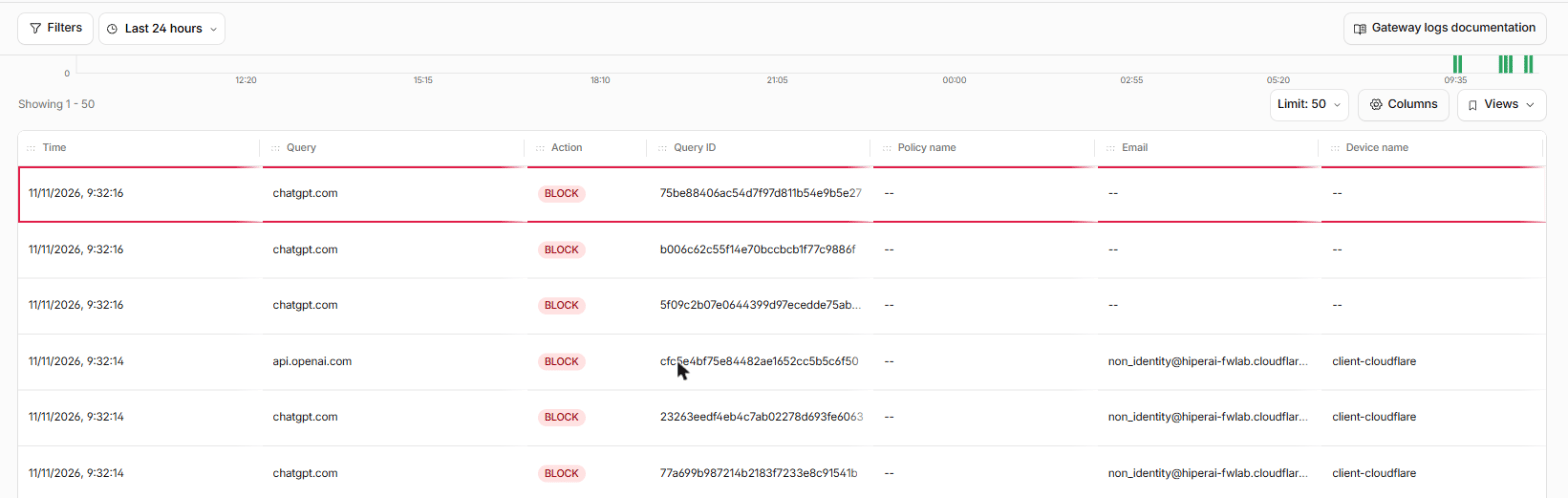
In Insights & Logs → Logs → DNS query logs, queries to a prohibited provider show with action Block and Gateway answers0.0.0.0. In SecureAI, the source shows those queries as blocked after the next sync.
How it stays in sync
- SecureAI syncs every 5 minutes, and right away when you prohibit or allow a provider, or create or release a temporary block.
- If nothing changed, it doesn’t write to Cloudflare. Each pass still reads its lists and rules, and repairs in that
same pass a
SecureAI —rule someone disabled or deleted, or an entry someone removed by hand. Once a day it also compares entry by entry. - If the list goes past your plan’s entry limit, SecureAI splits it into several lists covered by the same rules.
- Cloudflare allows 100 lists per account. When the account uses 80 or more (counting yours), SecureAI warns the administrator.
If something fails
- If SecureAI can’t build the block list, it writes nothing and Cloudflare keeps the previous list.
- If Cloudflare rejects a change mid-sync, SecureAI stops there and retries on the next one. It adds new entries first and removes old ones last, so a list is never left empty in between.
- The last error is shown on the blocking card.
Rule order
Cloudflare requires a distinct precedence for every rule in the account. SecureAI puts its rules in the first free slot in front of your rules of the same type. If there’s no free slot, it puts them last and the console warns you that your rules run first. You can move them by hand: SecureAI keeps the position you give them.Pause without unblocking
SecureAI’s global enforcement switch freezes the account: SecureAI stops writing to Cloudflare, and the lists and rules stay as they are, still blocking what they blocked. A policy change made in the meantime reaches Cloudflare when you turn the switch back on.Turn blocking off
Turn off disables the three rules, so it unblocks everything SecureAI was blocking through Cloudflare. It asks for confirmation and a recent MFA, and is recorded in the Activity Log. The lists stay in the account: turning it back on is a single sync. SecureAI won’t let you disconnect the integration while blocking is on: the rules would keep blocking with nothing maintaining them. To remove SecureAI from the account completely: turn blocking off, disconnect the integration, delete the threeSecureAI — block AI rules, then the SecureAI — AI block lists (Cloudflare won’t delete a list a rule still uses), and revoke the token.
Who a block reaches
Everything that goes through Gateway: devices with WARP and the networks that use your DNS locations. The rules don’t distinguish users or IPs. A temporary block an analyst creates from a source blocks those domains for the whole organization until it expires.Logpush
With Logpush, Cloudflare sends SecureAI every record instead of the analytics: DNS records carry the user too, and they arrive within minutes. In beta, the SecureAI team assists with the setup.- In your tenant you create an ingest source with the Cloudflare Zero Trust (Logpush) connector. Keep the URL and the token, which SecureAI shows only once.
-
In Cloudflare, create one Logpush job per dataset (
gateway_dns,gateway_http,gateway_network) with an HTTP destination:With theseoutput_options: -
Leave the
URLfield out of the job: SecureAI doesn’t use it.