

Anthropic API — Inference with your organization’s key
With this integration, the Claude calls SecureAI makes go to the Anthropic API with your organization’s own API key, instead of through SecureAI-managed providers. Anthropic bills your account: the usage draws on your credits, your discounts and your rate limits. SecureAI stays in the path of every request: DLP, model policies, audit and signed receipts apply exactly as with any other provider.Not the same as Anthropic Console. This page connects Anthropic as an inference provider (Admin → Integrations → AI providers) with a regular API key, which can only call models. The Anthropic Console card in the Cloud category uses an Admin key to inventory keys, workspaces and usage, and never sends a prompt. They are independent: use either one, or both.
How it works
- You create an API key dedicated to SecureAI in the Anthropic Console and save it in SecureAI. It is stored encrypted and never shown again.
- On save, SecureAI uses the key to read the list of models it can call (
GET /v1/models) and matches each Claude model of SecureAI’s catalog to the Anthropic id that serves it. - On every chat turn or task with a Claude model, SecureAI applies DLP and the model policy, signs the request and sends it to Anthropic’s Messages API through its SMLTP gateway.
- The response comes back through the gateway, which inspects and redacts it (streaming included) before it reaches the user, and issues the signed receipt.
What runs on your key and what does not
How many inference providers you can use
The Anthropic API counts as one more inference provider, like Google Vertex AI, Azure AI Foundry, Amazon Bedrock and the OpenAI API:
Each model family can be routed to one provider only. If Claude already runs on Amazon Bedrock, remove it there first: SecureAI refuses an overlapping configuration and says which family collides.
Prerequisites
- An Anthropic account with active billing and a credit balance.
- Permission to create API keys in the Anthropic Console (Settings → API keys).
- Admin permission on SecureAI’s Integrations section.
- Your organization’s SMLTP model policy must allow at least one Claude model your key can call (AI Gateway → Policies). SecureAI applies that policy to these calls too.
Step 1. Create the key in the Anthropic Console
- In the Anthropic Console, go to Settings → API keys and click Create Key.
- Give it a recognizable name (for example
SecureAI) and, if you use workspaces, create it in the workspace these calls should be billed to. That workspace’s rate and spend limits apply to SecureAI. - Copy the key (it starts with
sk-ant-). Anthropic shows it only once.
Step 2. Connect the key in SecureAI
-
Go to Admin → Integrations → AI providers and open Anthropic API — Your organization’s key.
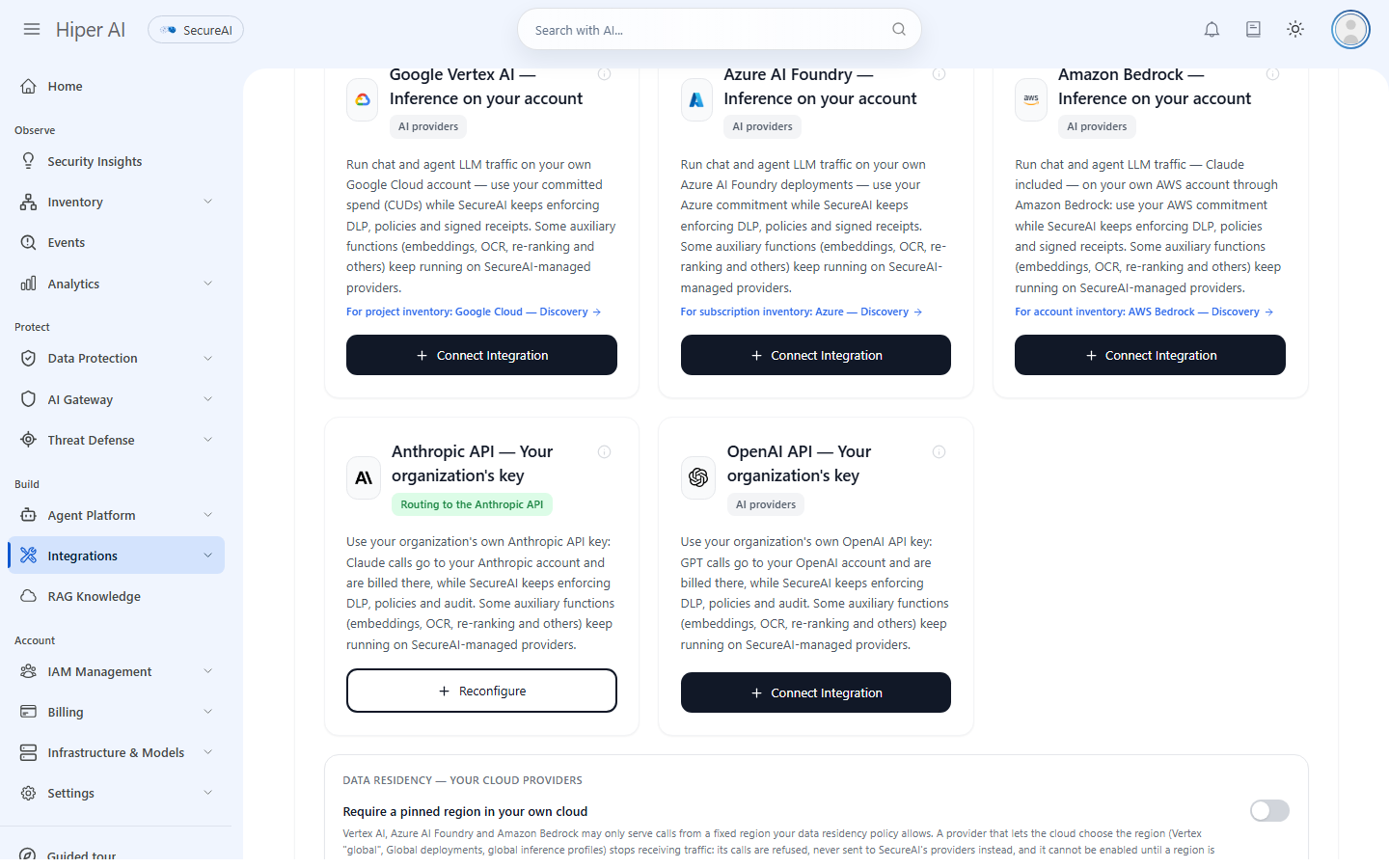
- Paste the key in API key and click Save.
- The field clears and shows Key saved (…xxxx): only the last 4 characters stay visible. The key is never sent back to the browser. To change it, type a new one; an empty field keeps the stored key.
- Models your key can call lists the Claude models of your account, with their context size, whether they take images and whether they support extended thinking. Use Refresh when Anthropic opens new models to your account.
- No traffic is routed yet: the integration is saved switched off so you can test it first. The card shows Configured · not routing to the Anthropic API.
Step 3. Choose what runs on your key
What runs on the Anthropic API has two modes:- Only these model families (the default, with Claude selected): Claude models run on your key; everything else stays on SecureAI’s providers or another connected cloud.
- Remap everything to the Anthropic API: every LLM call runs on your key. Models Anthropic does not serve (GPT, Gemini…) are answered by the default Anthropic models.
claude-sonnet-4-6) or, when your key only has the dated version, that one (claude-haiku-4-5-20251001). It never matches a model to a look-alike: a model your key does not have is hidden from users (or goes to SecureAI if you allowed fallback).
Default Anthropic models (pick them from your key’s list):
In Model → Anthropic id overrides you can send a SecureAI catalog model to an exact Anthropic id (for example
anthropic/claude-sonnet-5 → claude-sonnet-5-5). Overrides win over automatic matching.
Two more options:
Models of your key the catalog does not list
Claude models your key can call that SecureAI’s catalog does not have yet (for example the newest ones) appear under the Offer the models of your Anthropic API that SecureAI does not list switch, when your deployment offers models of your own cloud. Untick the ones you do not want to offer, or turn the switch off. For users to pick them in the chat (the Your Anthropic API section of the model selector), add them to the SMLTP model policy in AI Gateway → Policies, where they are listed in the same section. They run only on your key, never on SecureAI’s providers, even with fallback allowed.Step 4. Test and switch on
- Click Test connection. It sends a minimal (one-token) request to each default model through the same path real traffic will take — gateway, model policy and receipts included. With no default models yet, it probes the cheapest Claude model your key can call that your SMLTP model policy allows. The test is billed to your Anthropic account (a fraction of a cent).
- Check the Routing preview: for each catalog model it shows whether Your Anthropic API key will serve it (and with which id), another connected cloud, or SecureAI, and which ones will be hidden from users.
- When the test passes, turn on Route traffic to the Anthropic API and click Save. The switch does not stick until you save.
- The card turns green: Routing to the Anthropic API.
Data residency
The Anthropic API does not let a request pin the region it is processed in. So if your organization turns on Require a pinned region in your own cloud (below the provider cards in Admin → Integrations → AI providers):- Routing to the Anthropic API cannot be enabled.
- If it was already enabled, its calls are refused — never sent to SecureAI’s providers instead.
What is billed, and to whom
- Anthropic bills the usage to your account, with your credits and discounts. Rate limits are those of your Anthropic account or workspace.
- SecureAI shows the cost of those turns as a list-price estimate for analytics only; the real figure may differ.
- These turns do not count against the seats’ spend cap, unless you turn on Apply each seat’s spend cap to turns billed to your key.
Security and compliance
- The key is write-only. It is stored encrypted and never returned to the browser, not even to an admin: only its last 4 characters are shown. It never appears in the activity log.
- The path stays protected. Every call goes through SecureAI’s SMLTP gateway: model policy, DLP on the prompt and on the response (streaming included), a per-request authorization token and a verifiable signed receipt. The gateway forwards your key to Anthropic and holds none of its own.
- Fail closed. If the key cannot be read, Anthropic rejects it or a model is not available to your key, the request is refused; it is not sent to another provider unless you allowed fallback.
- Kept apart from SecureAI’s keys. Calls paid by your key use a lane of their own, separate from the one SecureAI uses with its own Anthropic account (for example for the Claude Code proxy).
- Audit. Saving, testing or disconnecting the integration is recorded in the activity log, never with the key.
Disconnect and revoke
Disconnect (panel footer) deletes the configuration and the stored key. From then on, all the traffic your key served returns to SecureAI-managed providers. You can also just turn off Route traffic to the Anthropic API to pause routing and keep the connection. To revoke SecureAI’s access on Anthropic’s side, delete the key in the Anthropic Console (Settings → API keys).Troubleshooting
These are the reasons Test connection shows:
Errors users may see in the chat:
When a call fails for a reason only an admin can fix (a revoked key, credits exhausted, a model not available), SecureAI notifies the admins by email, on the integration card and in the notification bell.
Current limitations
- No pinned data residency (see above).
- Embeddings, re-ranking, OCR, the admin assistant, image generation and realtime voice stay on SecureAI-managed providers.
- The Claude Code proxy keeps using its own lane, not your key.
Related
- OpenAI API — Inference with your organization’s key
- Amazon Bedrock — Inference on your account: Claude on your AWS account, with data residency.
- Anthropic Console: inventory of Anthropic keys, workspaces and usage.
- Cloud AI providers overview
- Signed receipts