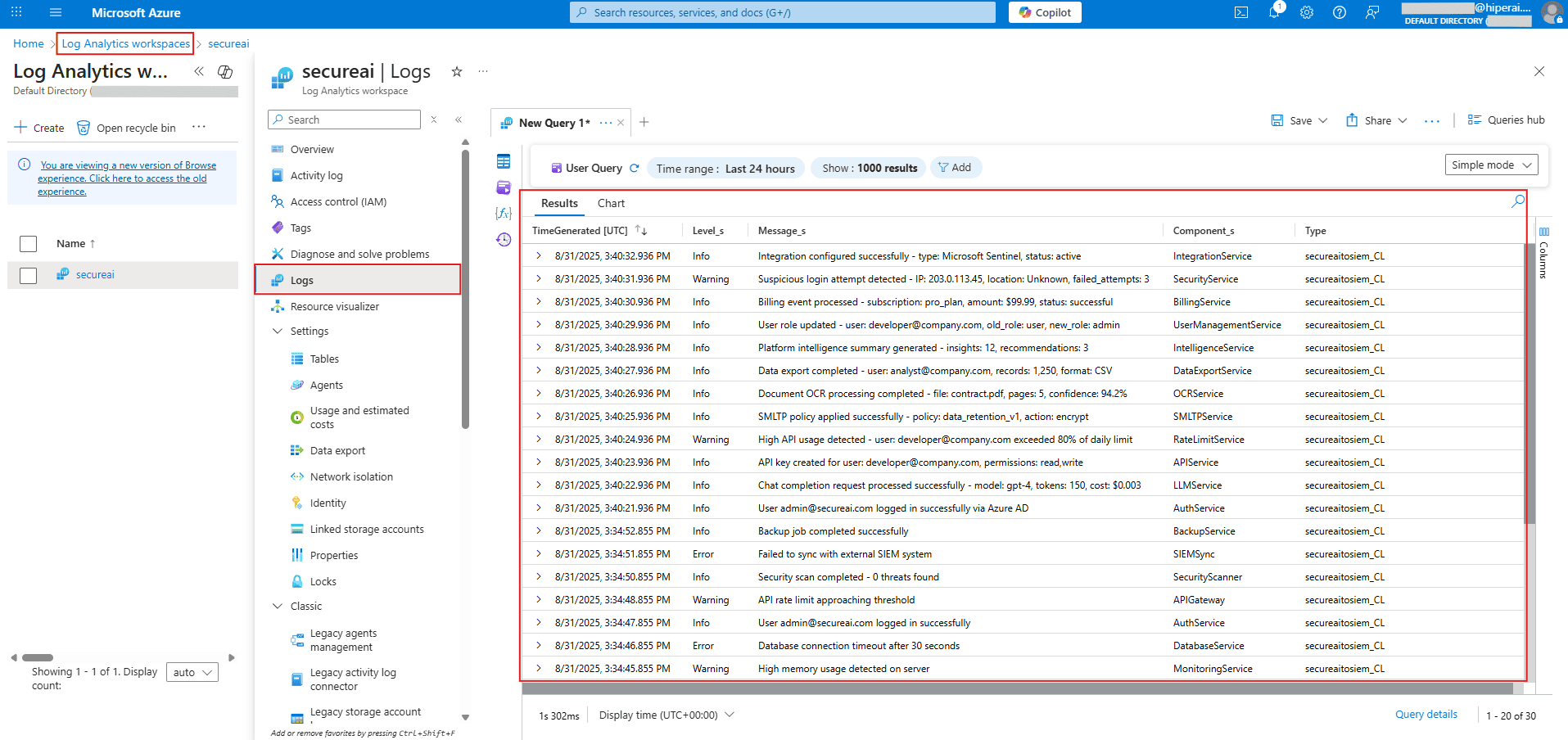

Microsoft Sentinel Integration
Integration Guide: Connecting Microsoft Sentinel with HiperAI This guide describes the necessary steps to configure Microsoft Sentinel to receive security logs from SecureAI via Azure Data Collection Rules (DCR).Step 1: Create the Application Identity (App Registration)
First, we’ll create an identity for your application in Azure, allowing it to authenticate securely.A. Go to Azure Active Directory
In the Azure portal, search for and select Azure Active Directory.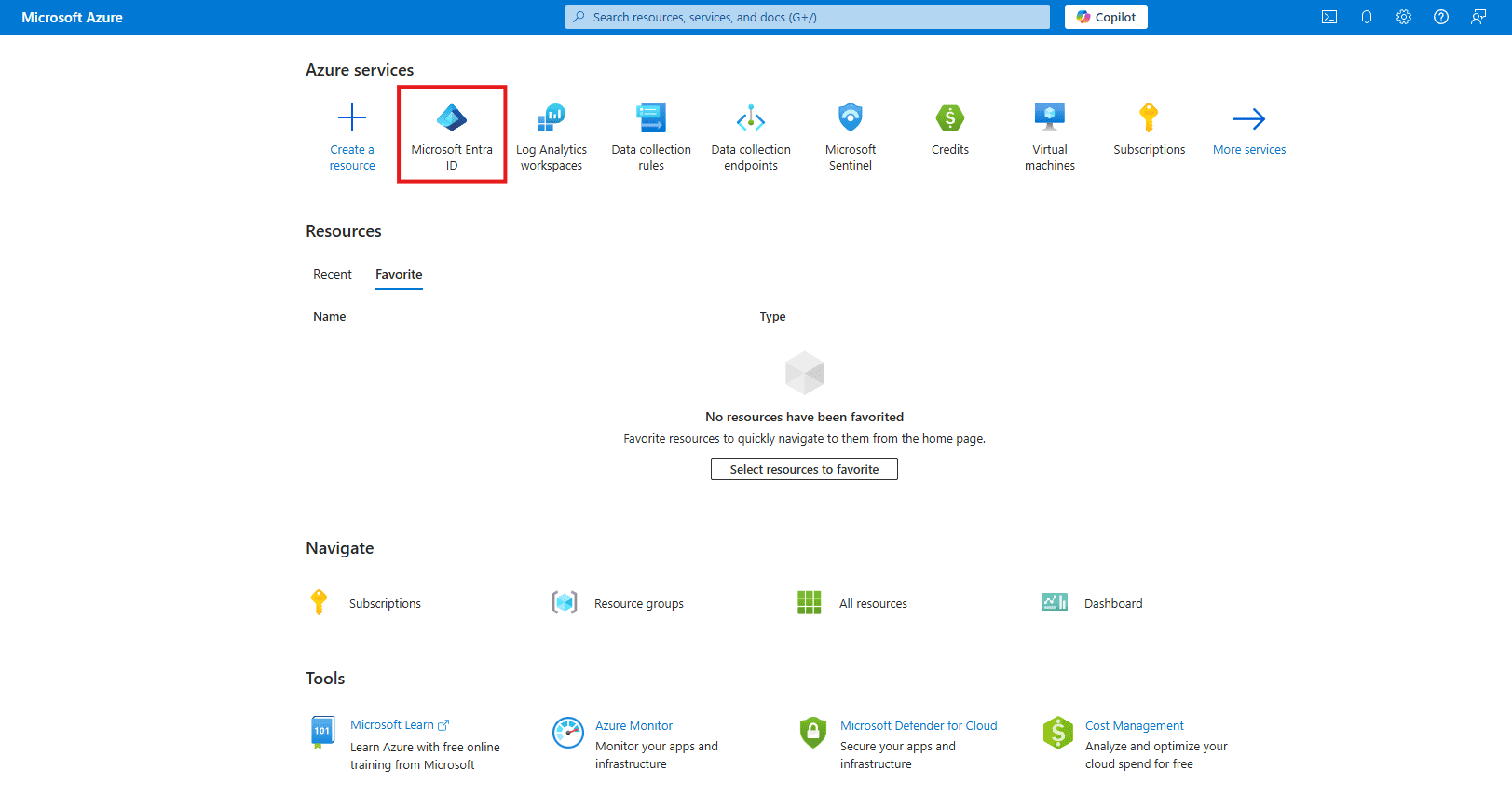
B. New Registration
On the left menu, navigate to App registrations and click + New registration.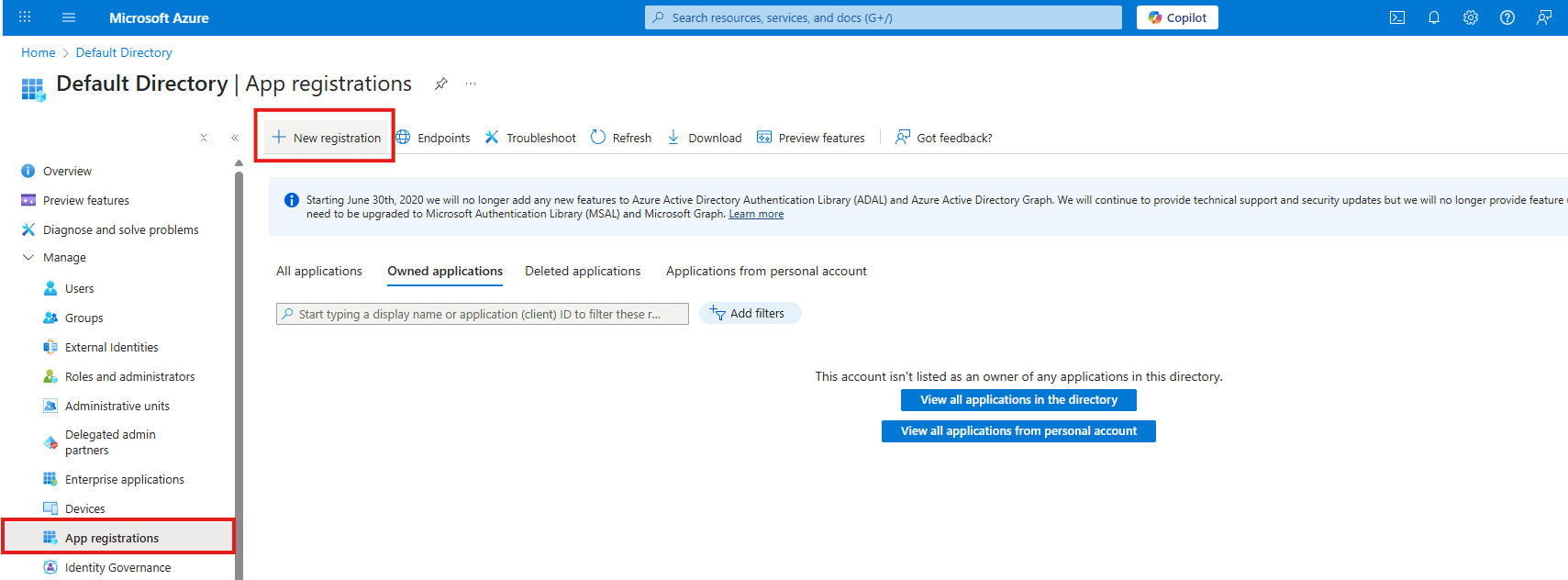
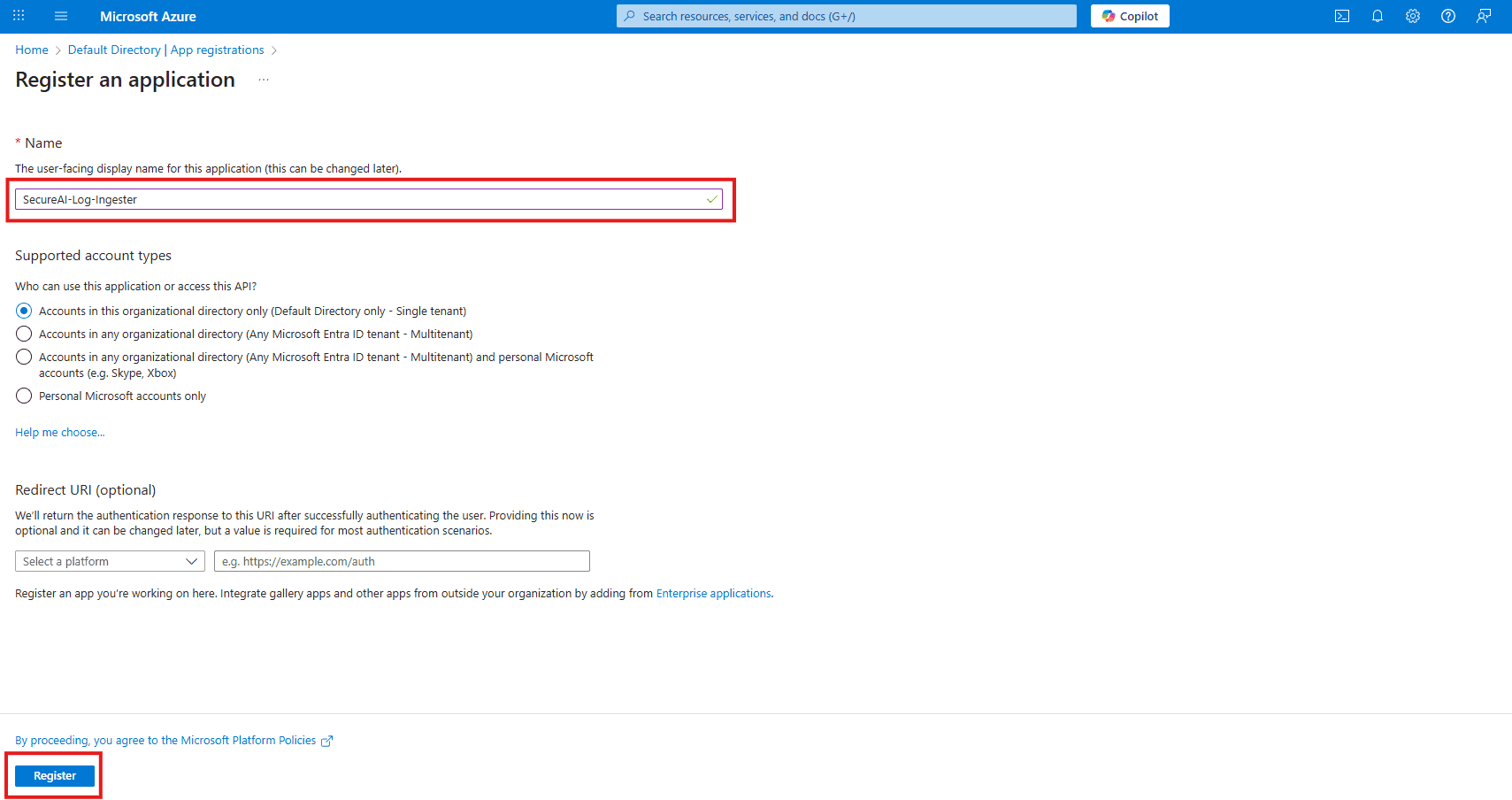
C. Name the Application
Provide a clear name, such asSecureAI-Log-Ingester and leave the other options as their defaults. Click Register.
D. Copy the IDs
From the new application’s Overview page, copy and securely store the following values:- Application (client) ID
- Directory (tenant) ID
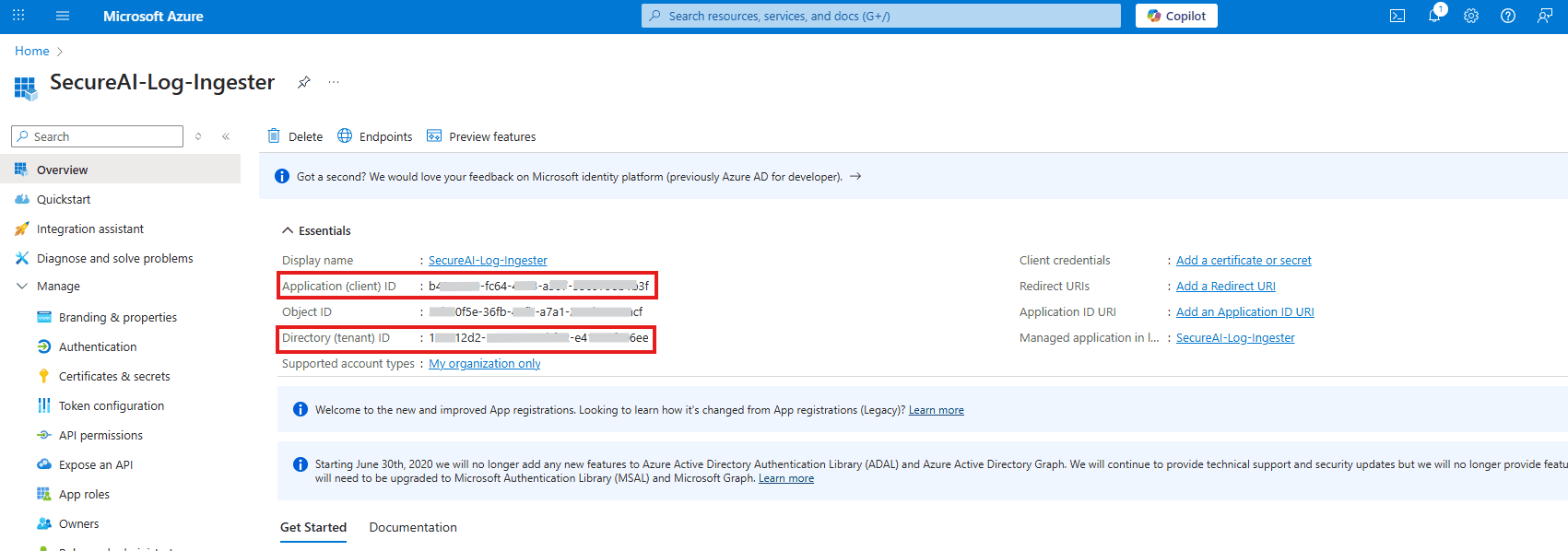
E. Create the Client Secret
On the left menu, go to Certificates & secrets and click + New client secret. Provide a description (e.g., “SentinelLogKey”) and click Add.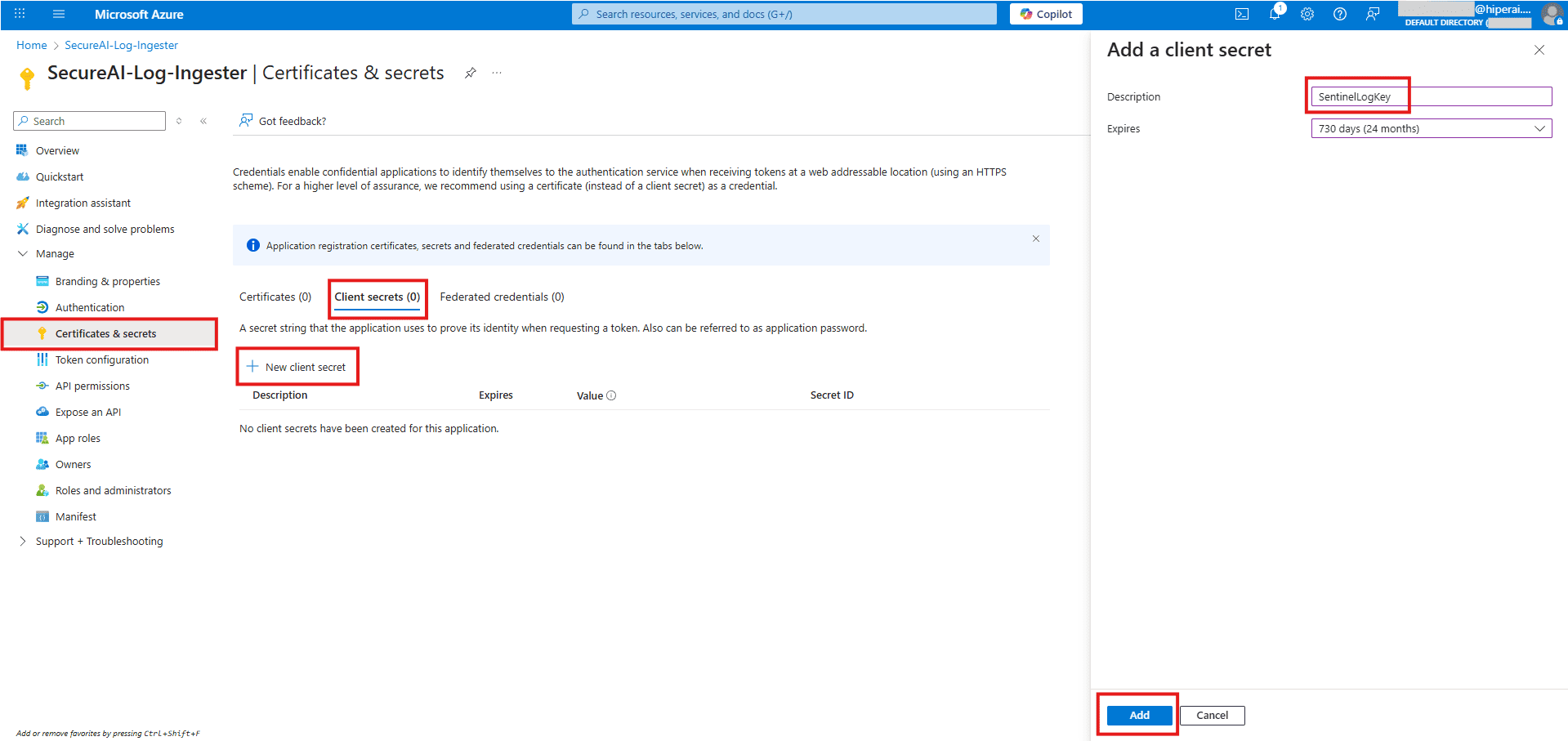
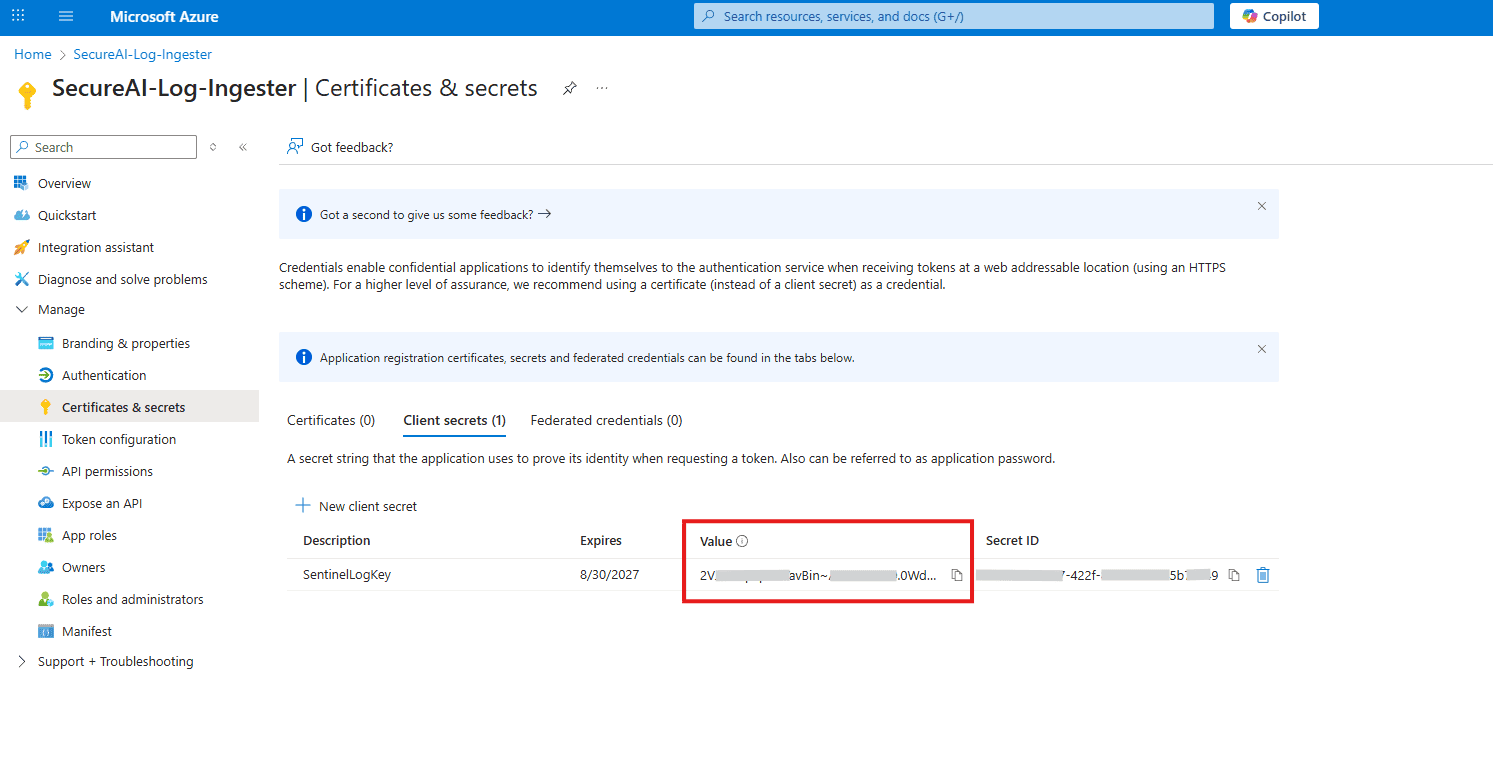
Step 2: Create the Azure Ingestion Infrastructure
Now, we will build the “pathway” and “storage” for your logs.A. Create the Data Collection Endpoint (DCE)
1. Find the Service
In the Azure search bar, search for and select Data Collection Endpoints.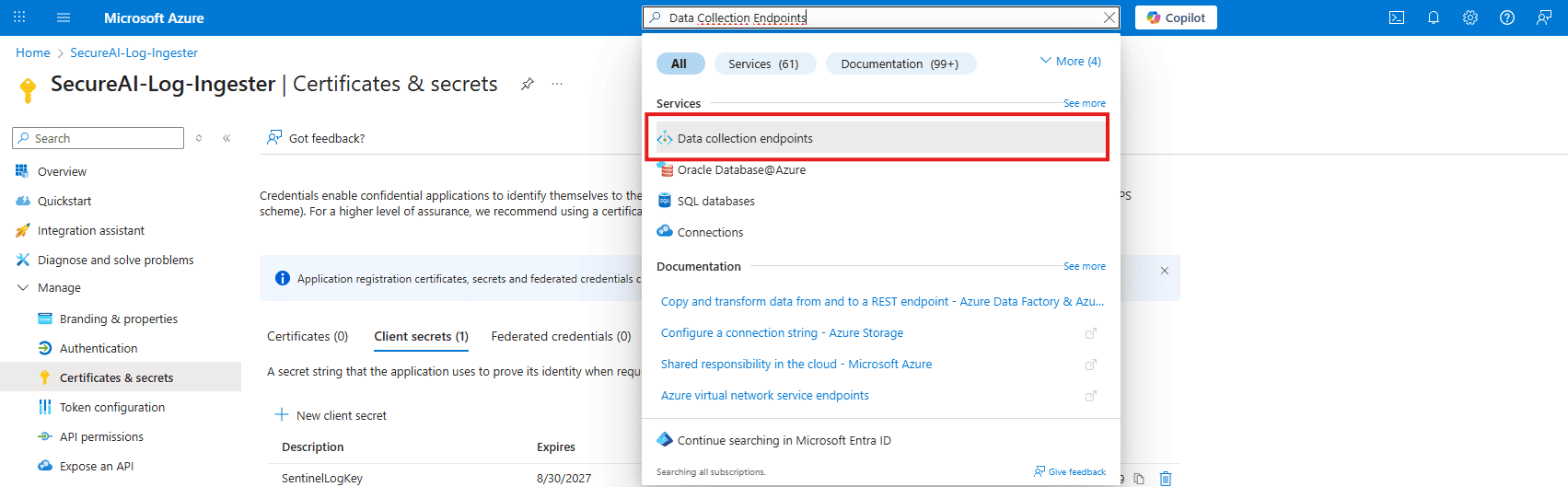
2. Create a New DCE
Click + Create.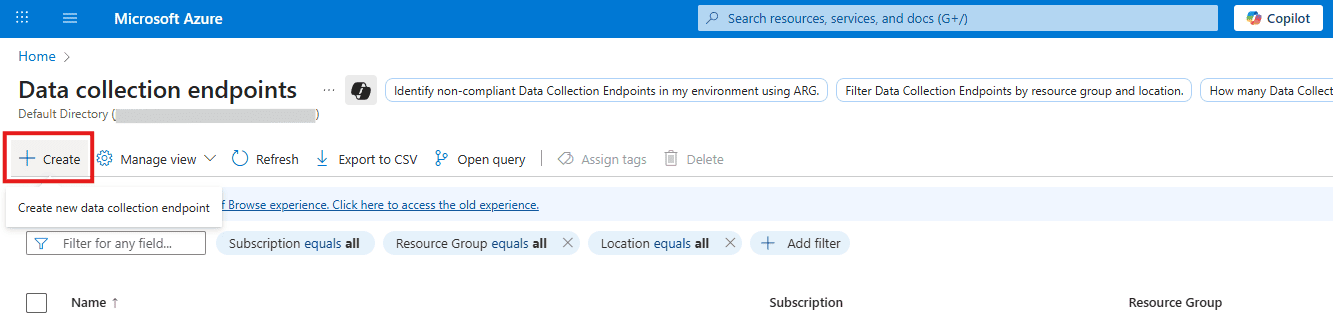
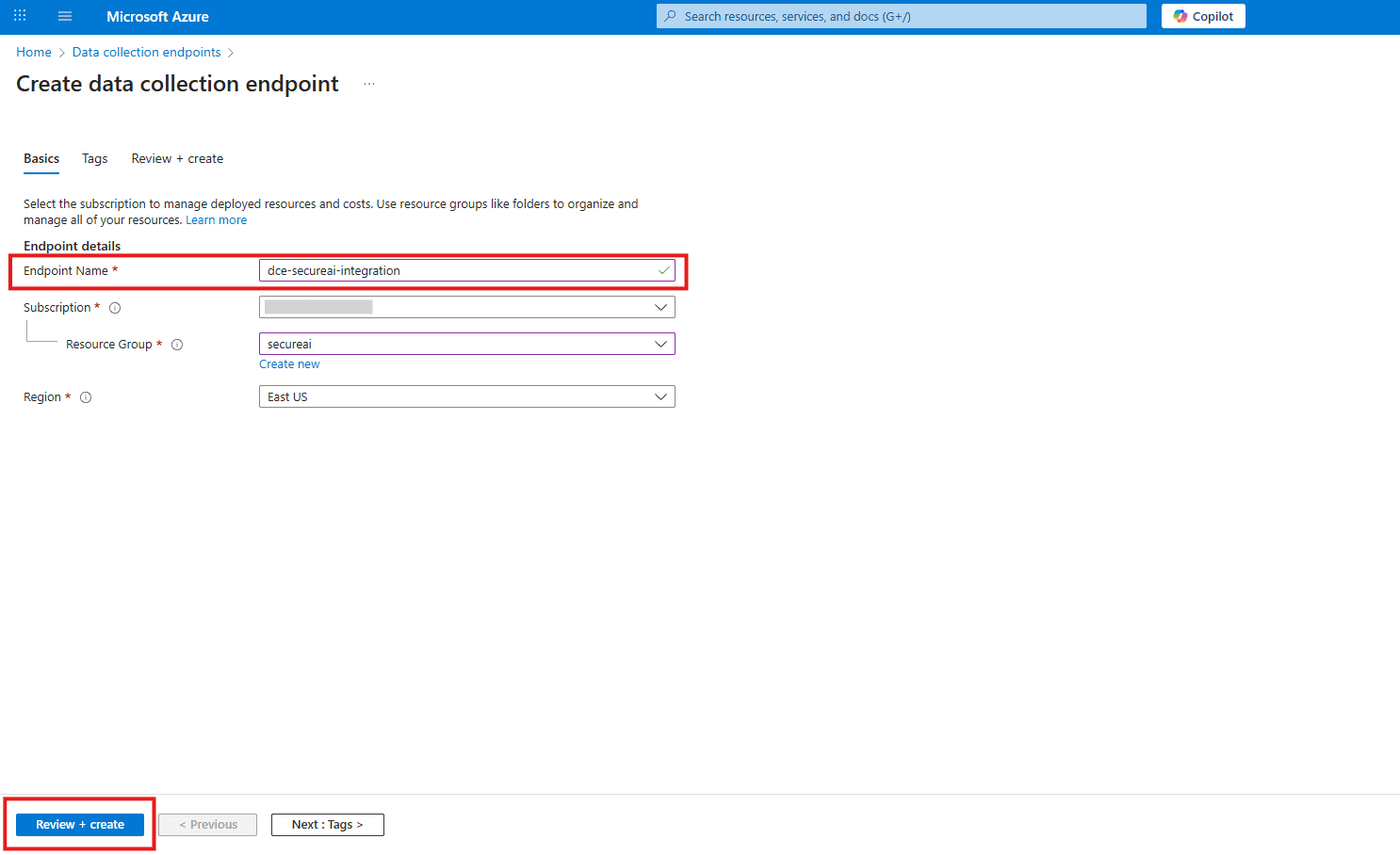
3. Configure the DCE
- Name:
dce-secureai-integration - Region: Choose the same region as your Log Analytics Workspace
- Click Review + create, and then Create
4. Copy the URI
Once deployed, navigate to the resource. On its Overview page, copy the Logs ingestion URI and save it.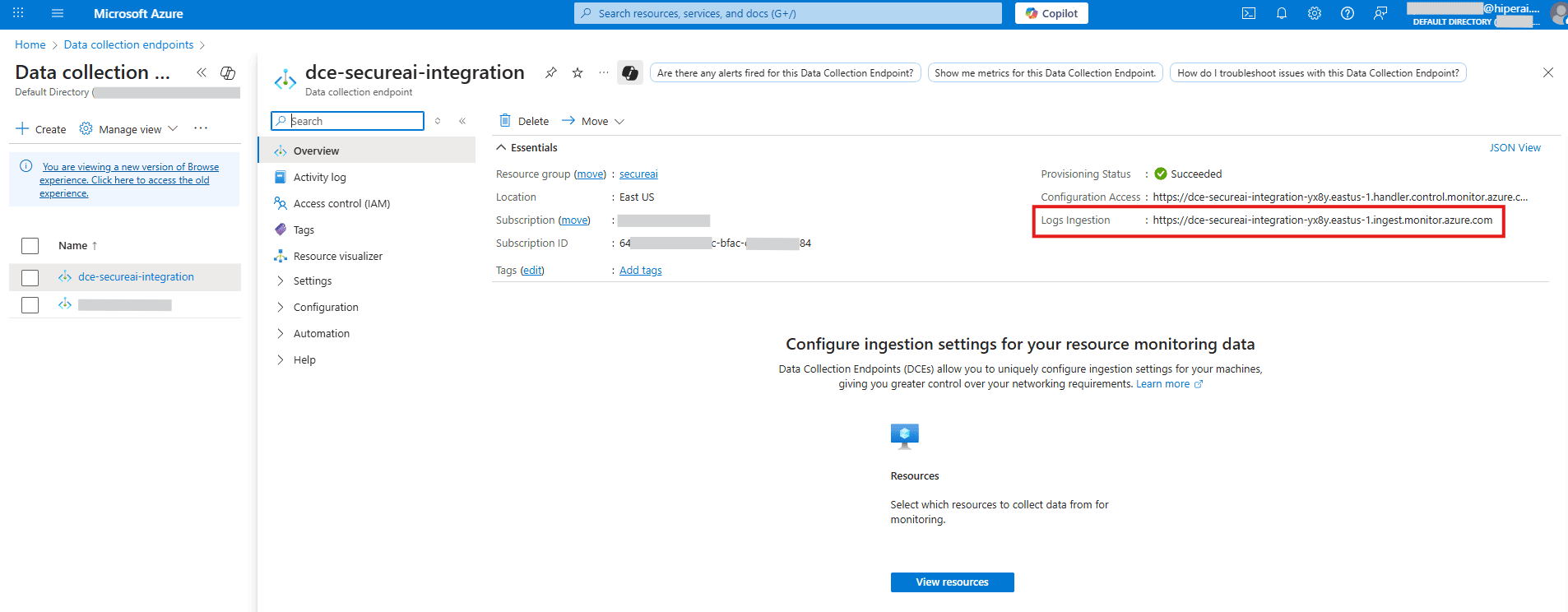
B. Create the Custom Table and Data Collection Rule (DCR)
1. Go to Log Analytics
Navigate to your Log Analytics Workspace.2. Create a Custom Table
On the left menu, click Tables, then + Create, and select New custom log (DCR-based).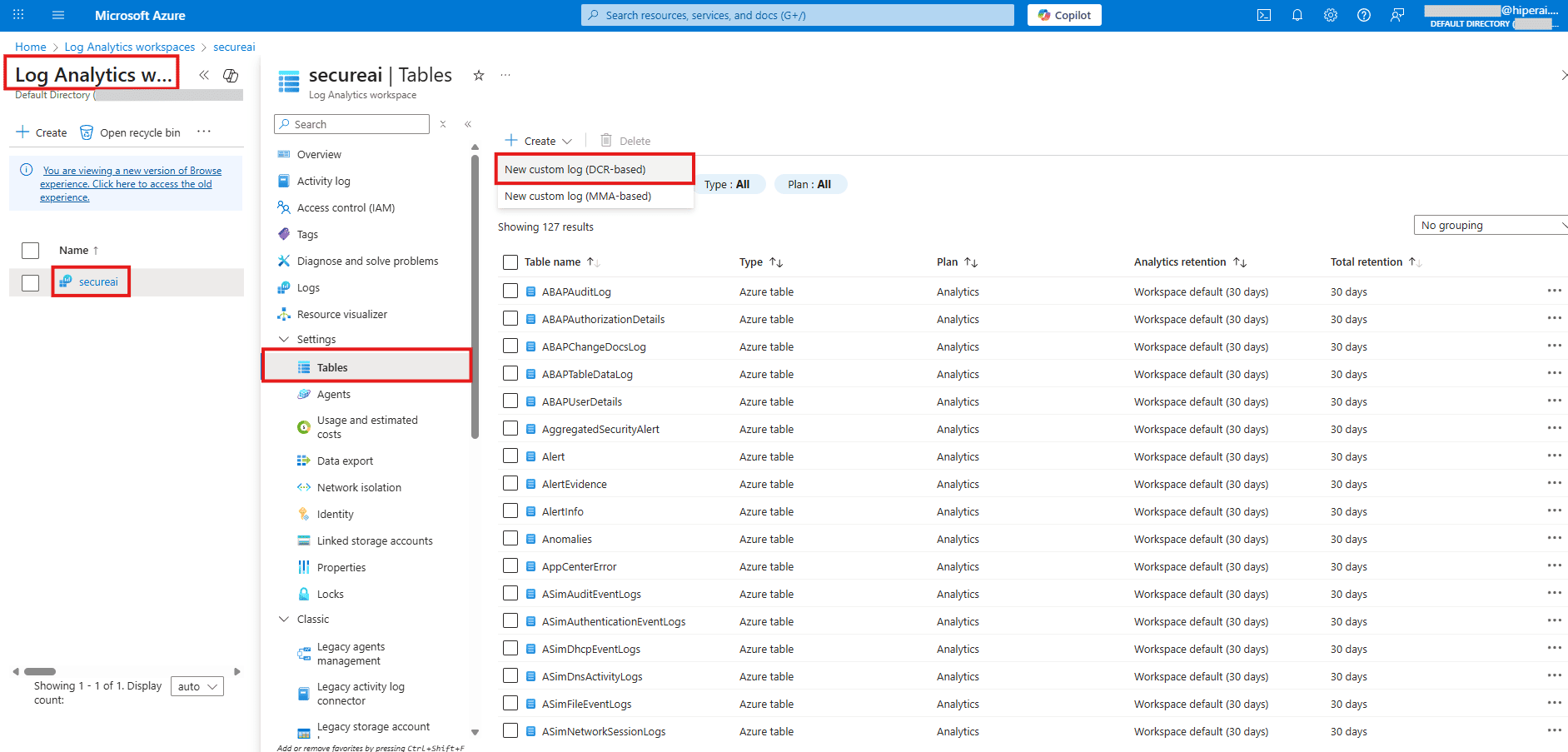
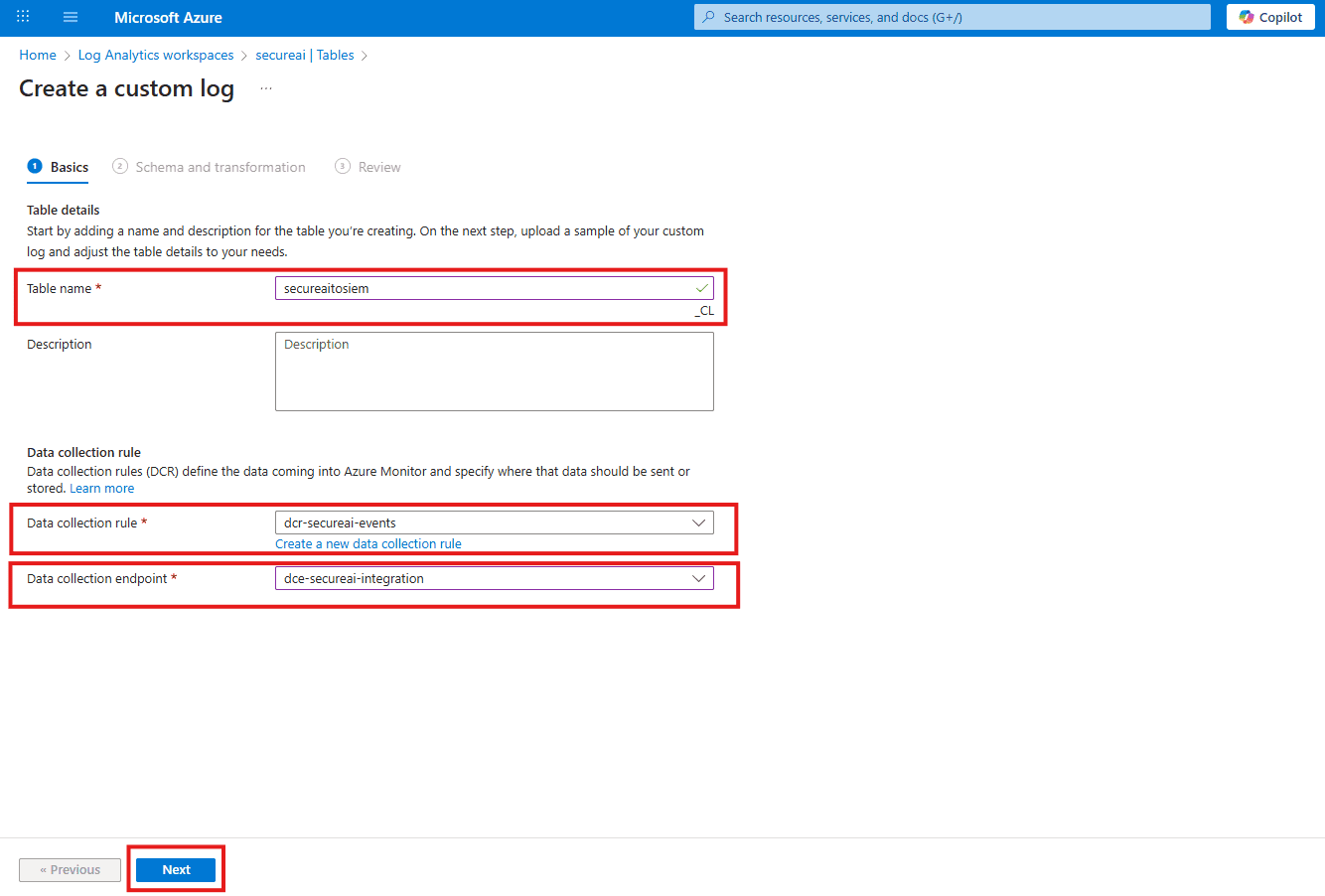
3. “Basics” Tab
- Table name:
secureaitosiem(Azure will automatically append_CL, making the full namesecureaitosiem_CL) - Data collection rule: Select “Create a new…” and name it
dcr-secureai-events
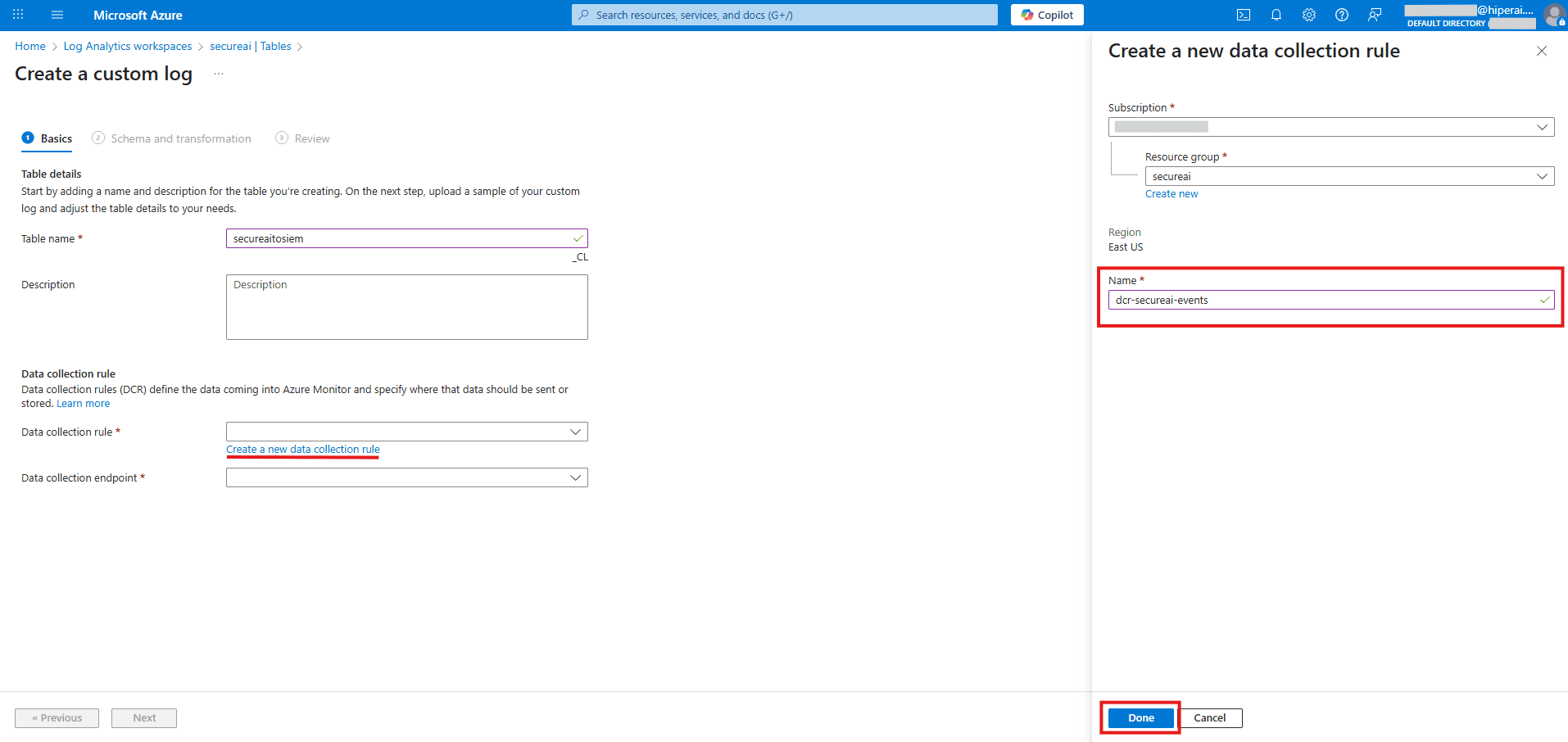
- Data collection endpoint: Select the DCE you created earlier (
dce-secureai-integration) - Click Next: Schema and transformation
4. “Schema and transformation” Tab
Upload a sample file: The system will prompt you. Create a.json file with the following content and upload it:
5. Apply the Transformation
The system may show a warning about the TimeGenerated field. Click the Transformation editor button, delete all existing content, and paste the following complete KQL query: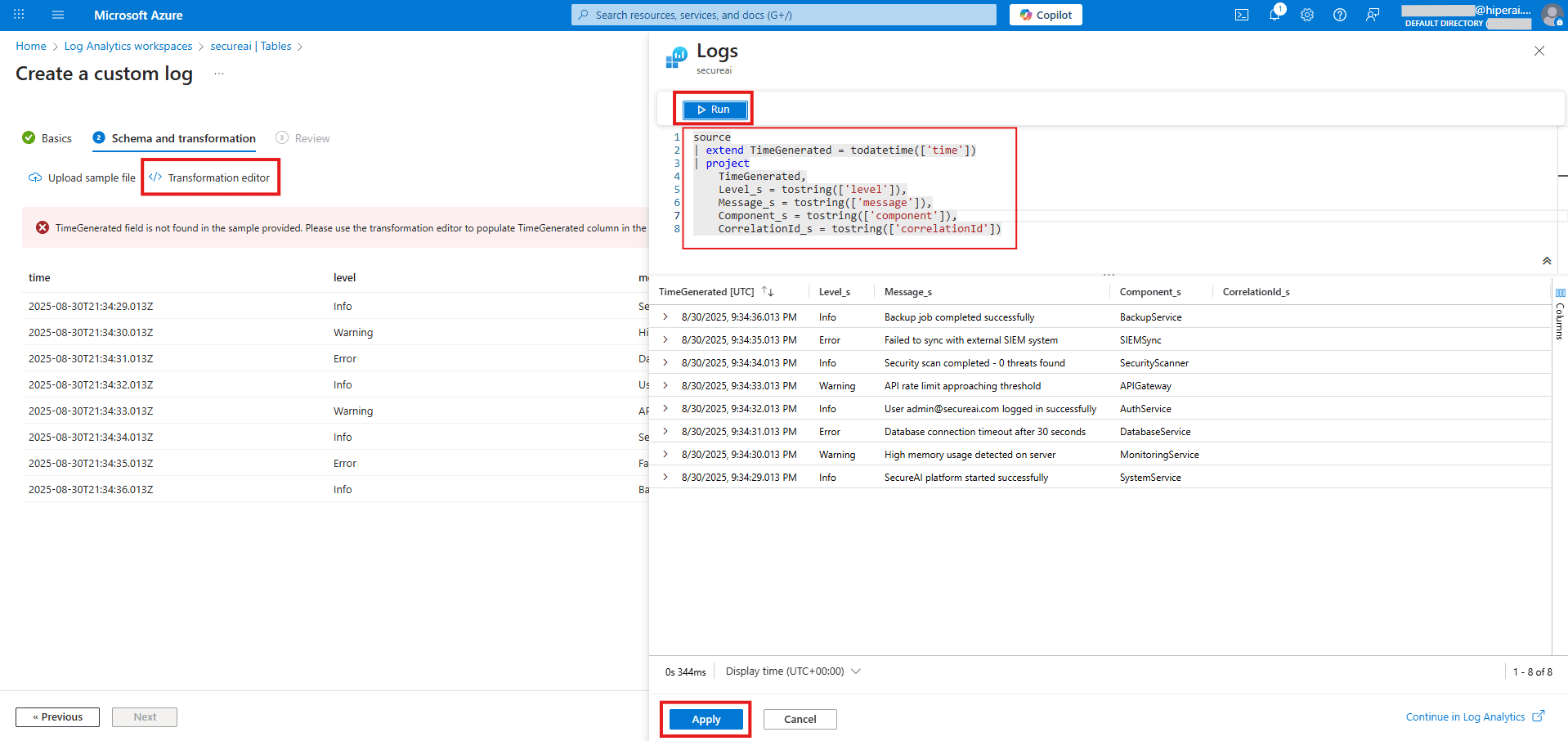
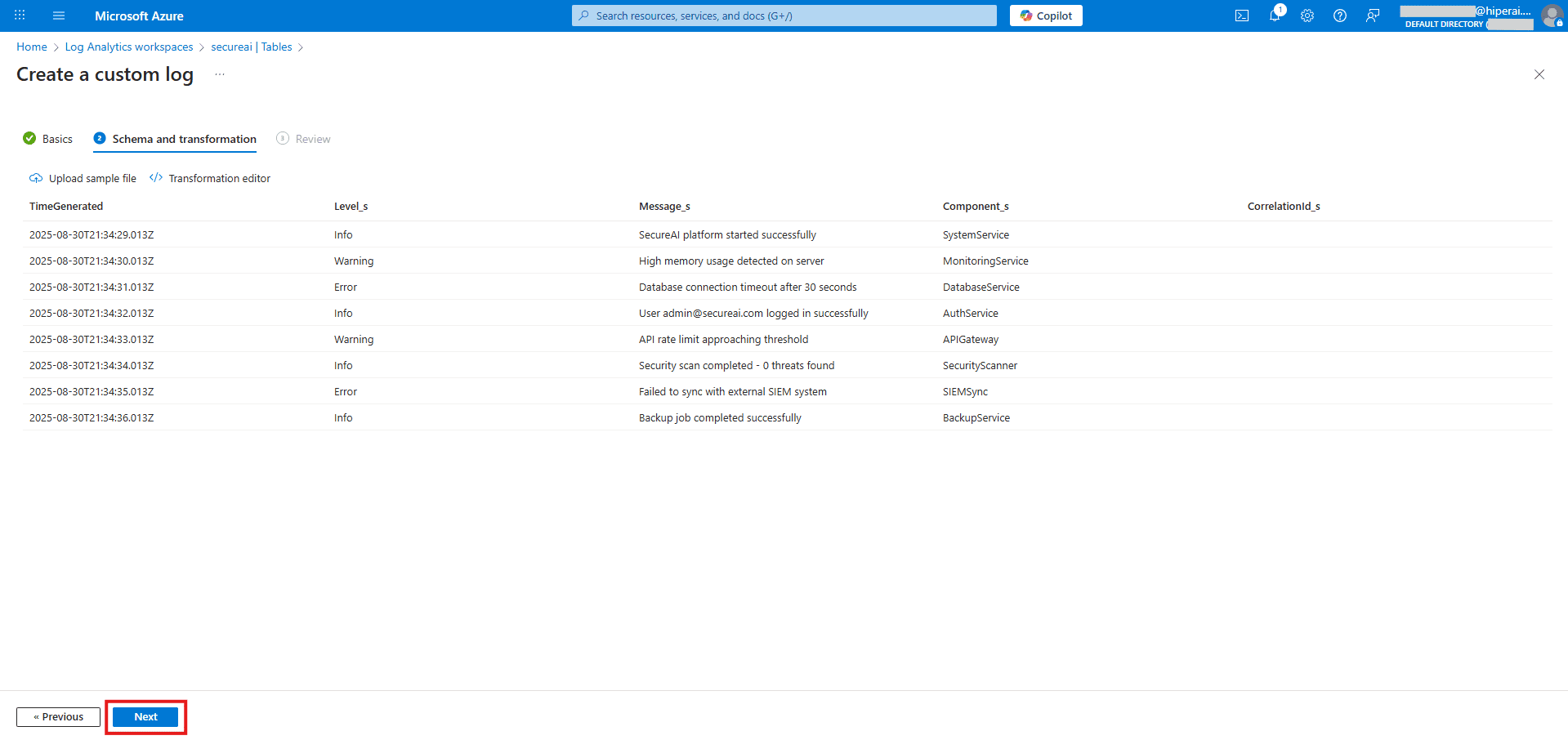
6. Finalize Creation
Click Next: Review + create and then Create.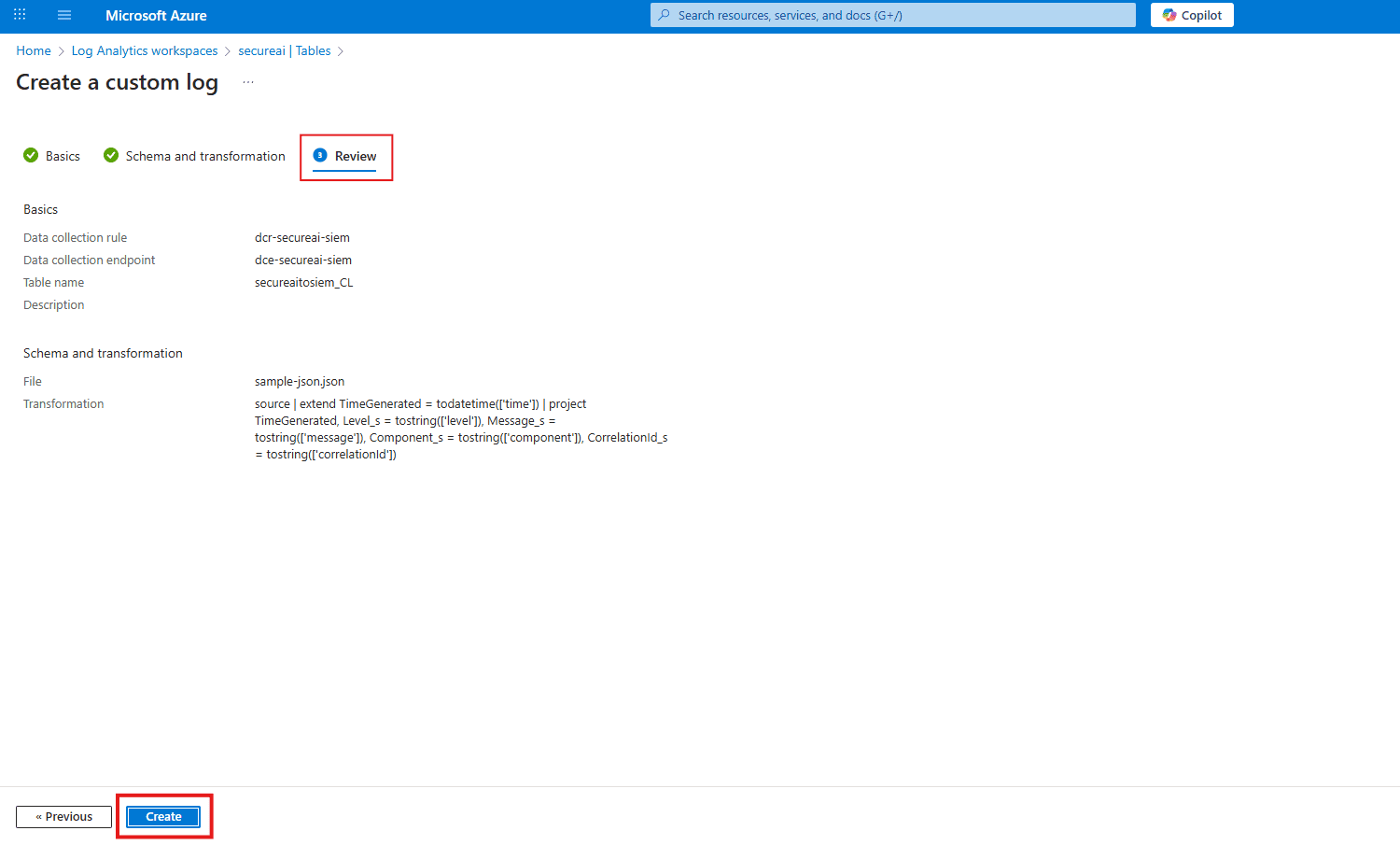
Step 3: Connect the Identity to the Infrastructure (Permissions)
This crucial step grants our application permission to use the data collection rule we just created.A. Go to your new DCR
Search for and open your Data Collection Rule,dcr-secureai-events and in “Overview”, copy the immutable ID and save it for integration.
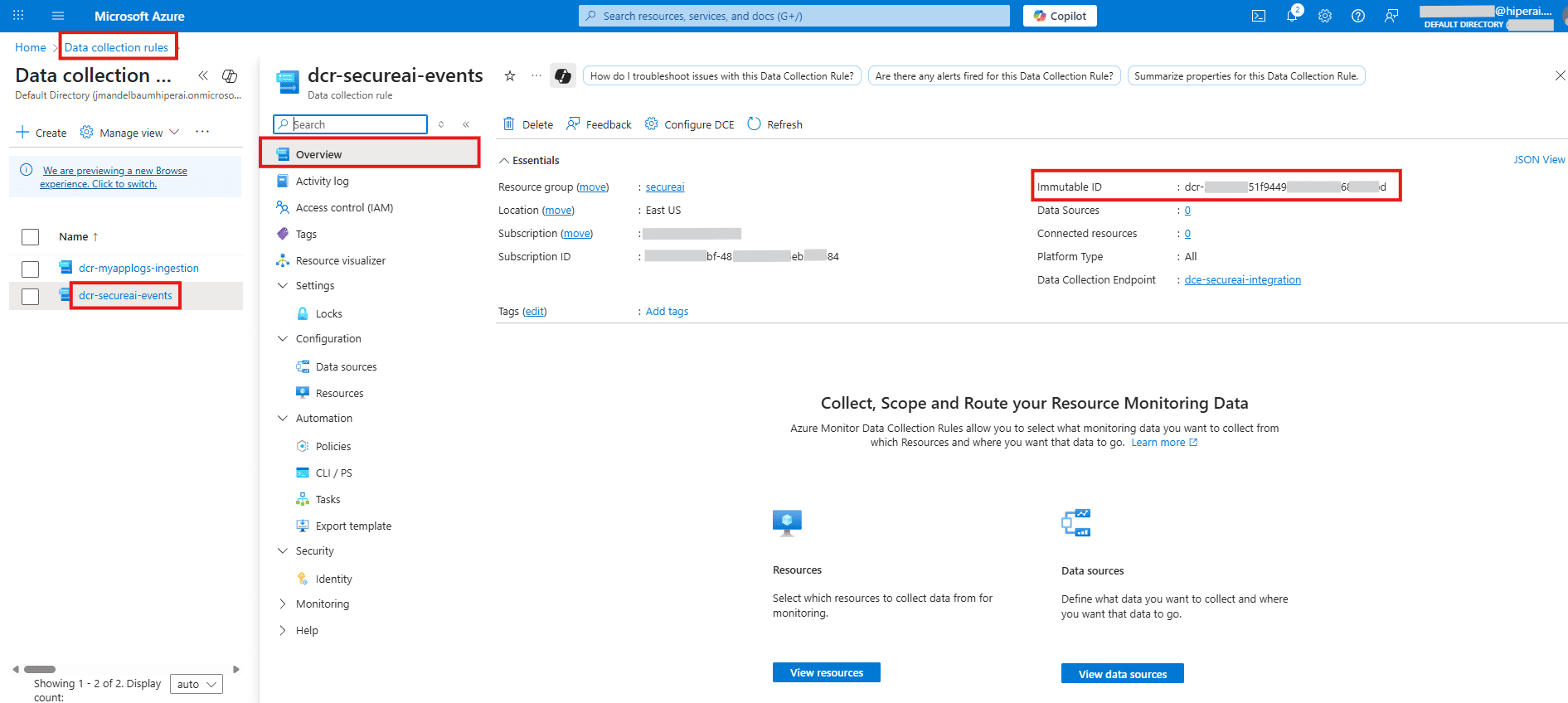
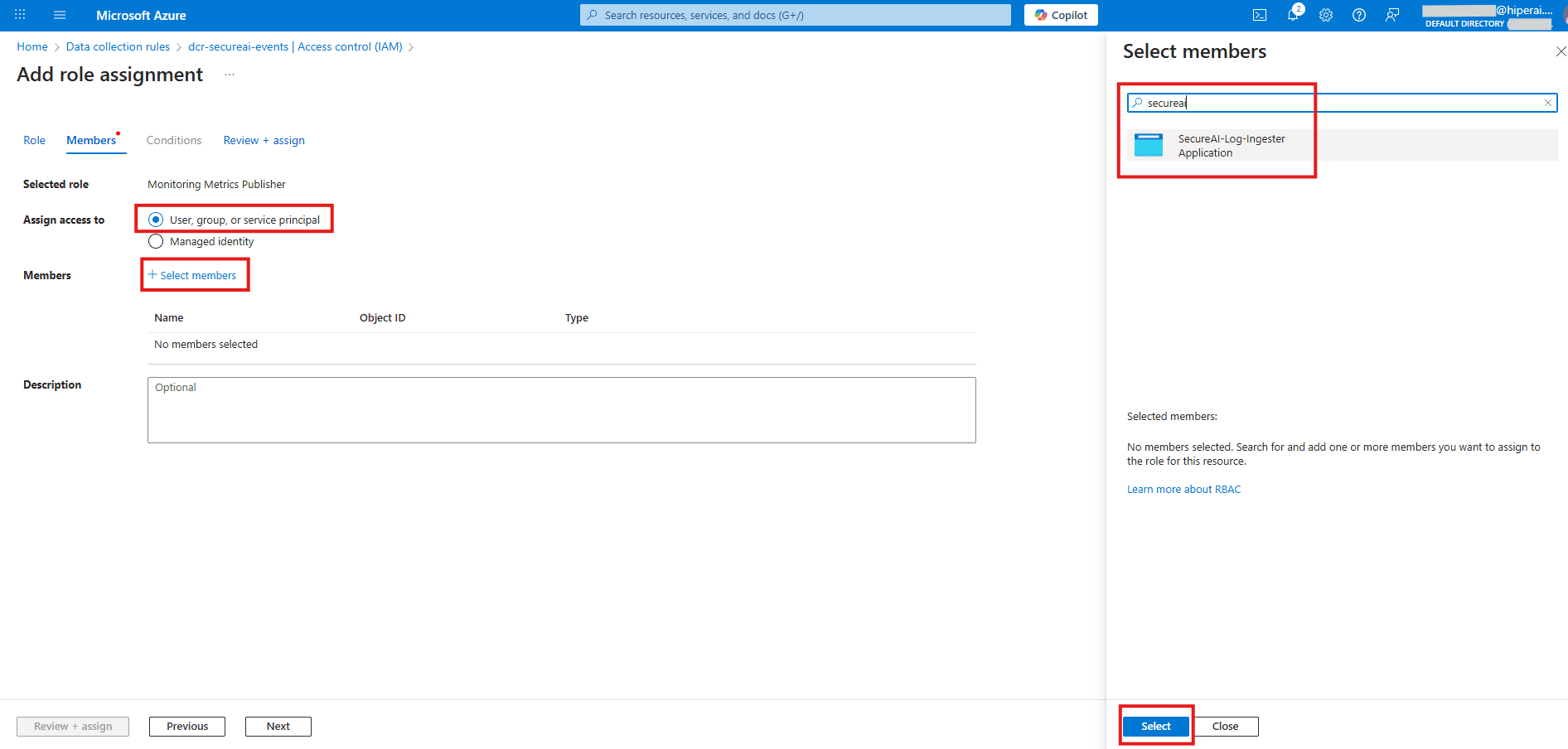
B. Assign the Role
On the left menu, go to Access control (IAM) and click + Add → Add role assignment.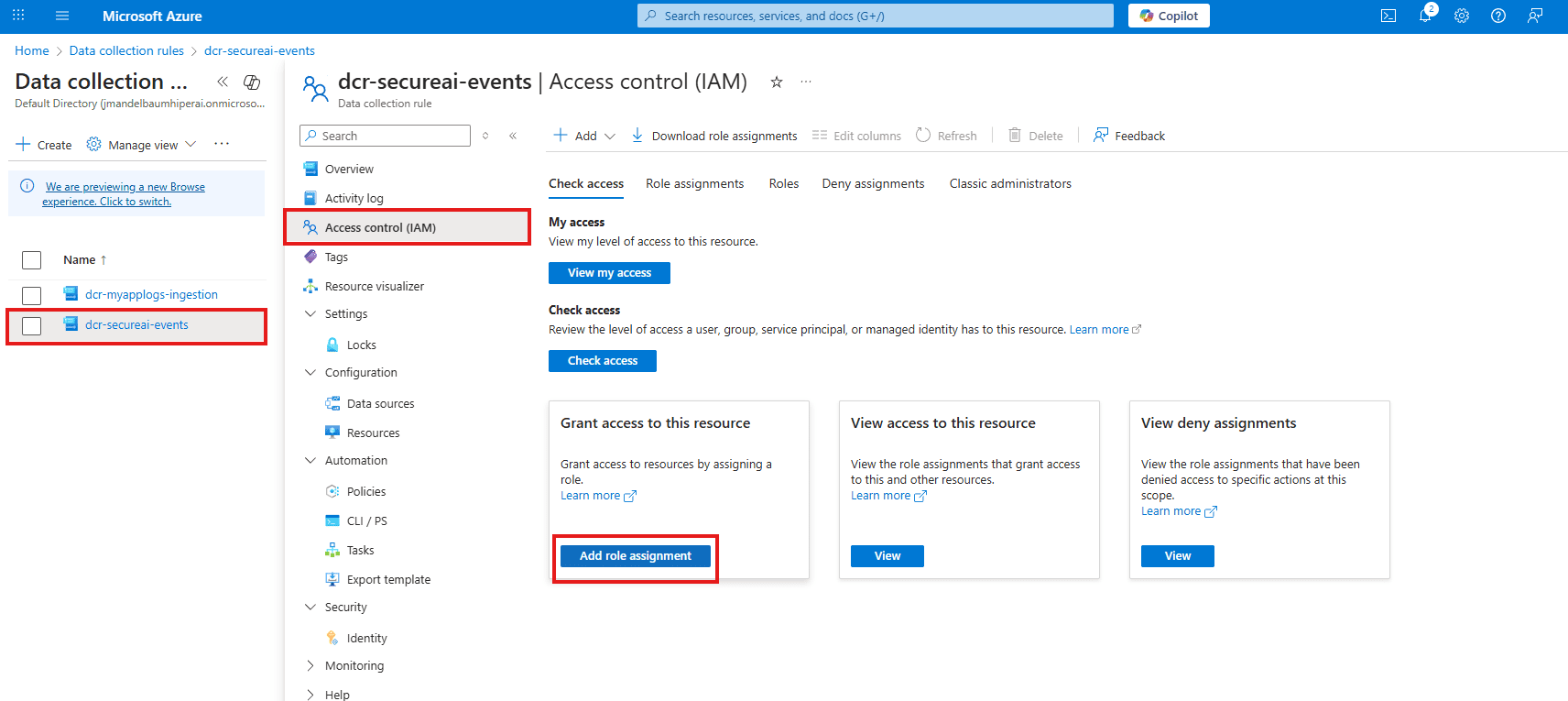
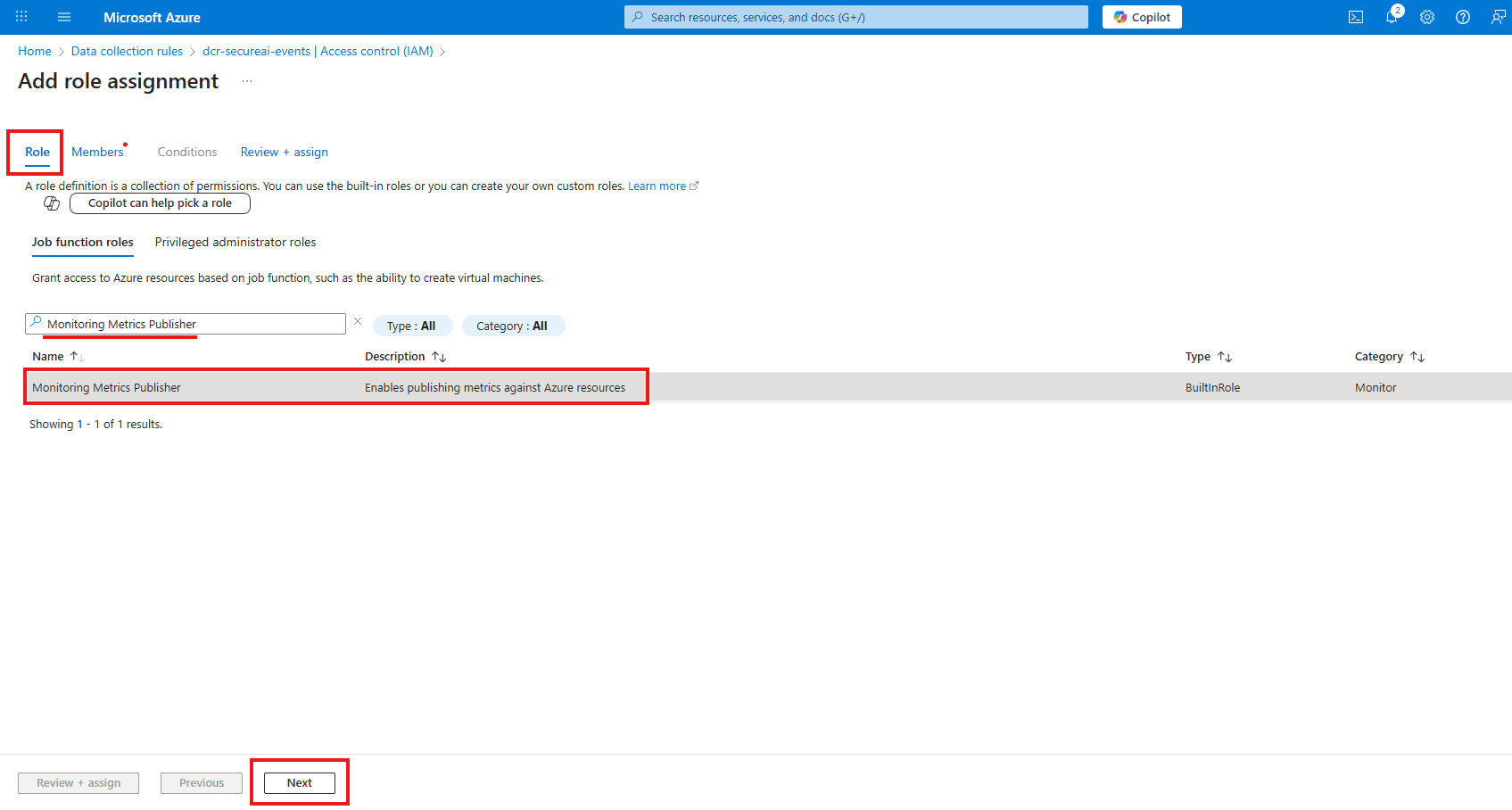
SecureAI-Log-Ingester). Select it.
Step 4: Finalize and Share Information
You’re almost done. Just one final step.A. Gather the Information
To complete the integration, the application needs the following six pieces of information:- Tenant ID: (From Step 1)
- Client ID: (From Step 1)
- Client Secret: (From Step 1)
- DCE URI: (From Step 2A)
- DCR Immutable ID: (Navigate to your DCR
dcr-secureai-eventsand copy this from the JSON View) - Stream Name: This is a constructed value. The format is
Custom-{TableName}. In our case, it will be:Custom-secureaitosiem_CL
B. Configure the Application
Input these 6 values into your application’s configuration settings.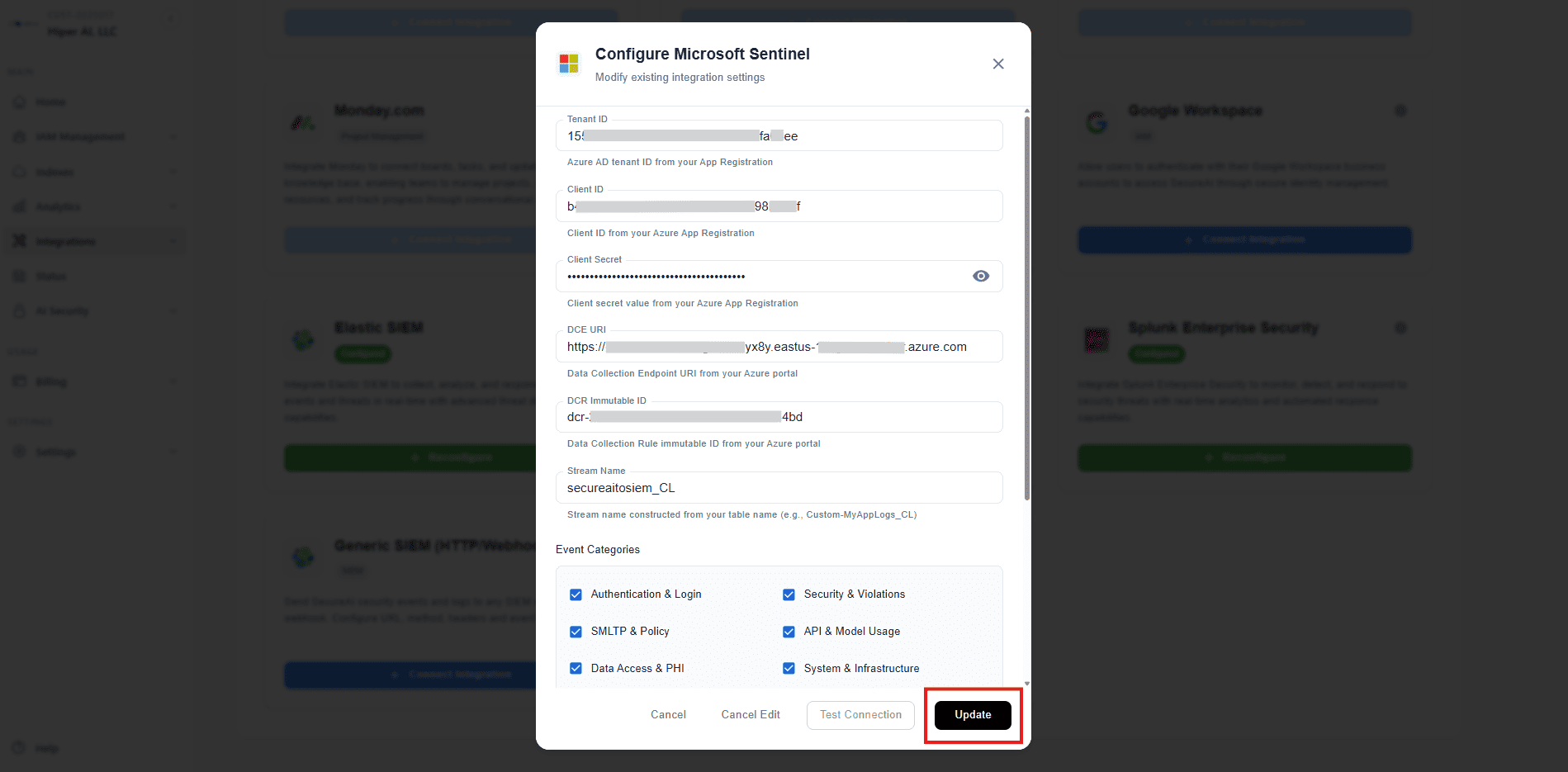
Step 5: Verify the Integration
Once you have entered the integration details into the SecureAI application, you can verify that the connection is working correctly.A. Test the Connection
Use the “Test Connection” button within our application. This will send a test event to your Microsoft Sentinel workspace.B. Find the Test Event in Log Analytics
To see if the event arrived in Microsoft Sentinel, go to your Log Analytics Workspace and click on Logs. Run the following query to see your incoming data:TimeGenerated, Level_s, Message_s, etc.) correctly populated. If so, your integration is a success! ✅