

Google Vertex AI — Inference on your account
With this integration, SecureAI’s large language model (LLM) calls run in your own Google Cloud project instead of on SecureAI-managed providers. Usage is billed directly to your Google account, so you can use your committed spend (CUDs) and negotiated discounts. SecureAI stays in the path of every request: DLP, model policies, data residency, and signed receipts apply exactly as they do with any other provider.Not to be confused with the other Google Cloud card. This page connects Vertex AI as an inference provider (Admin → Integrations → AI providers). The Google Cloud — Discovery card (Cloud category) only inventories the project in read-only mode and never sends a prompt; it is described in Google Cloud — Discovery. You can use both on the same project, but they are independent and ask for different permissions.
What runs on Vertex and what does not
Models available today: Gemini and the open models served as MaaS on Vertex (gpt-oss, DeepSeek, Llama, and Qwen). Claude and Mistral on Vertex are not supported yet; those models are handled according to the fallback setting (see below).
Prerequisites
- A Google Cloud project with billing enabled.
- The Agent Platform API enabled on that project (the
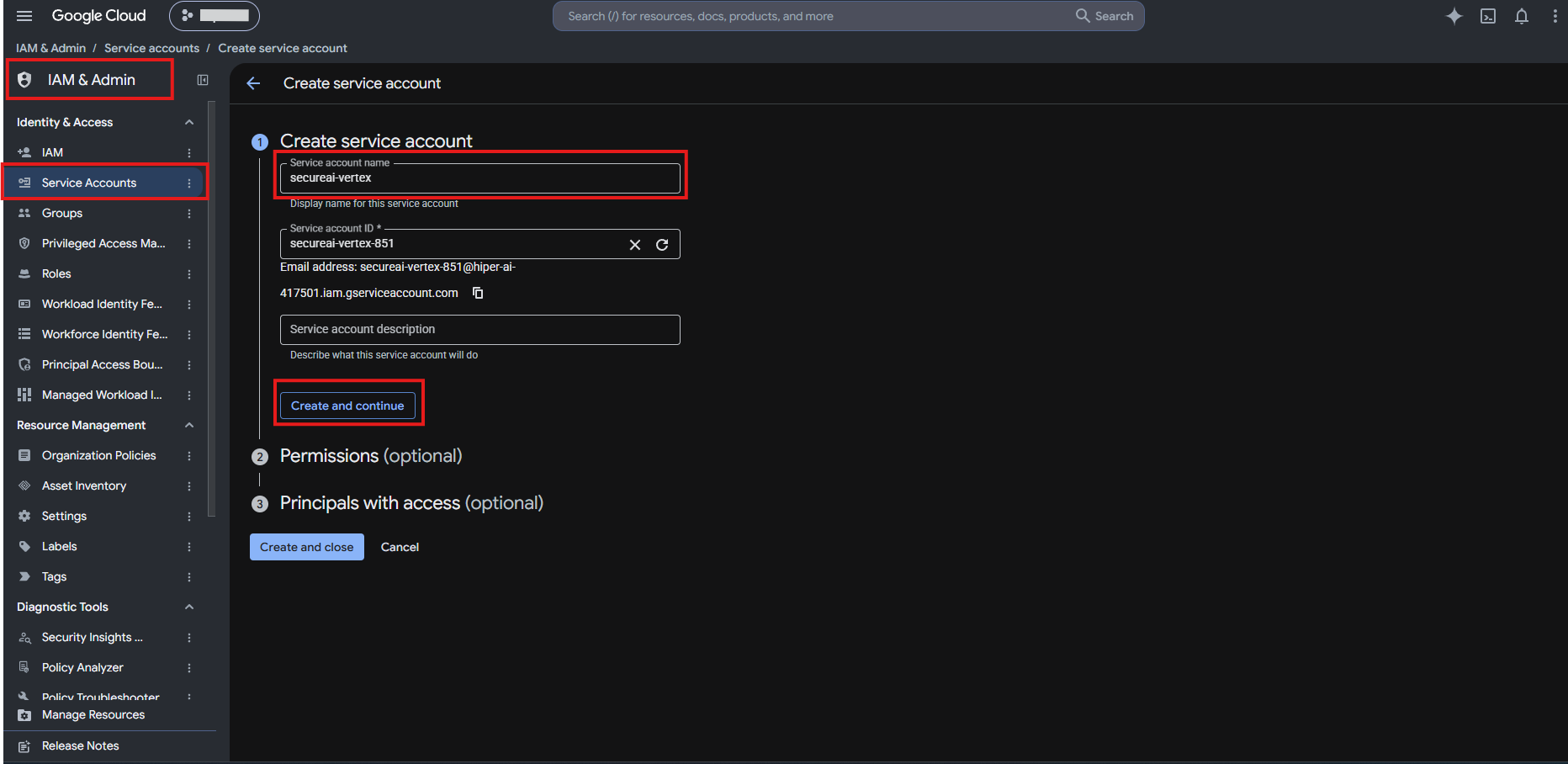
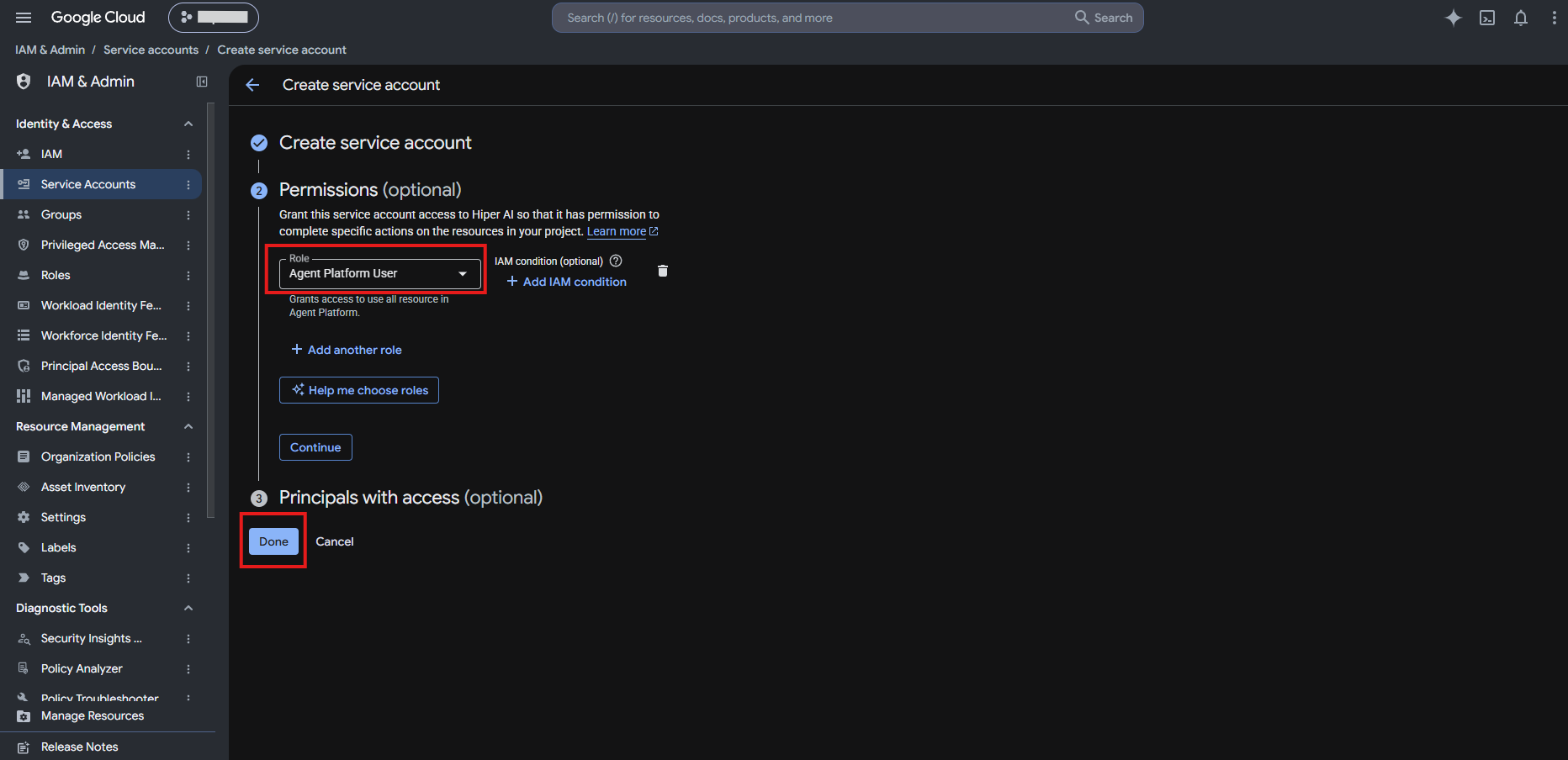
aiplatform.googleapis.comservice). - A service account in your project with the Agent Platform User role (
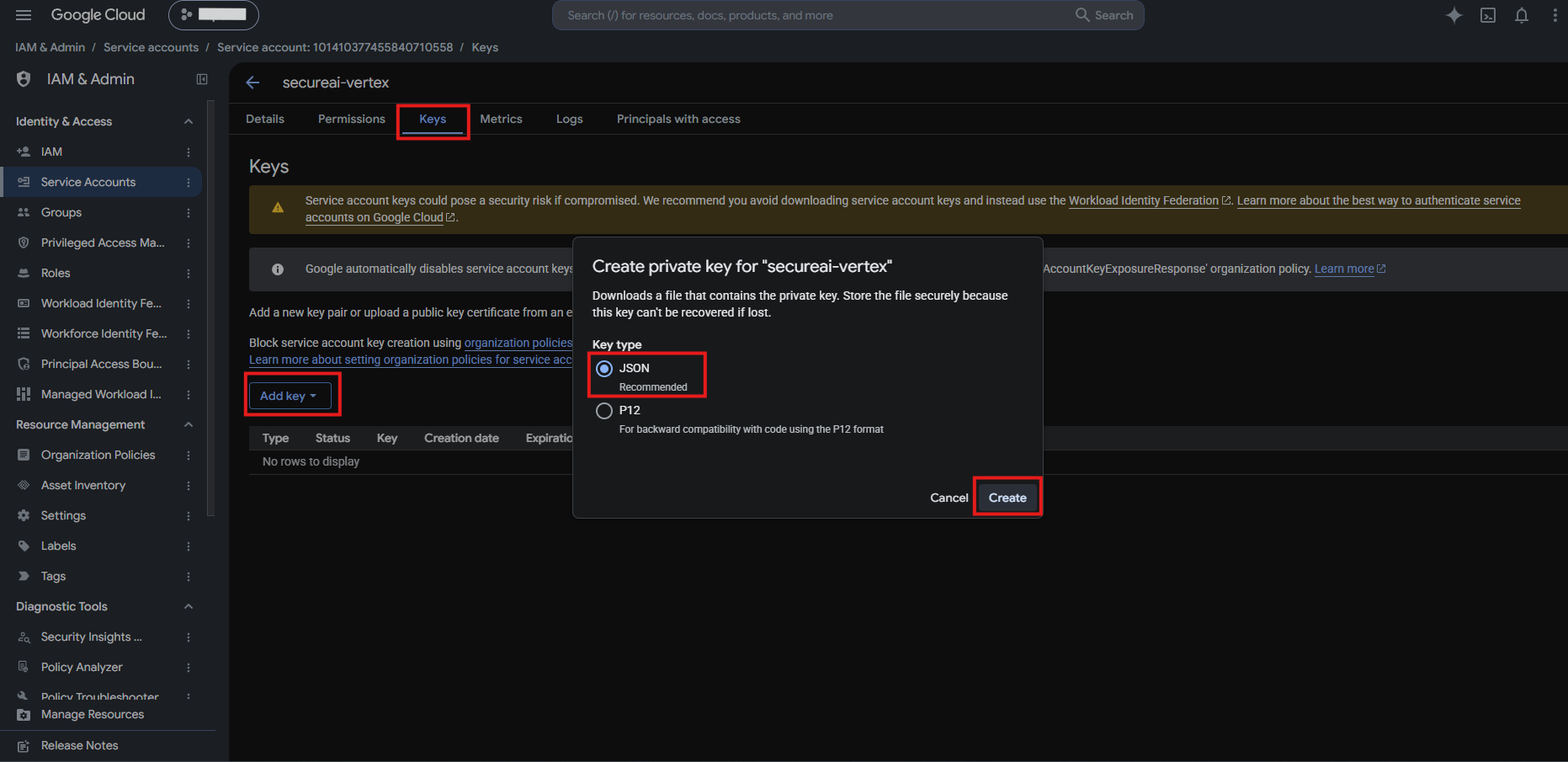
roles/aiplatform.user) and a JSON key for that account. - Admin permission on the Integrations section of SecureAI. With read permission you can view the configuration but not change it.
Step 1. Prepare the project in Google Cloud
You can do it from the command line (quick) or from the console (with screenshots).- gcloud (Cloud Shell)
- Google Cloud console
From Cloud Shell or with
gcloud installed. Replace MY_PROJECT with the real project ID: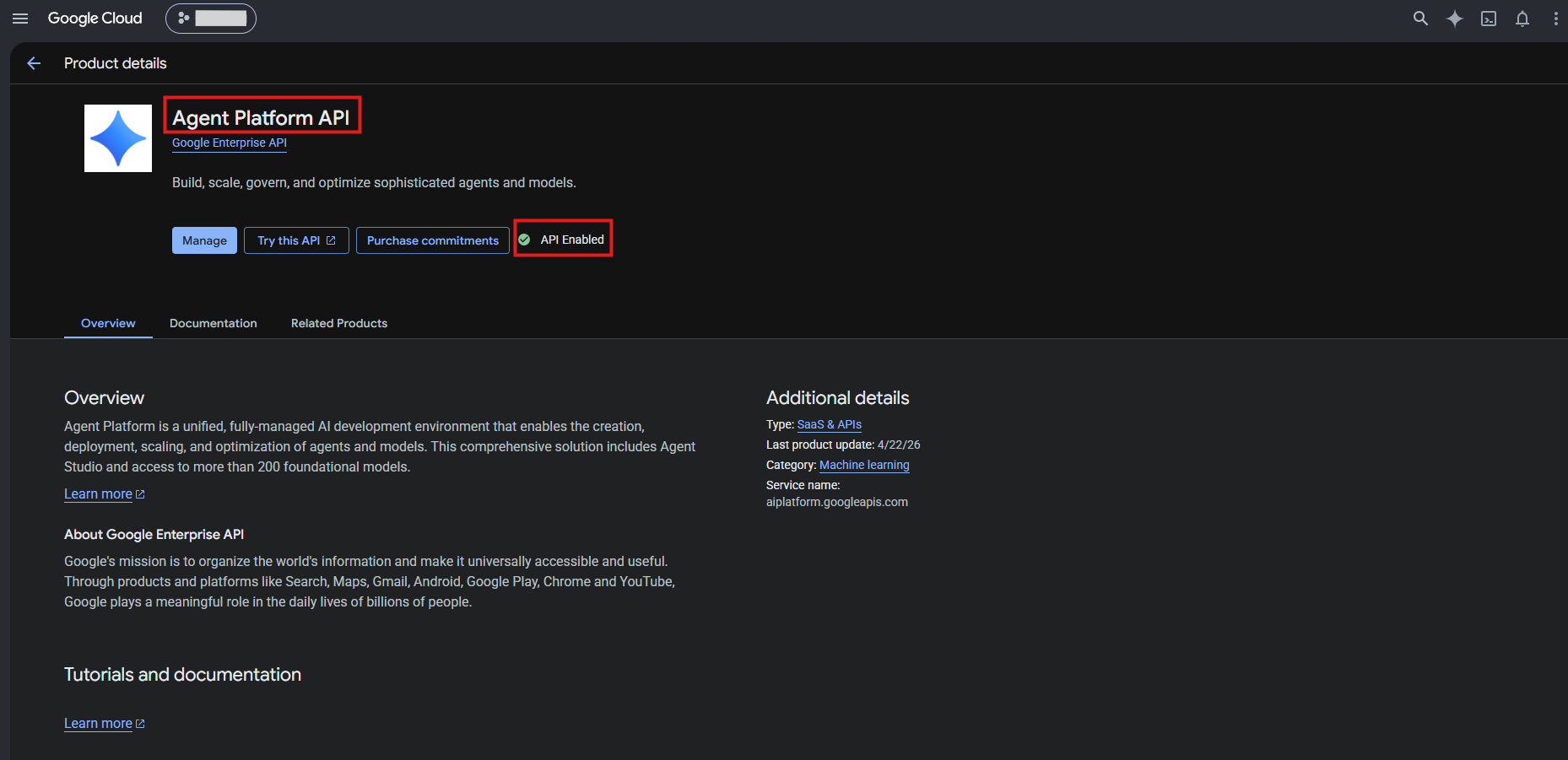
Open models (Llama, DeepSeek, Qwen, gpt-oss)
Gemini needs nothing more. To also use Llama, DeepSeek, Qwen, or gpt-oss, first accept each model’s terms in Vertex AI → Model Garden. These open models need a specific region (for exampleus-central1); with global they may not be available.
Step 2. Connect the project in SecureAI
- Go to Admin → Integrations, open the AI providers category, and click the Google Vertex AI — Inference on your account card.
-
Under Connection, fill in:
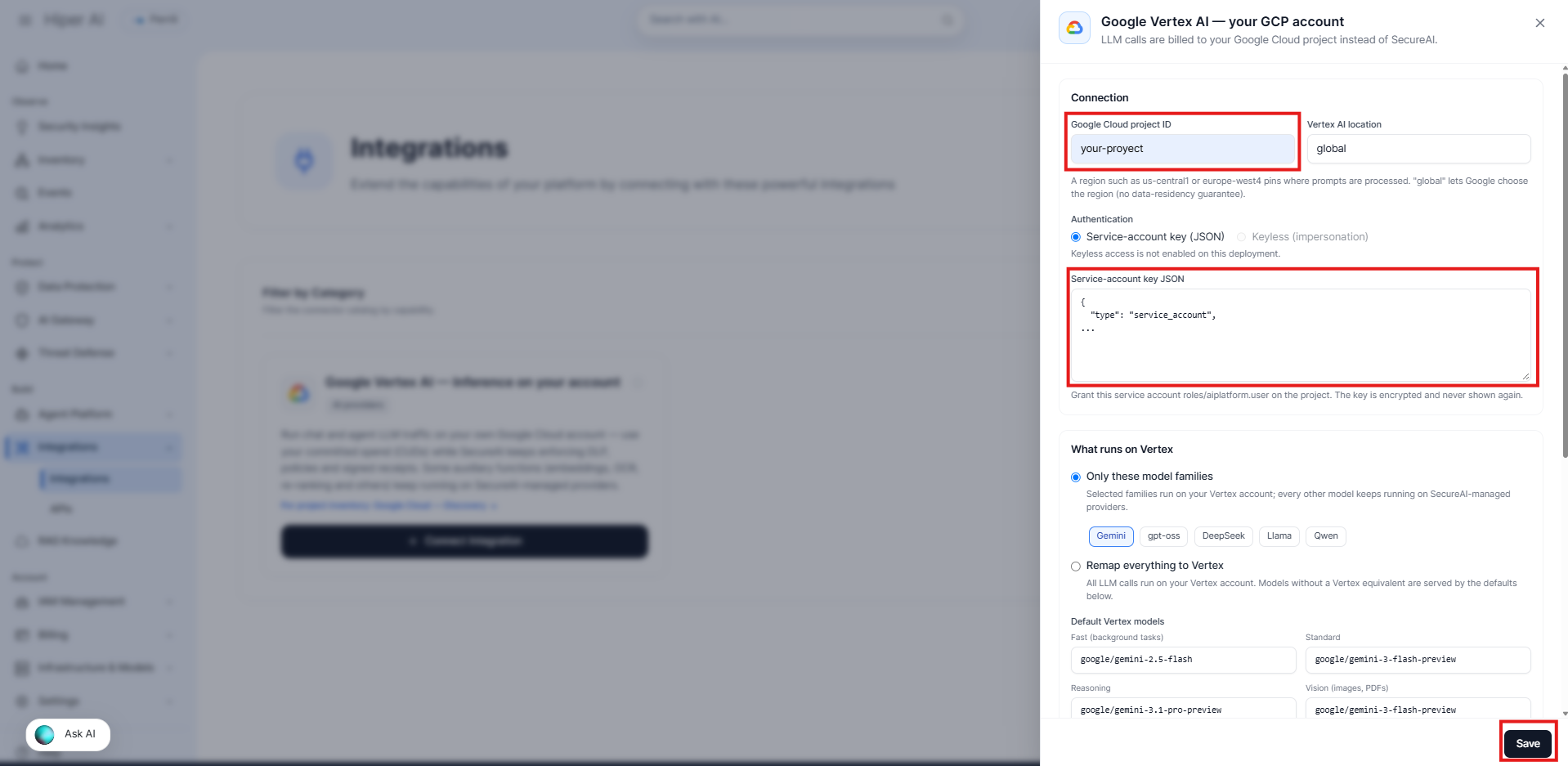
- Click Save. No traffic is routed yet: the integration is saved turned off so you can test it first.
Recommendation for day one: keep the Only these model families mode with Gemini only, the default models unchanged, and fallback and quotas off. It is the most predictable setup. Leave Remap everything for when this has been validated.
The pasted key is never shown again. To replace it, paste a new one; if you leave the field empty when saving, the current key is kept.
Step 3. Choose what runs on Vertex
Under What runs on Vertex there are two modes:- Only these model families — the families you tick (Gemini, gpt-oss, DeepSeek, Llama, Qwen) run on your Vertex; every other model keeps running on SecureAI’s providers. This is the most conservative way to start (default: Gemini only).
- Remap everything to Vertex — all LLM calls run on your Vertex. Models with no Vertex equivalent are served by a default model.
There are also two options:
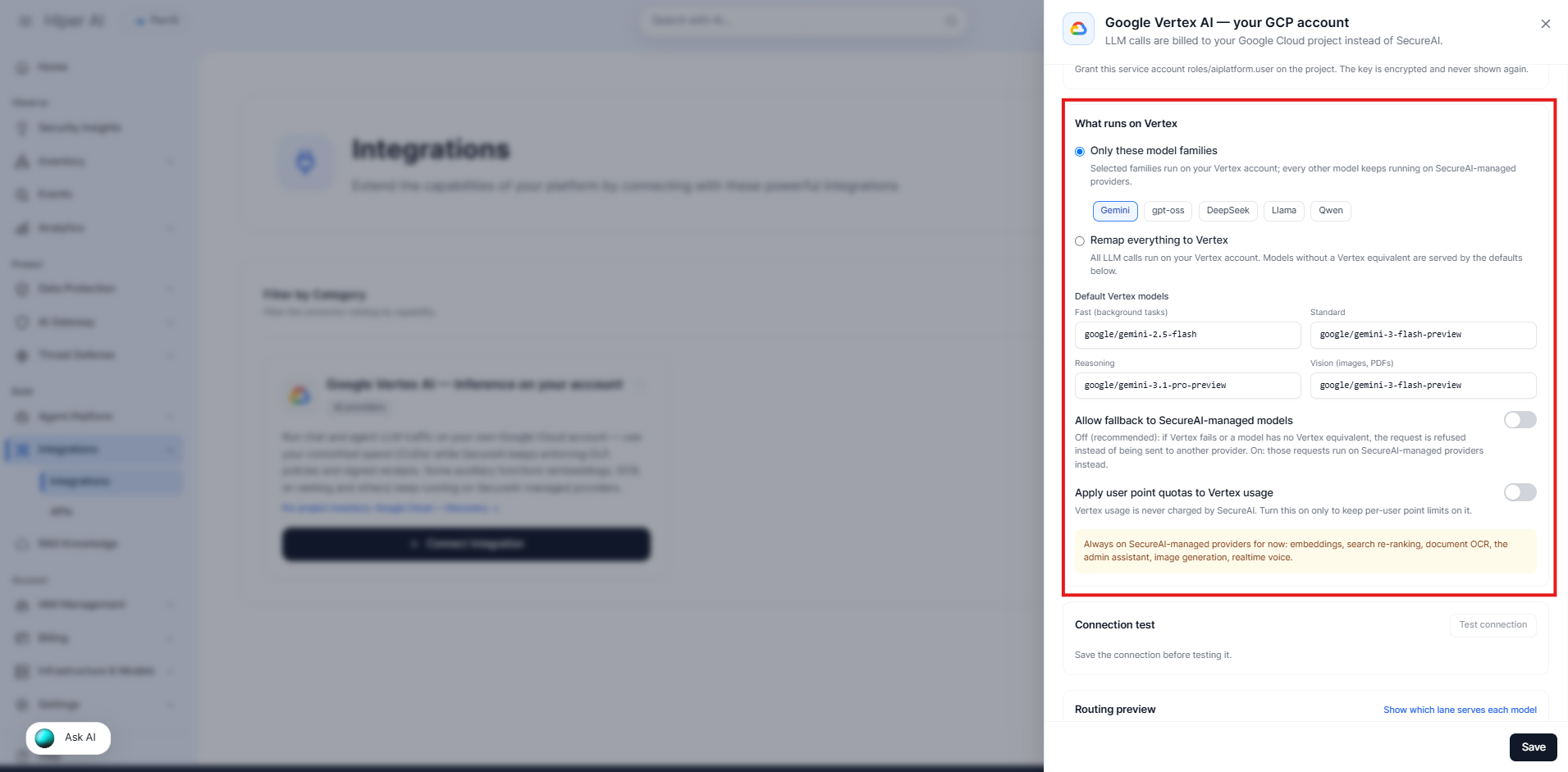
Available models depend on the location. The default models (several of them preview) may not exist in every region. If the connection test returns Model not available in this location, choose another region or replace the default models with ones your region serves. Open models (MaaS) require accepting their terms in Vertex AI Model Garden and a specific region.
Step 4. Test the connection
- With the integration saved, under Connection test click Test connection.
-
SecureAI sends a minimal request to each default model, through the same path real traffic will use (gateway, policies, and receipts included), and shows each result with its latency.
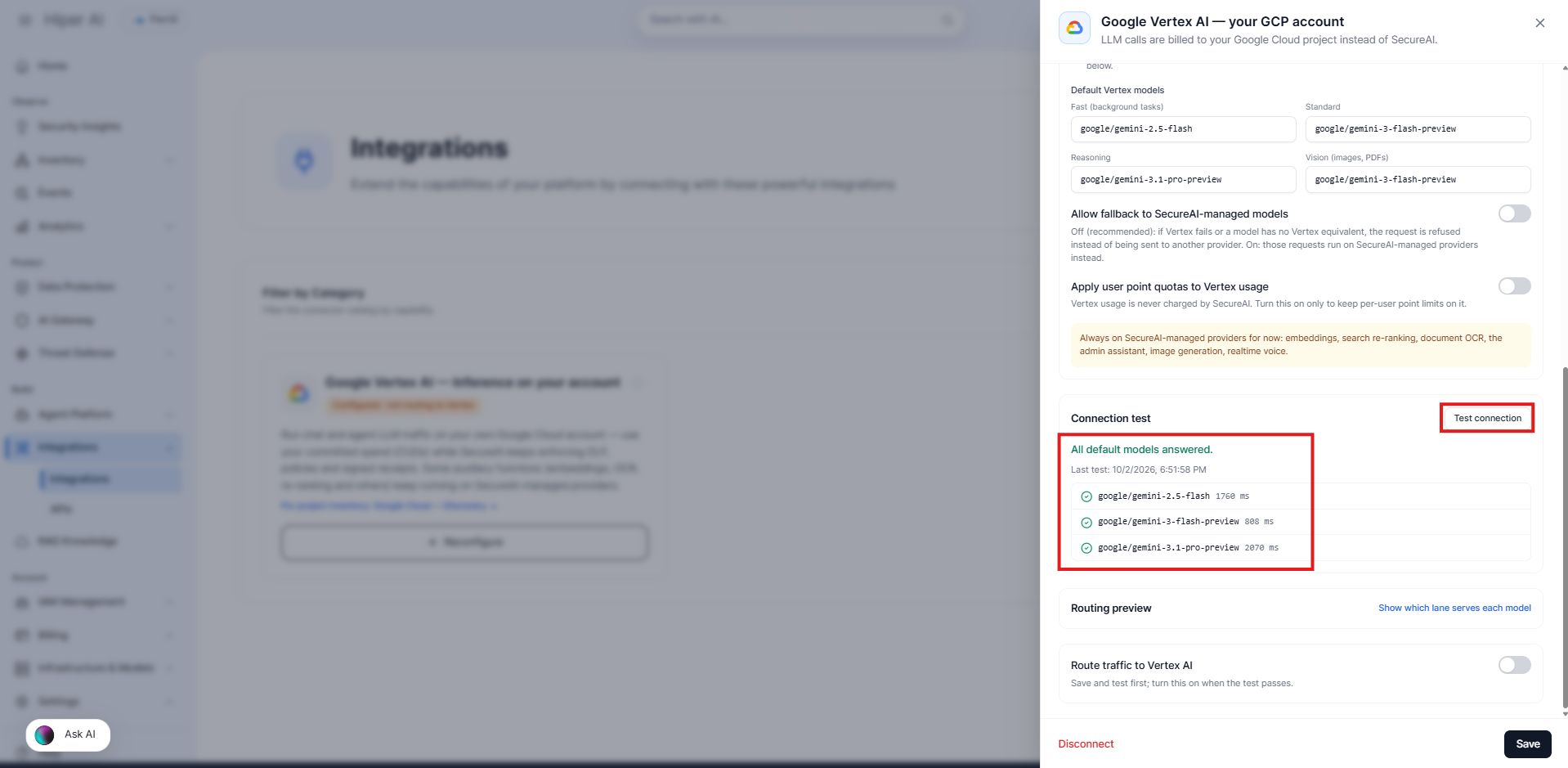
- If a model fails, the panel shows the reason. See the Troubleshooting section at the end of this page.
The test sends a few one-token requests and is billed to your Google account (cents).
Step 5. Review the routing and turn it on
- Open Routing preview → Show which lane serves each model. For every catalog model it shows whether your Vertex will serve it (and with which Vertex model) or SecureAI will, and which ones will be hidden from users. The preview simulates the integration being on, so you can review the effect before enabling it.
-
When the test passes, turn on Route traffic to Vertex AI and click Save again. If you do not save, the switch does not stay on. To turn it on, a project and a credential must be configured.
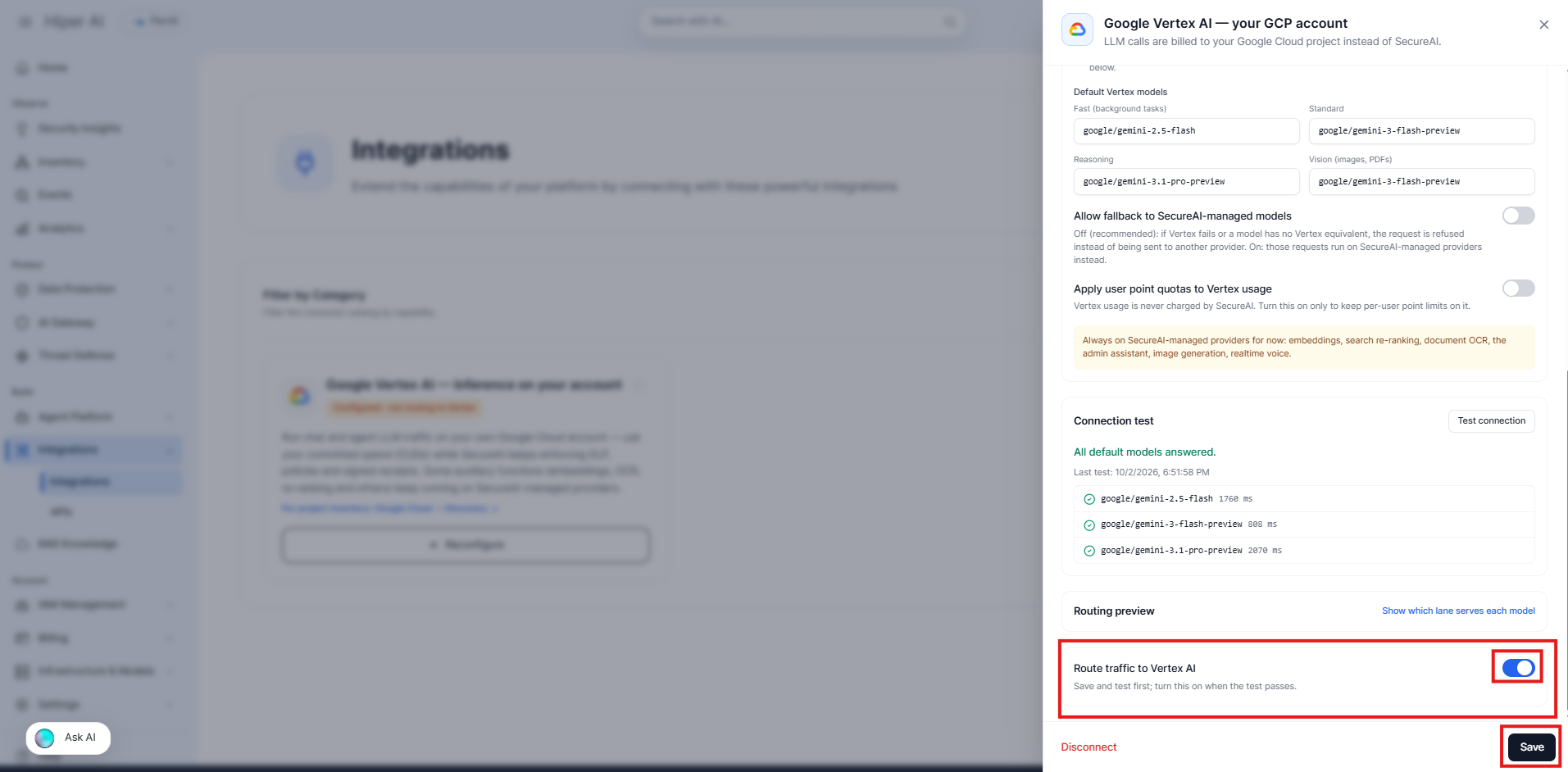
- The card turns green: Routing to Vertex. If it is saved but off, it shows amber Configured · not routing to Vertex.
Step 6. Verify in the model selector
When the integration is active, models that run on your Vertex show the Google Cloud logo next to their name in the chat model selector. Hovering it says the model runs on your organization’s Vertex AI account.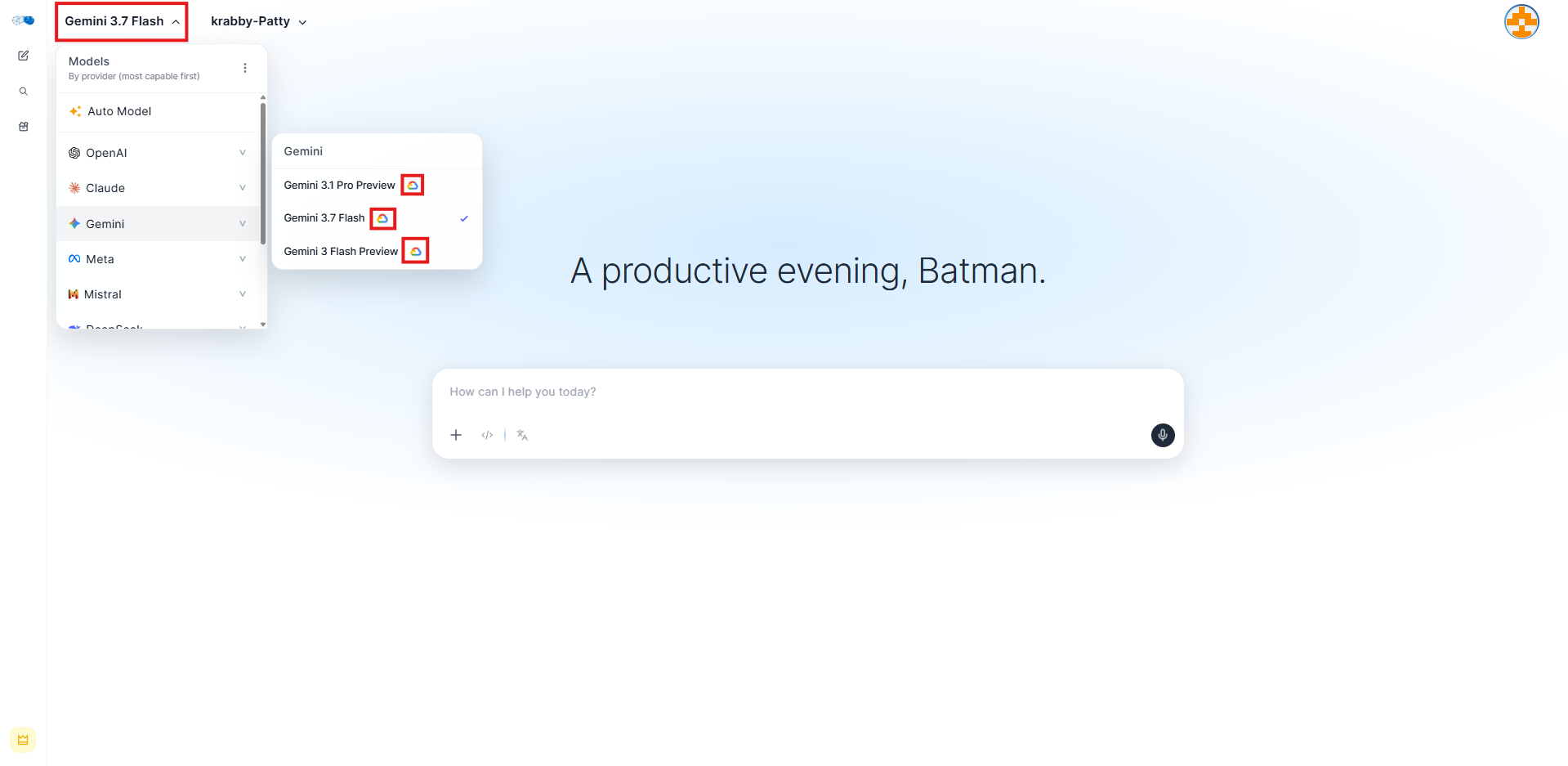
What is billed, and to whom
- LLM usage is billed by Google to your account, not by SecureAI. You will see the charge in your Google Cloud billing, with your discounts and CUDs applied.
- SecureAI shows the cost of turns served on Vertex as a list-price estimate for analytics only. It is a reference: it does not include your discounts, so Google’s actual figure may be lower.
- Turns on Vertex do not deduct points from users, unless you turn on Apply user point quotas.
Security and compliance
- Encrypted credentials. The service-account key is stored encrypted (AES-256-GCM) and is never returned to the browser, not even to an administrator. The screen only shows the account’s email.
- The path stays protected. Every call goes through SecureAI’s SMLTP gateway: DLP, a signed per-request authorization token, and a verifiable signed receipt.
- Data residency. With a pinned region (for example
europe-west4), prompts are processed in that region and your organization’s residency policies apply. - Fails closed. If the configuration cannot be read or Google’s token cannot be obtained, the request is refused; it is not sent to another provider unless you allowed fallback.
- Audit. Saving, testing, or disconnecting the integration is recorded in the activity log, with the names of the fields changed and never the key.
- Minimal permissions.
roles/aiplatform.useris enough for inference; the integration does not need to read your IAM or billing.
Disconnect
Disconnect (panel footer) deletes the configuration and the stored key. From that moment, all traffic returns to SecureAI-managed providers. You can also turn off only the Route traffic to Vertex AI switch to pause routing while keeping the connection. If you stop using the key, also revoke it in Google Cloud (Service Accounts → Keys).Troubleshooting
These are the reasons Test connection can show:
Errors users may see in the chat:
Current limitations
- Claude and Mistral on Vertex are not supported (they use a different API).
- Embeddings, re-ranking, OCR, the admin assistant, image generation, and realtime voice stay on SecureAI-managed providers.
- One connection per organization (one project and one location at a time).
- Authentication is by service-account JSON key only.
- The Claude Code proxy uses Anthropic directly and does not go through Vertex.
Related
- Google Cloud — Discovery — inventory of the project’s agents, models, identities, and costs.
- Cloud AI Providers Overview
- Signed receipts