

Microsoft Entra ID (SSO) Integration
With this integration, your organization’s users sign in to SecureAI with their Microsoft work account (the Continue with Microsoft button). Setup is self-serve: an administrator in your organization registers SecureAI in your own Microsoft Entra ID tenant (formerly Azure Active Directory) and enters the details in Admin → Integrations. There is no ticket to open and nothing to wait for from Hiper AI: the button appears on your login page as soon as you save. Estimated time: 10 minutes.Prerequisites
- A Microsoft Entra role that can create app registrations (for example Application Developer or Application Administrator). Granting admin consent (step 4) requires Cloud Application Administrator, Application Administrator or Global Administrator.
- Administrator access to SecureAI, with Admin permission on the Integrations section.
How it works
- You create an app registration in your Entra ID tenant. SecureAI uses OpenID Connect (authorization code flow) with a client secret.
- In SecureAI you enter the Directory (tenant) ID, the Application (client) ID and the client secret value. The secret is stored encrypted and is never shown again.
- When a user clicks Continue with Microsoft, Microsoft authenticates them (with your MFA and Conditional Access policies) and SecureAI lets them in if their email matches an active SecureAI account.
common / organizations) are never used.
Step 1: Copy the redirect URI from SecureAI
- Sign in to SecureAI as an administrator.
- Go to Admin → Integrations and filter by the IAM category.
- On the Microsoft Entra ID (SSO) card, click Connect Integration (or Reconfigure, if the card says Configured by Hiper AI).
- In section 1. Register SecureAI in Microsoft Entra ID, click Copy next to the Redirect URI.
https://.
Keep this window open; you will come back to paste the details.
Step 2: Register the application in Microsoft Entra ID
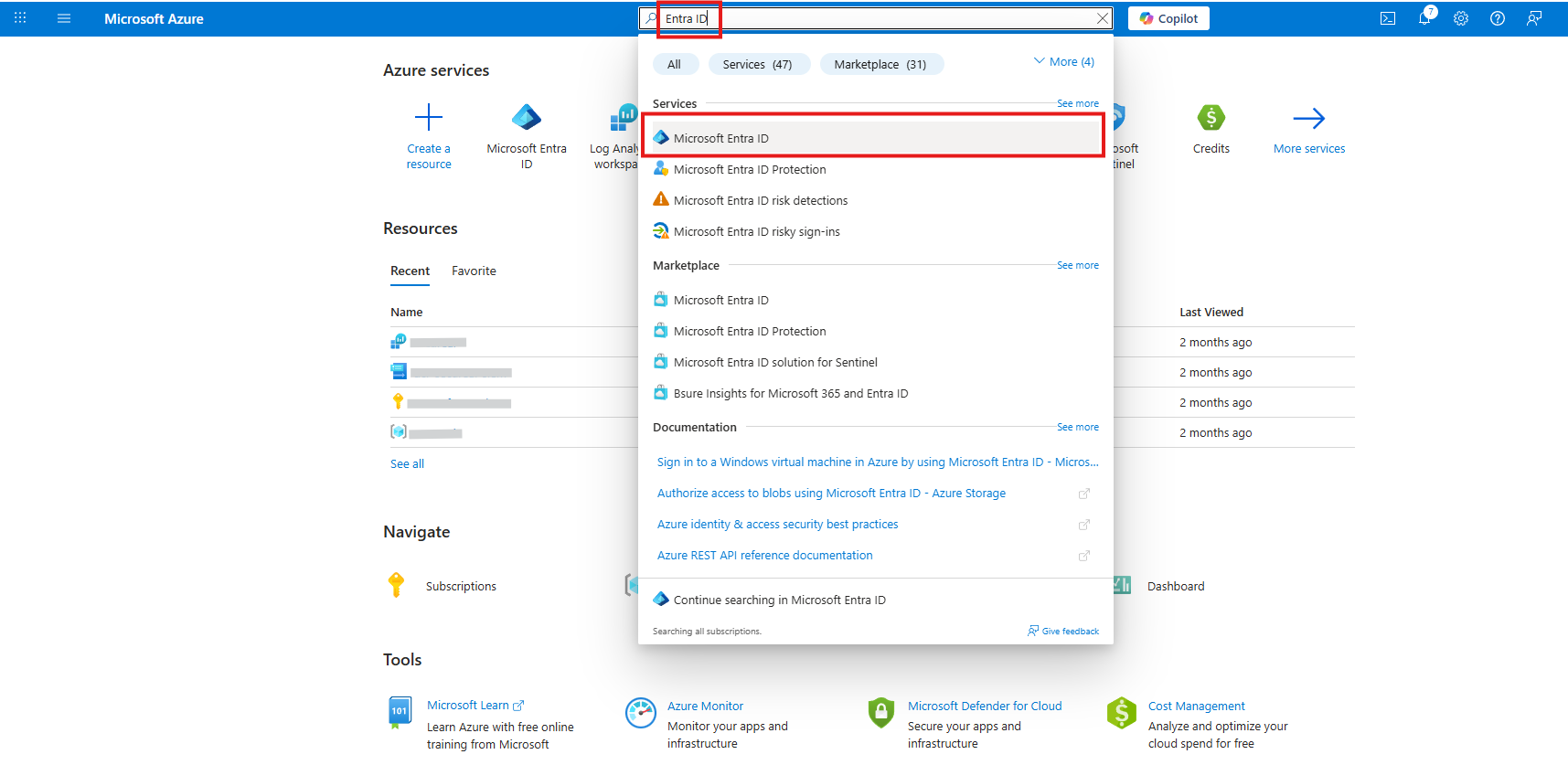
- Open the Microsoft Entra admin center (or the Azure portal → Microsoft Entra ID).
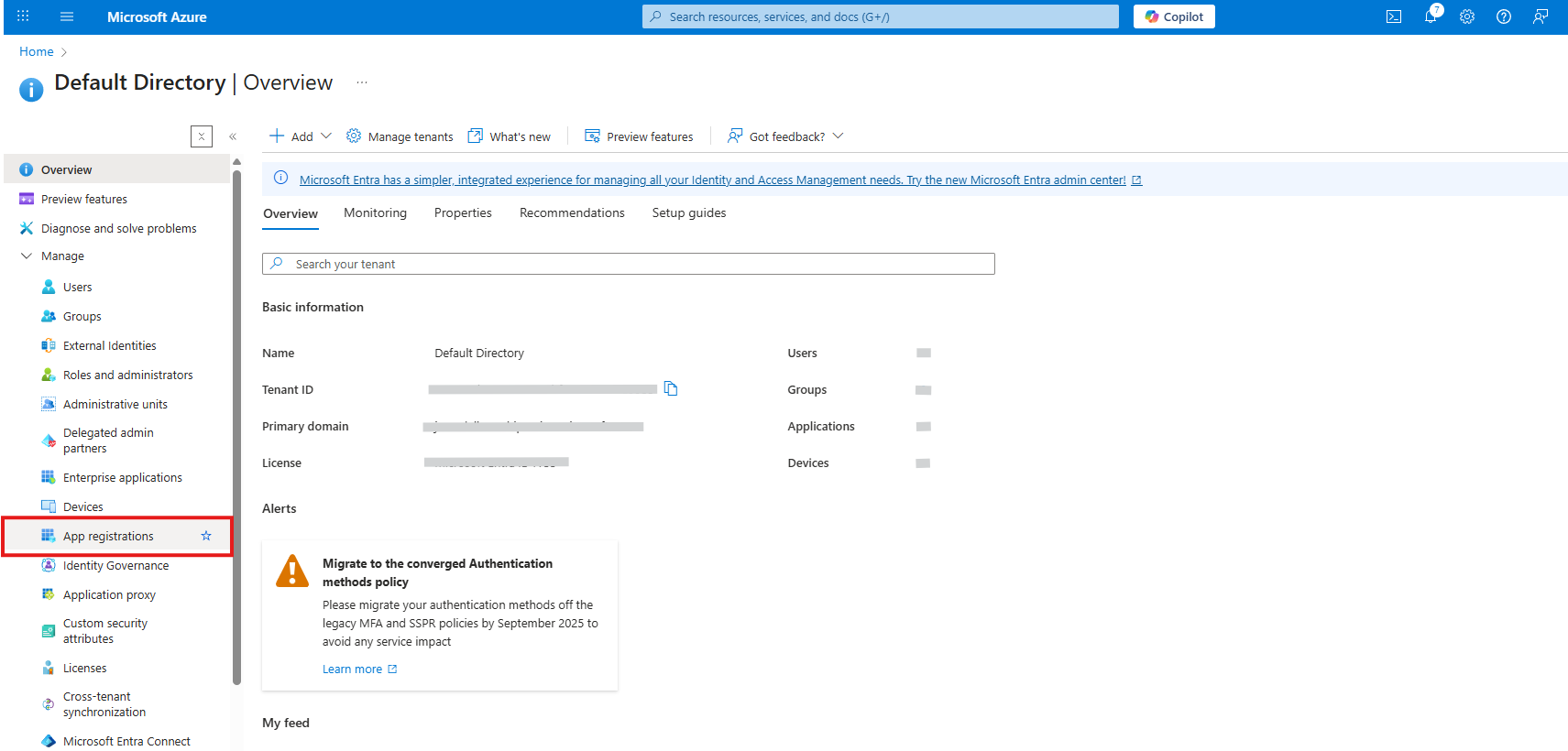
- Go to Applications → App registrations.
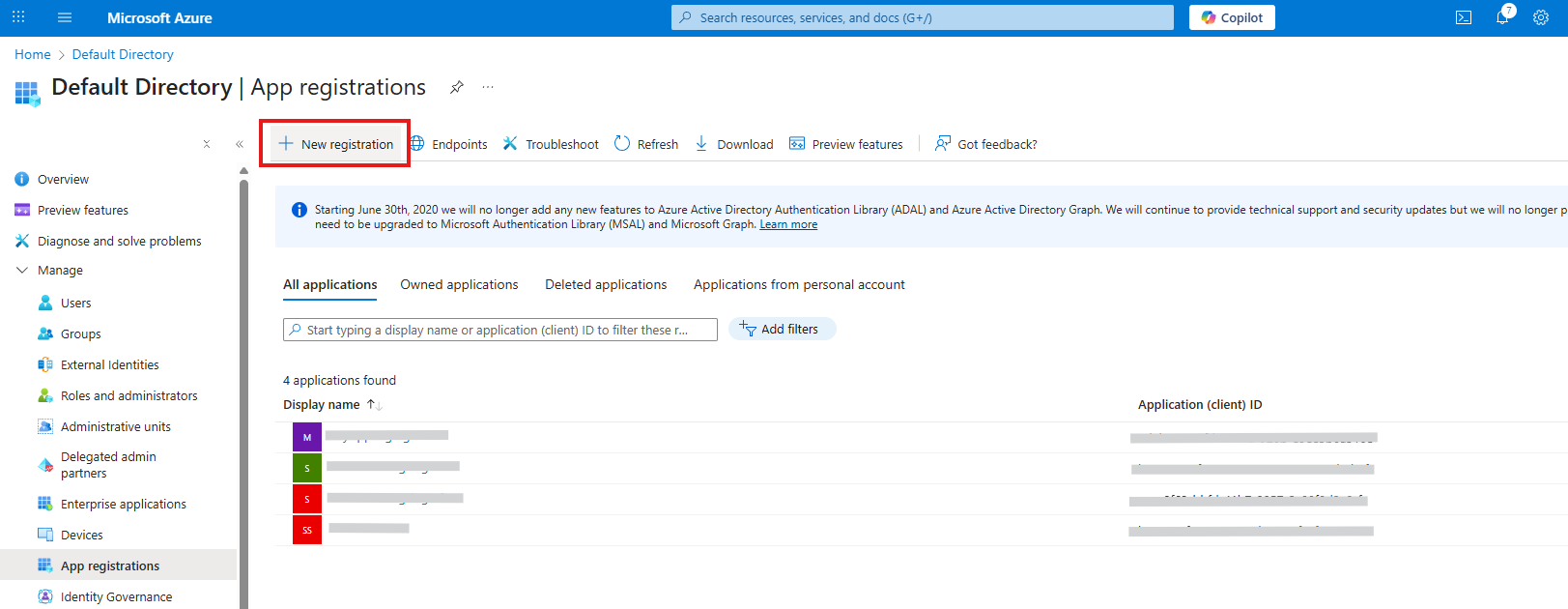
- Click + New registration.
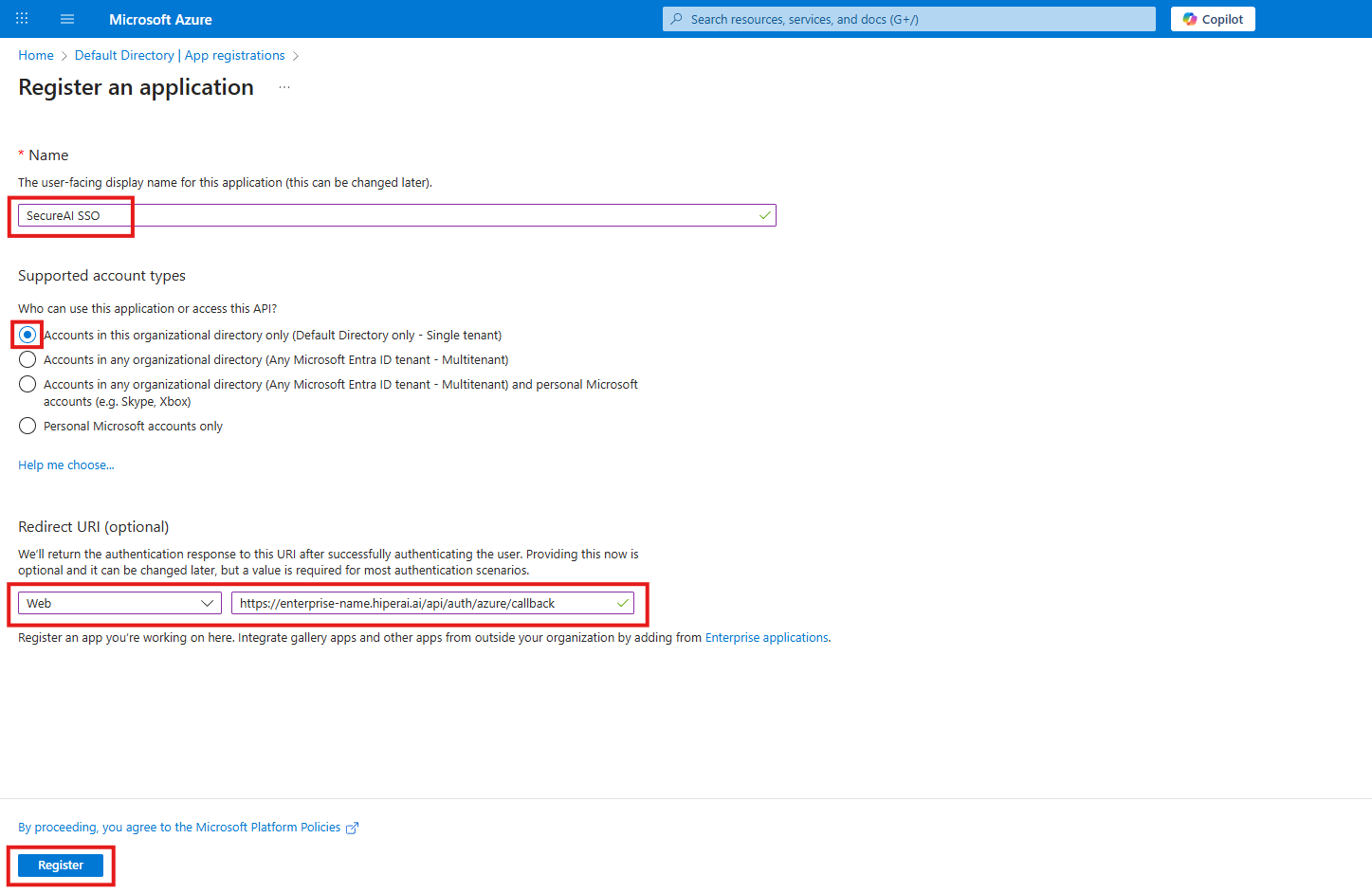
- Fill in the form:
- Name: a descriptive name, for example
SecureAI SSO. Users see it on the consent screen. - Supported account types: Accounts in this organizational directory only (Single tenant).
- Redirect URI: platform Web (not “Single-page application”), and paste the URI you copied in step 1.
- Name: a descriptive name, for example
- Click Register.
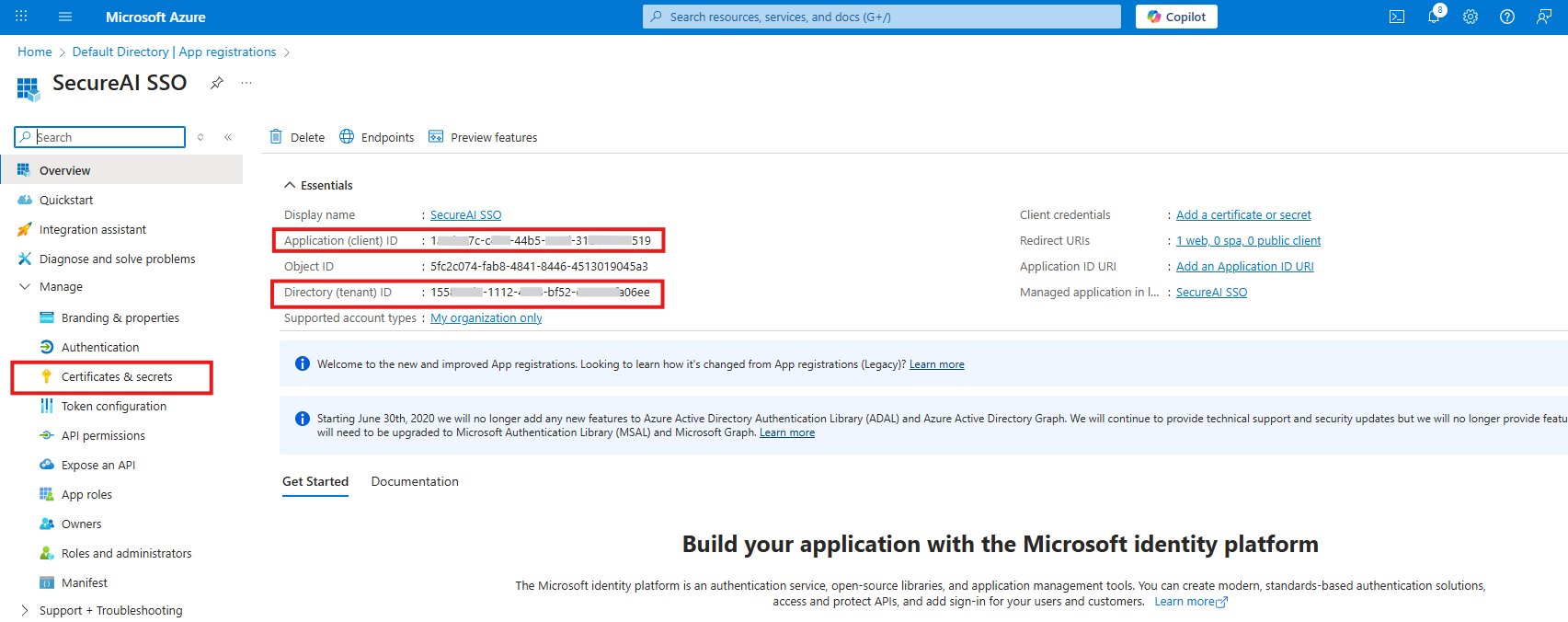
- On the application’s Overview page, copy:
- Application (client) ID — a GUID such as
b96ee19f-5a15-4a85-b936-xxxxxxxxxxxx. - Directory (tenant) ID — another GUID, such as
155812d2-1112-46c8-bf52-xxxxxxxxxxxx.
- Application (client) ID — a GUID such as
Step 3: Create a client secret
- In the application’s menu, open Certificates & secrets.
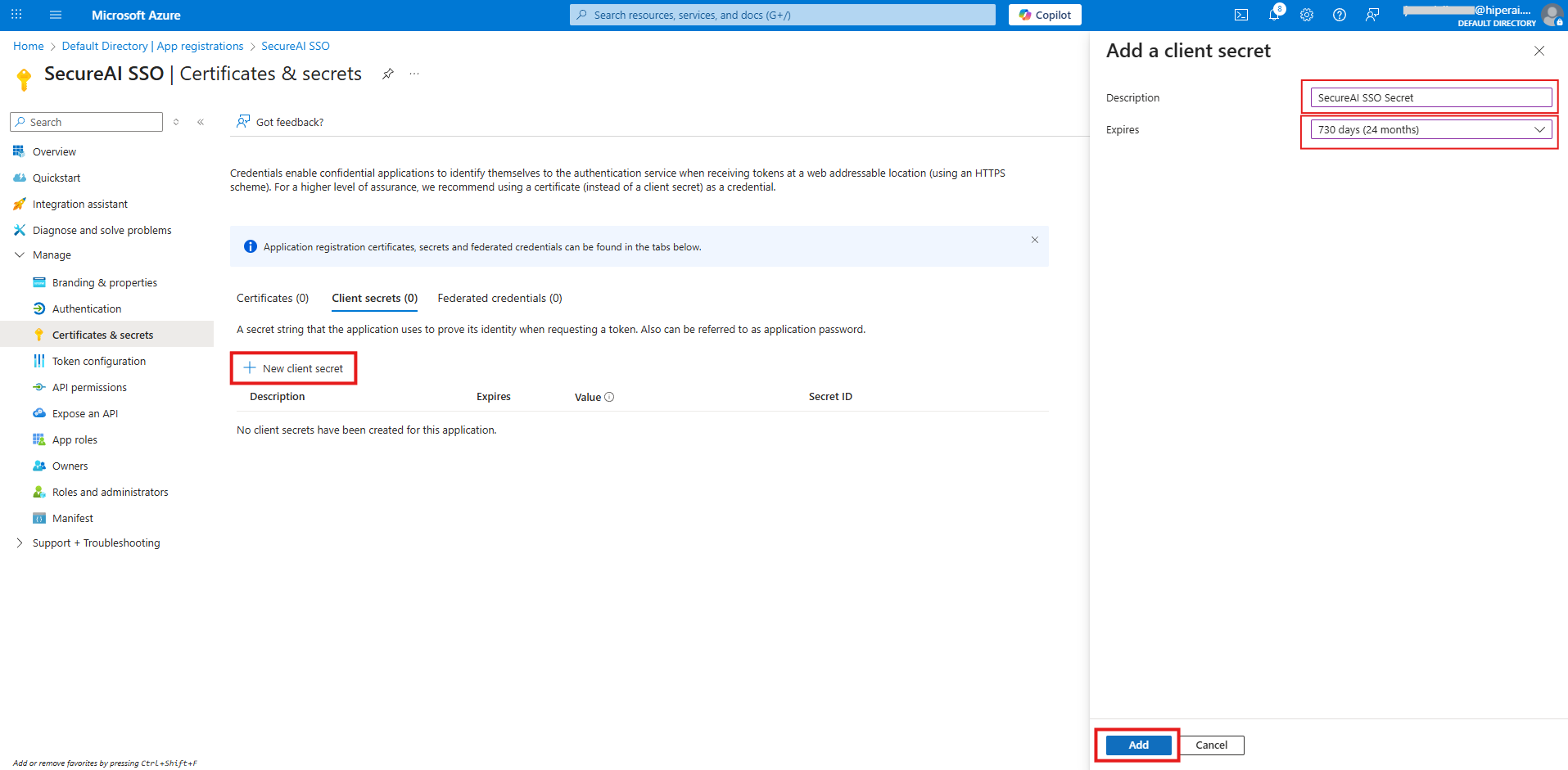
- Under Client secrets, click + New client secret.
- Enter a description (for example
SecureAI SSO) and choose an expiry (Microsoft recommends less than 12 months; the maximum is 24). - Click Add.
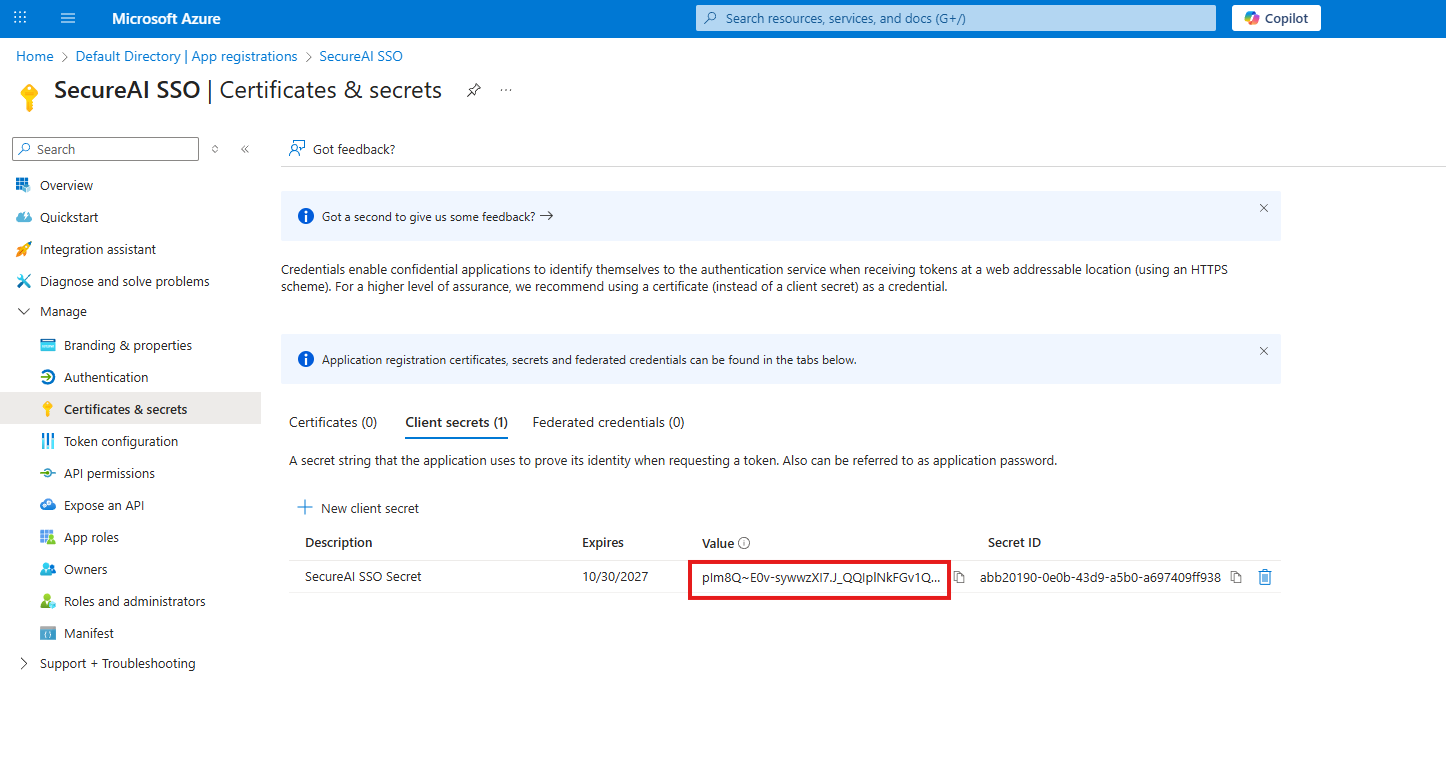
- Immediately copy the Value column (it looks like
plm8Q~xxxxxxxx…). It is shown only once.
Step 4: Review API permissions
SecureAI requests the delegated Microsoft Graph permissionsopenid, profile, email and User.Read (the latter to read the user’s profile photo). User.Read is added by default to new registrations.
- In the application’s menu, open API permissions.
- Check that Microsoft Graph → Delegated permissions include
User.Readand, if you want them listed explicitly,openid,profileandemail(via + Add a permission → Microsoft Graph → Delegated permissions).
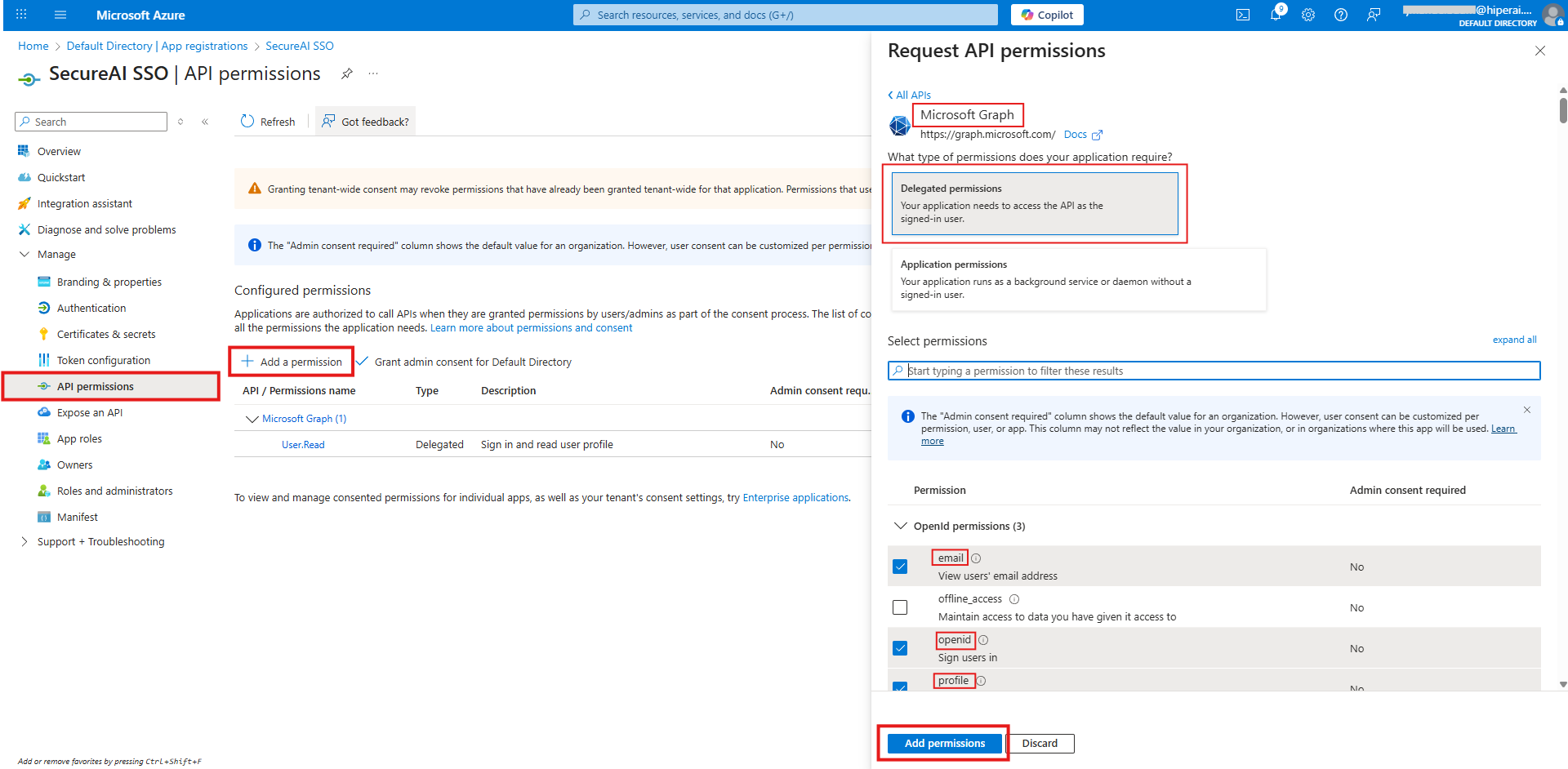
- Click Grant admin consent for [your organization] and confirm.
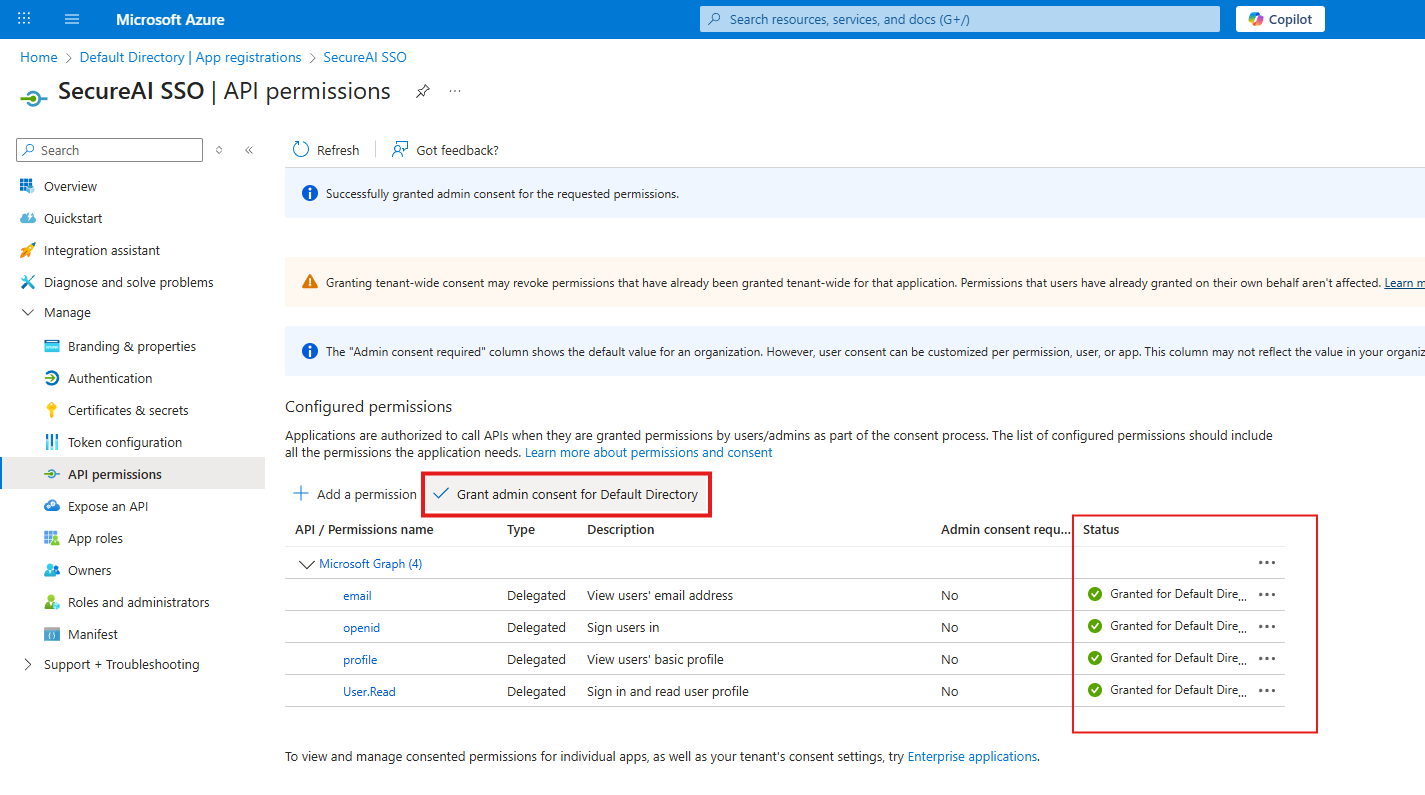
Step 5: Enter the details in SecureAI and test
Go back to Admin → Integrations → Microsoft Entra ID (SSO):-
In 2. Paste the app registration details, fill in:
- Directory (tenant) ID: the GUID from step 2 (a verified domain of your tenant, such as
contoso.onmicrosoft.com, also works). - Application (client) ID: the GUID from step 2.
- Client secret value: the value from step 3.
- Allowed email domains (optional, recommended): your organization’s email domains, comma-separated, for example
contoso.com, contoso.co.uk. Only those addresses can sign in with Microsoft. If left empty, any account of your tenant that exists in SecureAI is accepted.
- Directory (tenant) ID: the GUID from step 2 (a verified domain of your tenant, such as
-
In 3. Test the connection, click Test connection. SecureAI asks Microsoft (without signing anyone in) and checks:
The test uses what is typed in the form, so you can test before saving. If your tenant has a Conditional Access policy that blocks app-only tokens, the secret may show as “could not be verified automatically”: that is not an error — confirm with a real sign-in.The test confirms the URI is registered, but not whether it was registered under the Web platform or under Single-page application (SPA). Registered as SPA, the test passes and sign-in fails with “Single sign-on could not be completed”. Check that under Authentication the URI is listed under Web.
- Check that Show “Continue with Microsoft” on the login page is on (it starts on the first time).
- Click Save.
Step 6: Add your users
SecureAI does not create accounts automatically on first sign-in: everyone who will sign in with Microsoft must exist in SecureAI and be active. The SecureAI account’s email must match the user’s email in Entra ID (the Mail attribute; when it is empty, the user principal name / UPN is used). Case does not matter.- Existing users: people who already have a SecureAI account (even with a password) are not recreated. They can keep signing in with their password, and also with Microsoft.
- New SSO-only users: in Admin → IAM Management → User Management → Add User, choose the authentication method Business Account / SSO. The user does not get an email to create a password and signs in directly with Continue with Microsoft.
- Many users: you can provision and deprovision them automatically from Entra ID with SCIM.
Test the sign-in
- Open your instance’s login page in an incognito window.
- Click Continue with Microsoft.
- Pick your work account and complete MFA if prompted.
- Microsoft sends you back to SecureAI, signed in.
Disable or remove the integration
- To hide the button but keep the configuration, turn the switch off and save.
- To delete it, use Remove configuration. If your instance previously had SSO configured by Hiper AI, that configuration applies again.
Rotate the client secret
Before the secret expires:- In Entra ID, create a new client secret (step 3) without deleting the old one.
- In SecureAI, open the integration, paste the new value into Client secret value, click Test connection and then Save. Leaving the field empty keeps the current secret.
- Once you have confirmed that sign-in works, delete the old secret in Entra ID.
If your instance already had SSO configured by Hiper AI
Instances where Hiper AI configured Microsoft SSO on request show the card as Configured by Hiper AI. That configuration keeps working. If you save your own in Integrations, it replaces it; if you later remove yours, the previous one applies again.Troubleshooting
Sign-in errors are shown on the SecureAI login page:
Errors shown by Microsoft (before returning to SecureAI):
- AADSTS50011 – The redirect URI does not match: the URI registered in Entra ID is not exactly the one SecureAI shows in step 1 (one extra trailing slash is enough to break the match). Test connection catches it before the first sign-in.
- AADSTS65001 / “Need admin approval”: grant admin consent (step 4).
- AADSTS50105 – The signed in user is not assigned to a role for the application: the enterprise application has Assignment required? set to Yes. Assign the user or a group under Enterprise applications → SecureAI SSO → Users and groups.
- AADSTS7000215 / AADSTS7000222: invalid or expired secret. Enter a new one.