

Google Workspace (SSO) Integration
With this integration, your organization’s users sign in to SecureAI with their Google Workspace account (the Continue with Google button). Setup is self-serve: an administrator in your organization creates an OAuth client in your own Google Cloud project and enters the details in Admin → Integrations. There is no ticket to open and nothing to wait for from Hiper AI: the button appears on your login page as soon as you save. Estimated time: 10 minutes.Prerequisites
- A Google Cloud project inside your Google Workspace organization, and permission to configure Google Auth Platform and create OAuth clients in it (for example the project Owner or Editor role).
- Administrator access to SecureAI, with Admin permission on the Integrations section.
How it works
- You create an OAuth 2.0 client of type “Web application” in Google Cloud. SecureAI uses OpenID Connect with the
openid,emailandprofilescopes. - In SecureAI you enter the Client ID, the Client secret and your Google Workspace domains. The secret is stored encrypted and is never shown again.
- When a user clicks Continue with Google, Google authenticates them and SecureAI lets them in only if:
- Google verified their email,
- the account is managed by one of your Workspace domains (the
hdclaim), and - their email matches an active SecureAI account.
Step 1: Copy the redirect URI from SecureAI
- Sign in to SecureAI as an administrator.
- Go to Admin → Integrations and filter by the IAM category.
- On the Google Workspace (SSO) card, click Connect Integration (or Reconfigure, if the card says Configured by Hiper AI).
- In section 1. Create an OAuth client in Google Cloud, click Copy next to the Redirect URI.
https://.
Step 2: Choose or create a Google Cloud project
- Open the Google Cloud console.
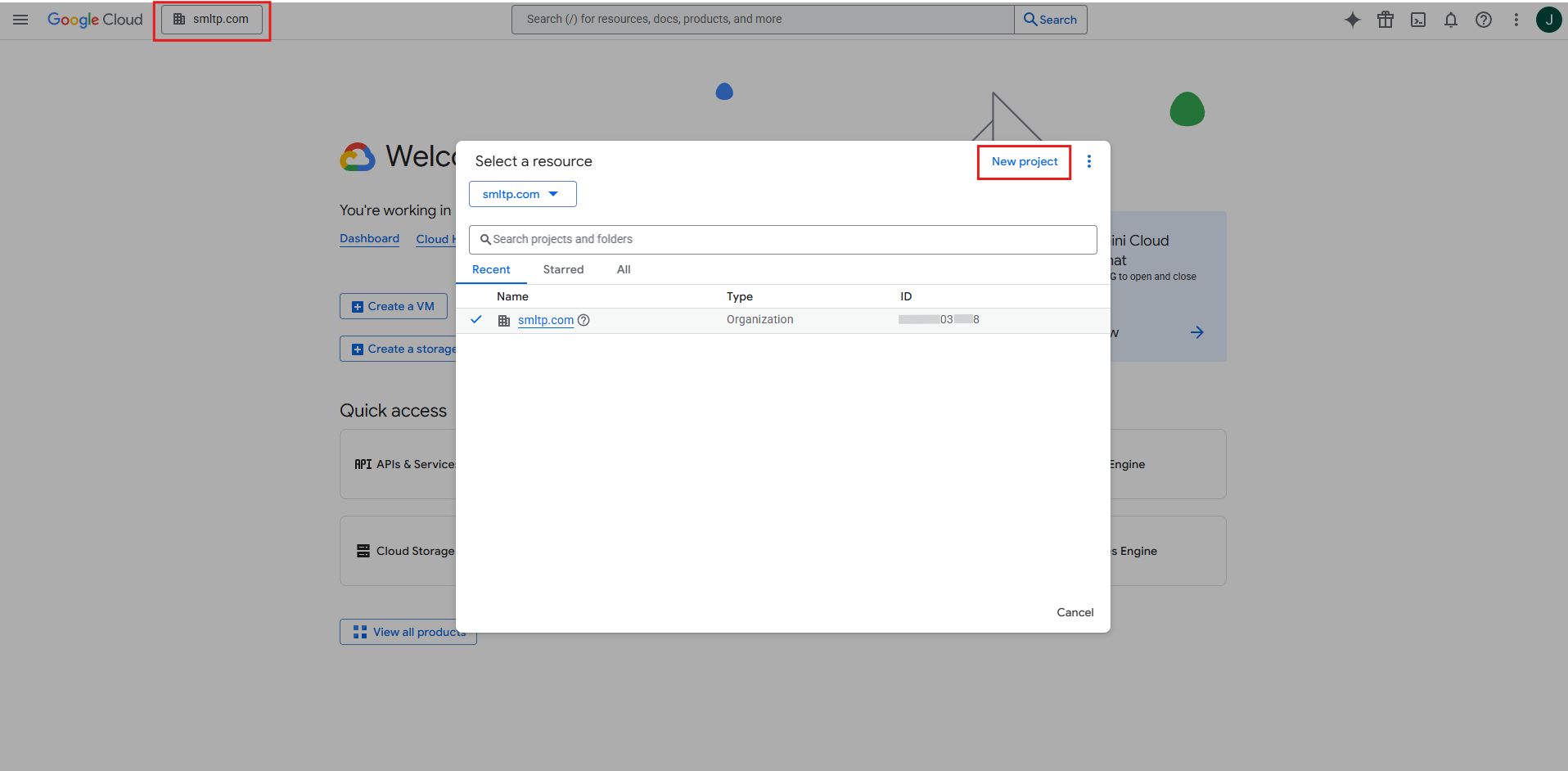
- In the project picker on the top bar, choose a project in your organization or click New Project.
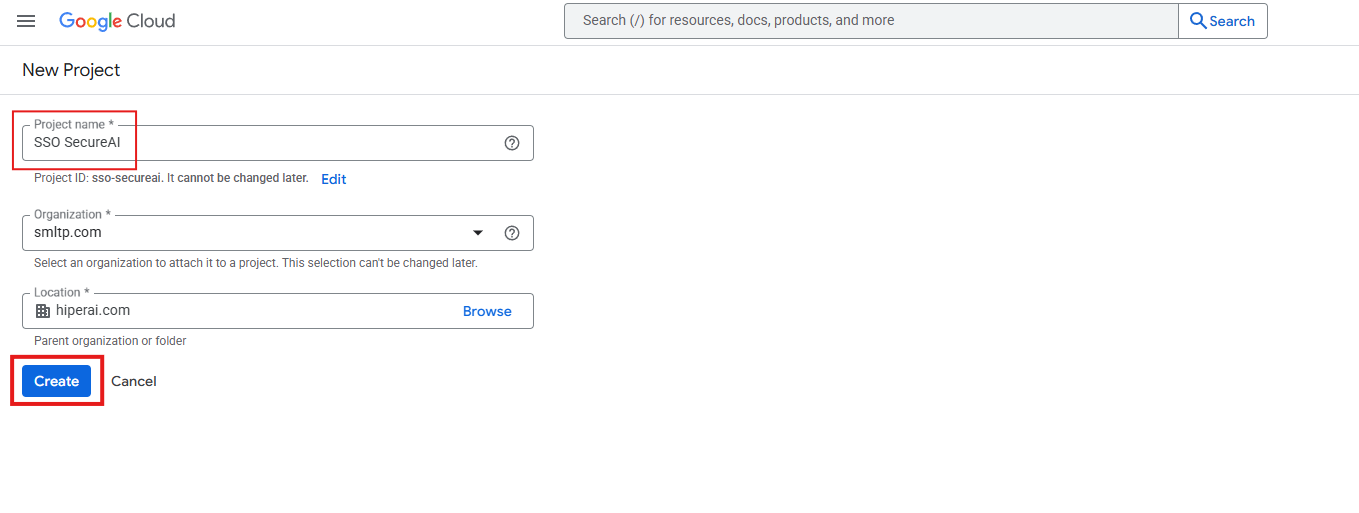
- If you create one: name it (for example
SecureAI SSO), check that the Organization is your Google Workspace one, and click Create.
Step 3: Configure Google Auth Platform (consent screen)
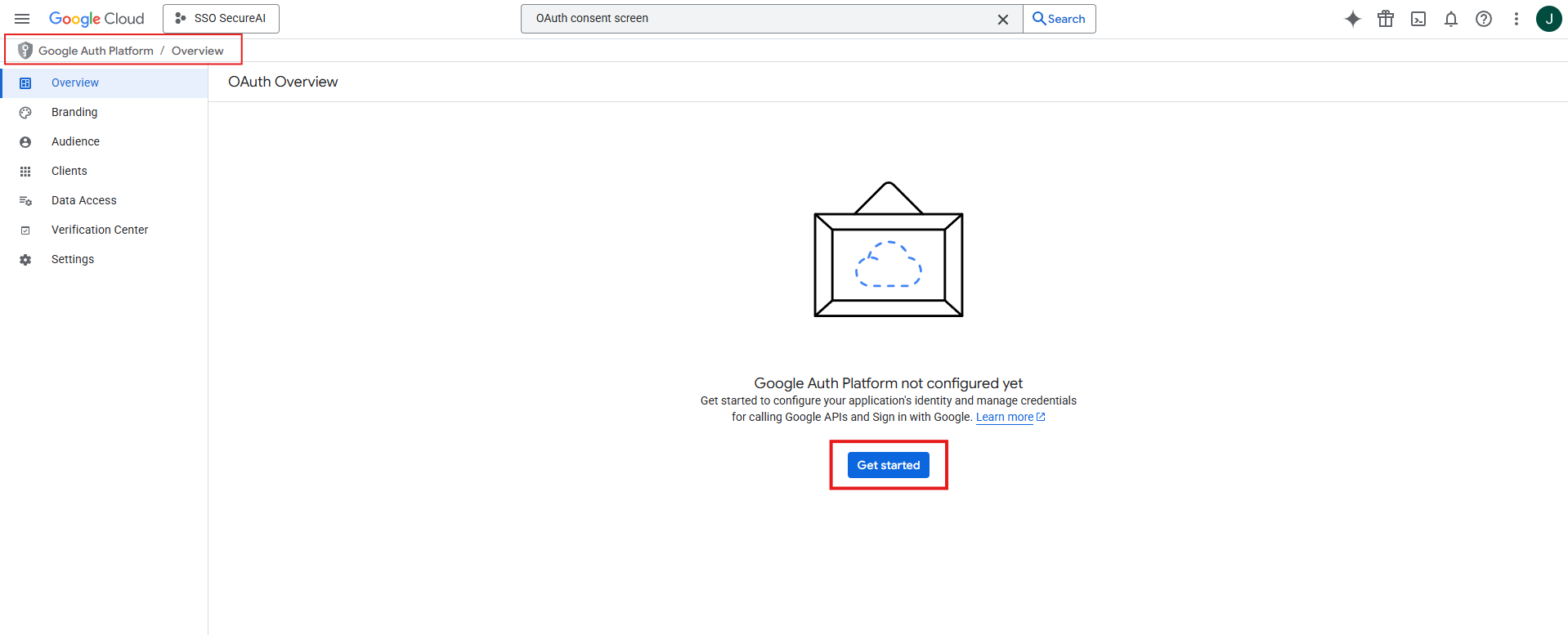
- In the menu, go to APIs & Services → OAuth consent screen (called Google Auth Platform in the new console). If it is the first time, click Get started.
- App information: an app name (for example
SecureAI) and a user support email. - Audience: choose Internal. Only accounts in your Google Workspace organization can use the app, and Google does not require app verification.
- Contact information: an email for notices from Google.
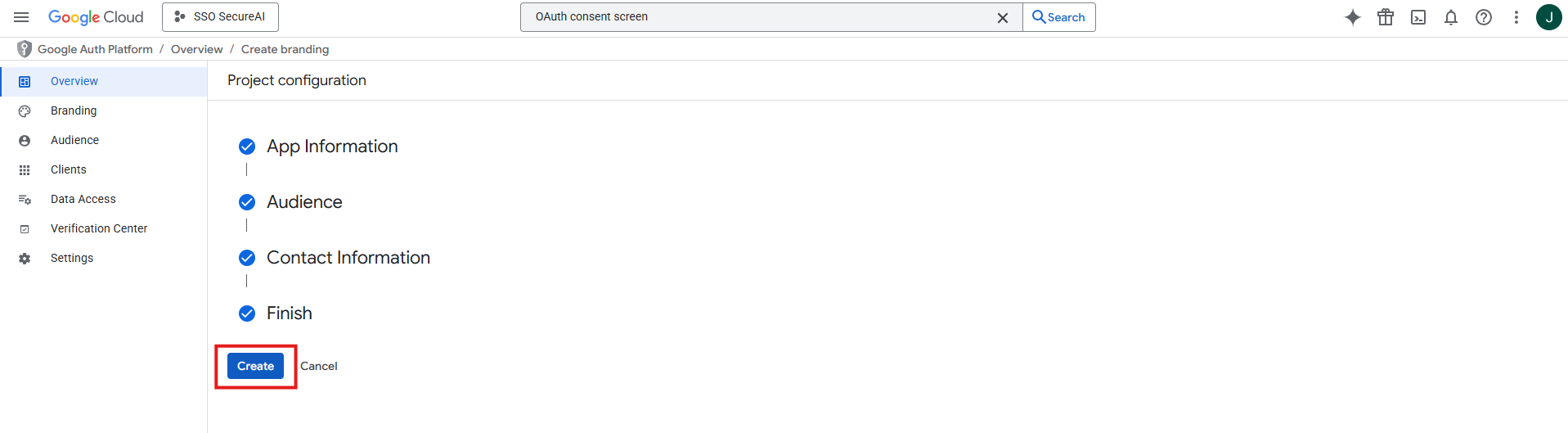
- Accept the user data policy and click Create.
openid, email and profile scopes are not sensitive: you do not need to add them under Data access.
If you choose External, the app must be In production (not “Testing”); in testing mode only the test users you list can sign in. Even with External, SecureAI only accepts accounts from the Workspace domains you configure in step 5.
Step 4: Create the OAuth client
- In Google Auth Platform, go to Clients (or APIs & Services → Credentials → + Create credentials → OAuth client ID).
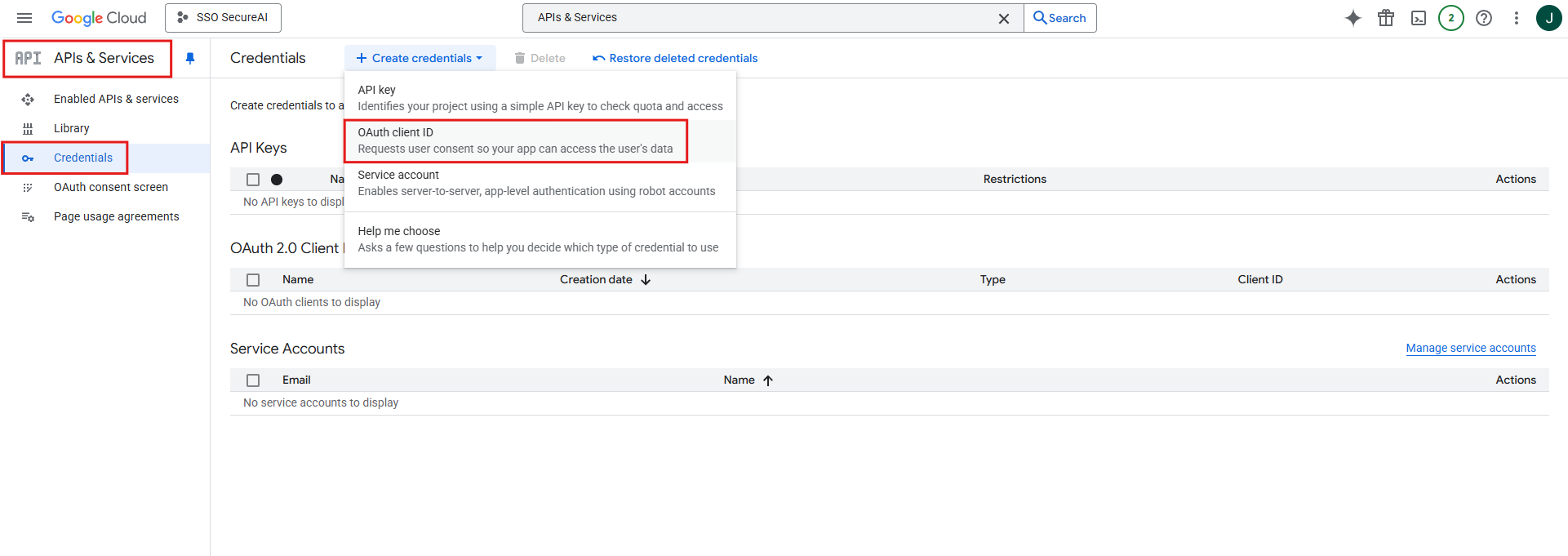
- Click + Create client.
- Application type: Web application.
- Name: for example
SecureAI SSO. - Under Authorized redirect URIs, click + Add URI and paste the URI from step 1. (You do not need Authorized JavaScript origins.)
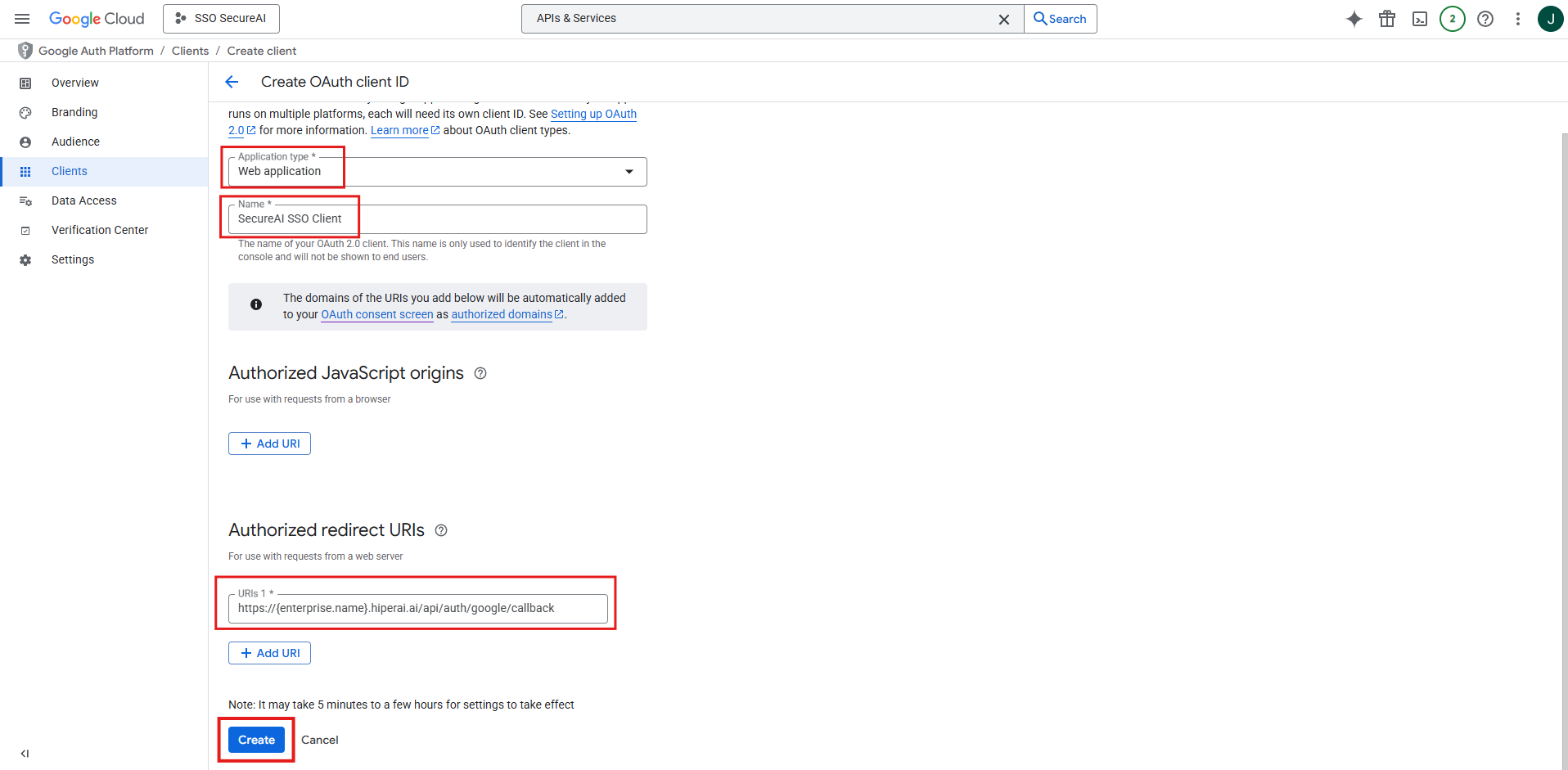
- Leave Use this client for an AI-powered agent unchecked: it is for a different kind of client and SecureAI does not need it.
- Click Create.
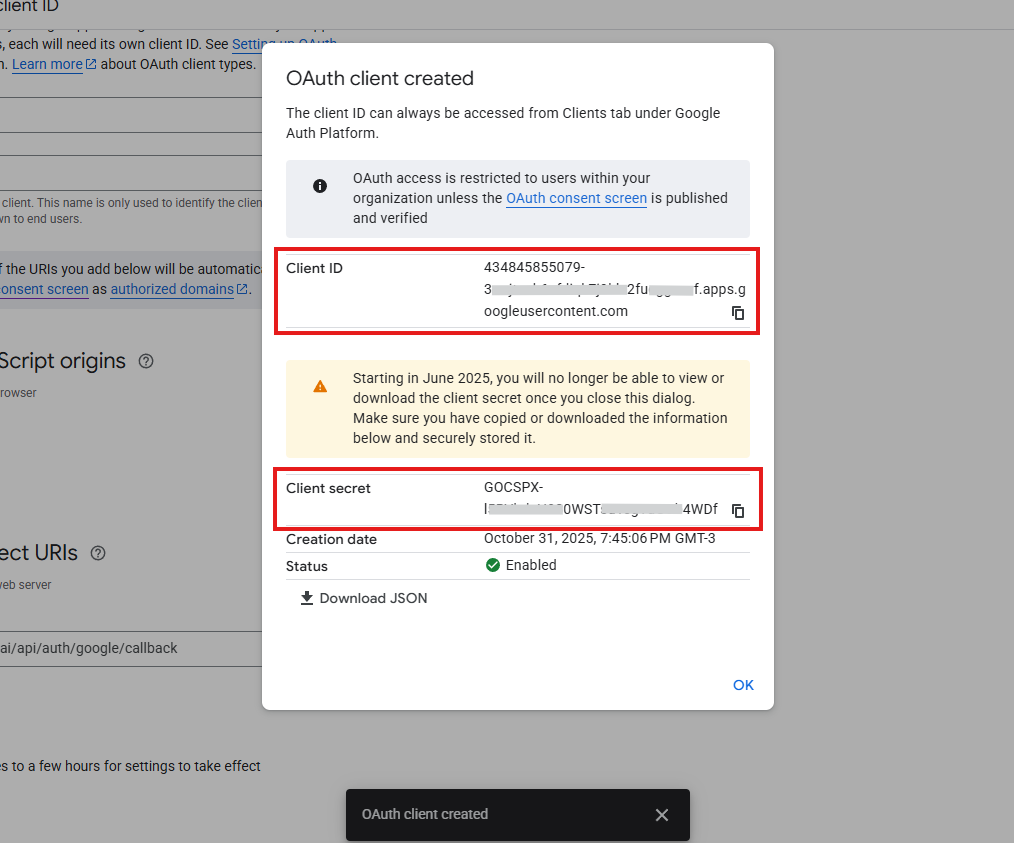
- In the dialog that appears, copy the Client ID (ends in
.apps.googleusercontent.com) and the Client secret (starts withGOCSPX-). You can download the JSON as a backup. Do not close the dialog until you have copied it.
Step 5: Enter the details in SecureAI and test
Go back to Admin → Integrations → Google Workspace (SSO):-
In 2. Paste the OAuth client details, fill in:
- Client ID: from step 4.
- Client secret: from step 4.
- Allowed email domains (required): your primary Google Workspace domain and, if you use them, your secondary domains, comma-separated. For example
contoso.com, contoso.co.uk.
-
In 3. Test the connection, click Test connection. SecureAI asks Google (without signing anyone in) and checks:
The test uses what is typed in the form, so you can test before saving.
- Check that Show “Continue with Google” on the login page is on (it starts on the first time). SecureAI will not save it on without at least one domain.
- Click Save.
Step 6: Add your users
SecureAI does not create accounts automatically on first sign-in: everyone who will sign in with Google must exist in SecureAI and be active, with the same email as their Google Workspace account (case does not matter;+ aliases are not accepted).
- Existing users: people who already have a SecureAI account (even with a password) are not recreated. They can keep signing in with their password, and also with Google.
- New SSO-only users: in Admin → IAM Management → User Management → Add User, choose the authentication method Business Account / SSO. The user does not get an email to create a password and signs in directly with Continue with Google.
Test the sign-in
- Open your instance’s login page in an incognito window.
- Click Continue with Google.
- Pick your Google Workspace account.
- Google sends you back to SecureAI, signed in.
Disable or remove the integration
- To hide the button but keep the configuration, turn the switch off and save.
- To delete it, use Remove configuration. If your instance previously had SSO configured by Hiper AI, that configuration applies again.
Rotate the client secret
- In Google Cloud, open the OAuth client and click Add secret (the old one keeps working).
- In SecureAI, paste the new value into Client secret, click Test connection and then Save. Leaving the field empty keeps the current secret.
- Once you have confirmed that sign-in works, disable and delete the old secret in Google Cloud.
If your instance already had SSO configured by Hiper AI
Instances where Hiper AI configured Google SSO on request show the card as Configured by Hiper AI. That configuration keeps working. If you save your own in Integrations, it replaces it; if you later remove yours, the previous one applies again.Troubleshooting
Sign-in errors are shown on the SecureAI login page:
Errors shown by Google (before returning to SecureAI):
- Error 400: redirect_uri_mismatch: the client’s redirect URI is not exactly the one from step 1. Fix it under Authorized redirect URIs (not JavaScript origins).
- Error 403: org_internal: the app is Internal and the account does not belong to the Google Cloud organization that owns the project. This also happens when your company has more than one Google organization (for example
company.comandcompany.ai) and the OAuth client was created in a project of the other one: create it in a project of the organization your users belong to (the console’s project picker shows each project’s organization). - Error 401: invalid_client / deleted_client: the OAuth client does not exist or was deleted. Create a new one and update SecureAI.
- “Access blocked: your administrator has not trusted this app”: your Workspace’s app access controls block third-party apps. In the Google Admin console (Security → Access and data control → API controls → Manage third-party app access), mark the client ID as Trusted.