

How it works
- The FortiGate sends its traffic logs (
type=traffic) and security profile logs (type=utm, subtypeswebfilter,app-ctrlanddns) over syslog to the SecureAI collector, a container that runs in your network. - The collector keeps only the lines whose destination is an AI service and sends them to your tenant over HTTPS. The rest of the browsing never leaves your network.
- SecureAI reads the source (
srcip,user,srcname), the destination (hostname,qnameor the host inurl), the decision (action,utmaction) and the FortiGuard classification (app,appcat,catdesc) from each line, and shows it under Inventory → Network Sources. - When you block AI domains in SecureAI, they go into a block feed. The FortiGate downloads it with an External Connector, and its DNS Filter profile stops resolving those domains.
Requirements
- A FortiGate running FortiOS 7.2 or later, and an administrator with write access to Log & Report, Security Profiles, Security Fabric and Policy & Objects.
- A Linux machine with Docker on the FortiGate’s network for the collector. With 1 vCPU and 1 GB it processes about 3,000 syslog events per second; if your FortiGate sends more, add vCPUs. The FortiGate must reach it over syslog, and it must reach your tenant over HTTPS.
- The FortiGate must reach your tenant (
https://<tenant>.hiperai.com) over HTTPS to download the feed. - A SecureAI administrator with a second factor set up: creating and rotating the tokens asks for it.
1. Connect the FortiGate in SecureAI
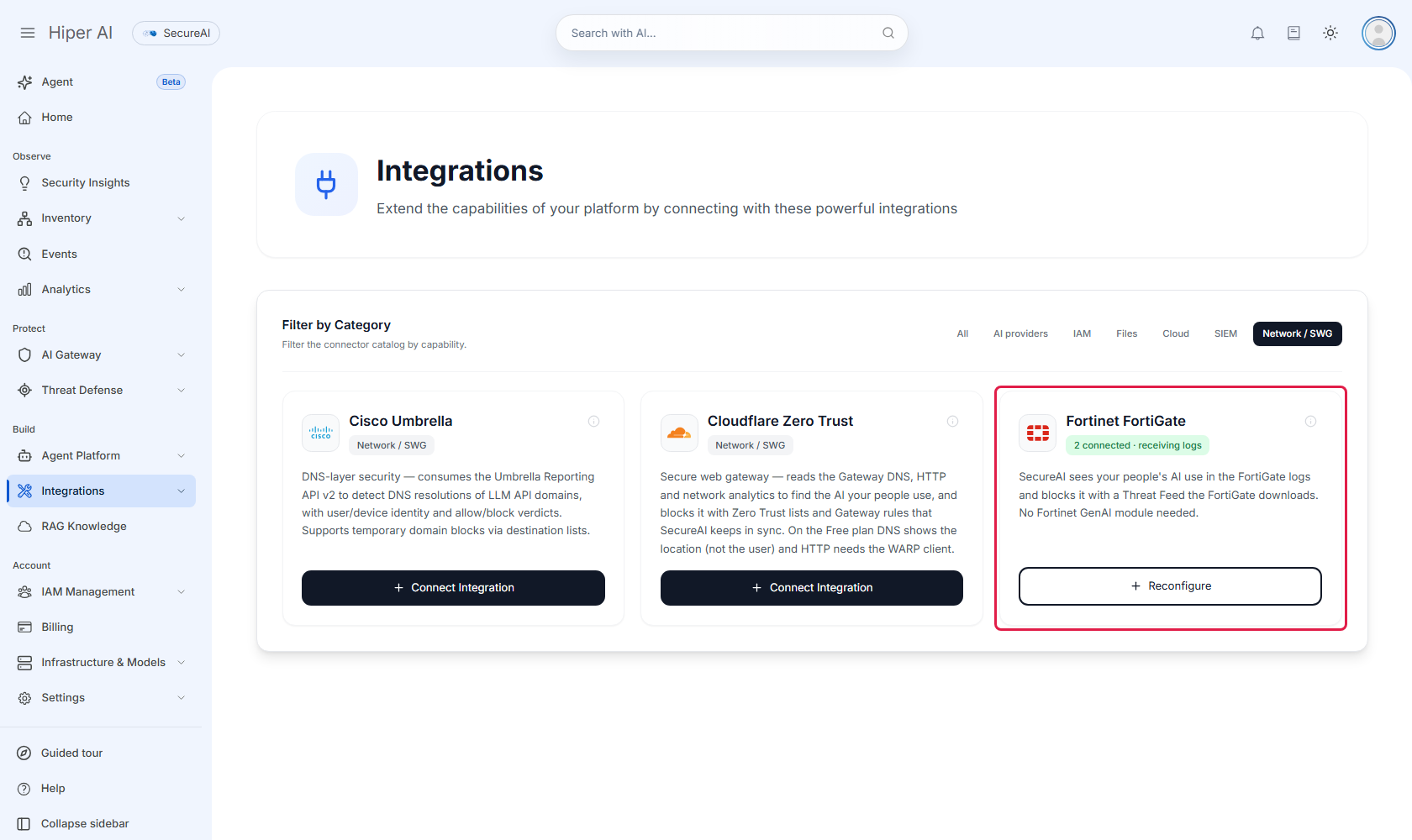
- Open Admin → Integrations and pick the Network / SWG category.
- On the Fortinet FortiGate card, click Connect.
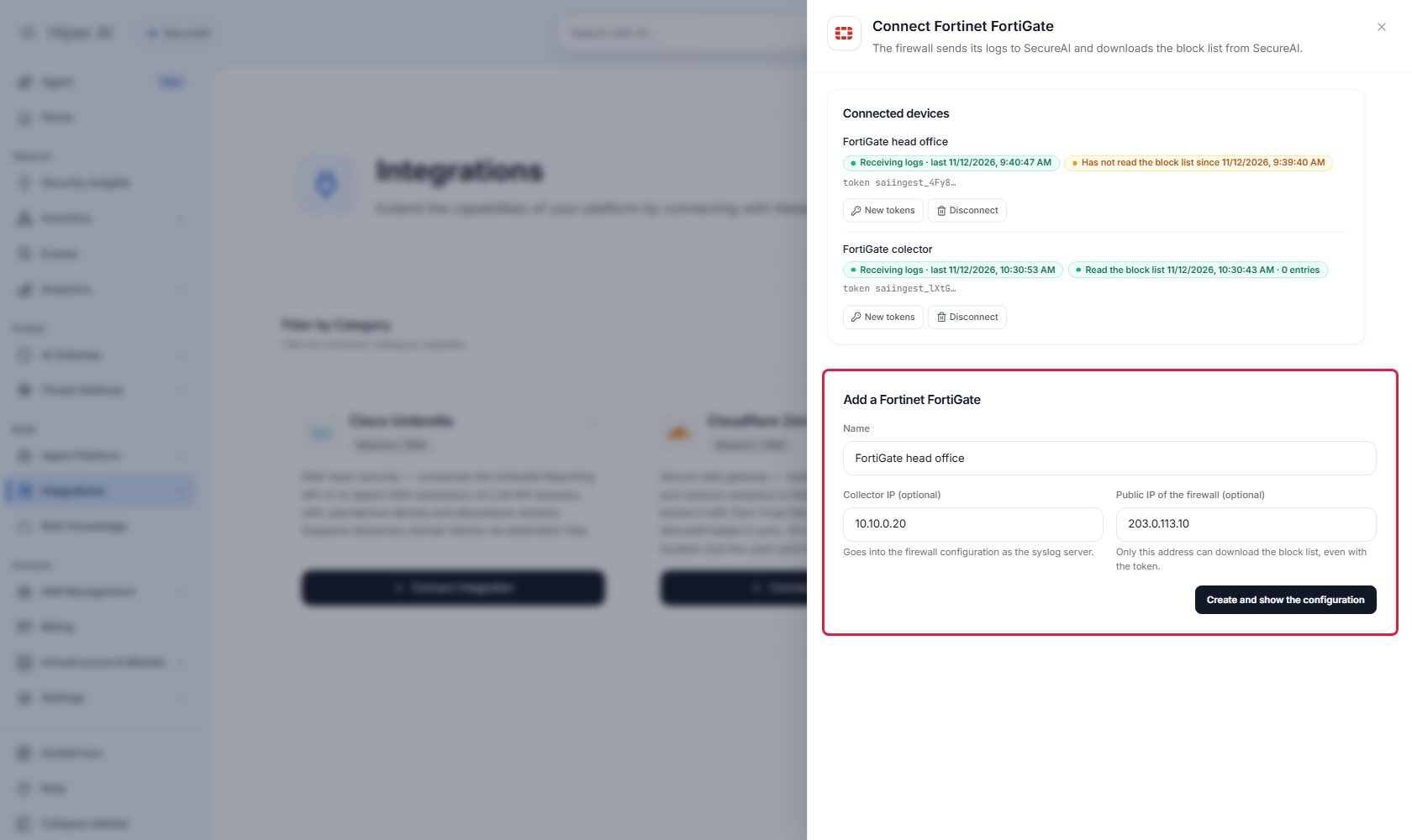
- Under Add a Fortinet FortiGate, enter a name that lets you recognize the device. The other two fields are
optional:
- Collector IP: SecureAI sets it as the syslog server in the FortiGate configuration.
- Public IP of the firewall: if you enter it, SecureAI hands the block list only to that address, even to someone else who has the token.
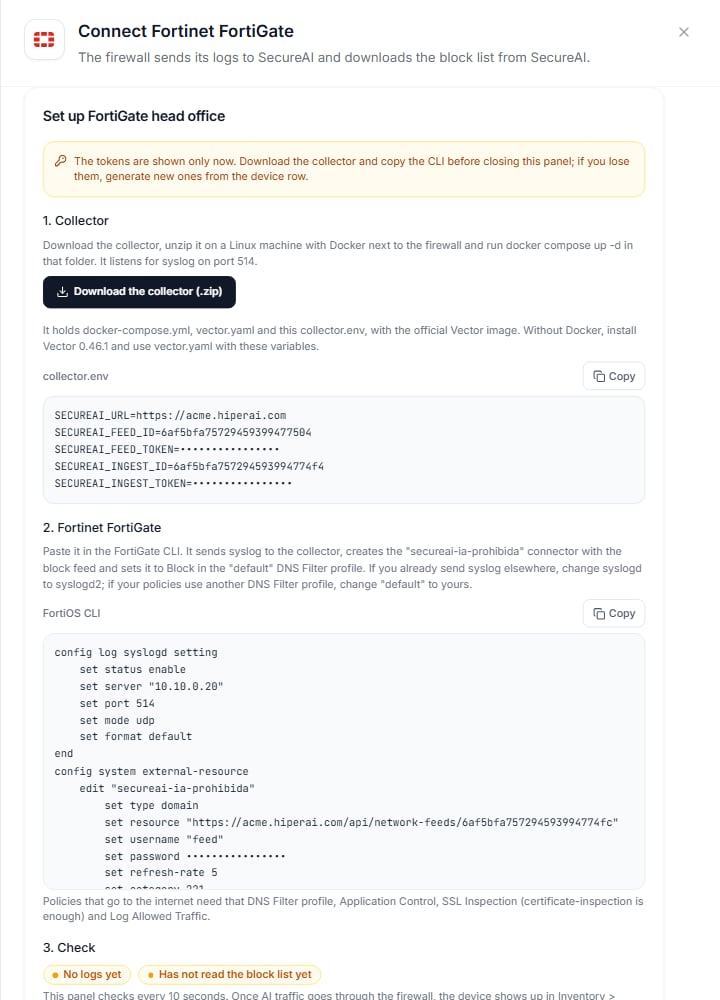
- Click Create and show the configuration. SecureAI asks for your second factor and creates three things: the
collector’s log source, the FortiGate’s block feed, and the feed with the list of AI domains the collector uses
to filter. Then it offers Download the collector (.zip) and shows two blocks to copy:
collector.env, with the collector’s settings, and the FortiOS CLI, with the feed URL and token.
2. Install the collector
The collector is Vector 0.46.1 with the officialtimberio/vector:0.46.1-debian image.
SecureAI doesn’t publish an image of its own. Download the collector (.zip), in the step 1 panel, gets you three
files:
- Copy the
.zipto a Linux machine with Docker on the FortiGate’s network and unzip it. - In the
secureai-collectorfolder, rundocker compose up -d. docker compose logs -fshows Vector starting and listening on port 5514 in the container.
Without Docker
Install Vector 0.46.1 on the machine, export the variables incollector.env and run vector --config vector.yaml.
It then listens on port 5514; point the FortiGate’s syslog there or redirect 514. This is the package’s
vector.yaml:
vector.yaml
vector.yaml
docker-compose.yml
docker-compose.yml
3. Send the FortiGate logs to the collector
In the FortiOS GUI: Log & Report → Log Settings, Global Settings tab. Set Syslog logging to Enable and enter the collector IP. In FortiOS 7.2 and 7.4 the option is called Send logs to syslog.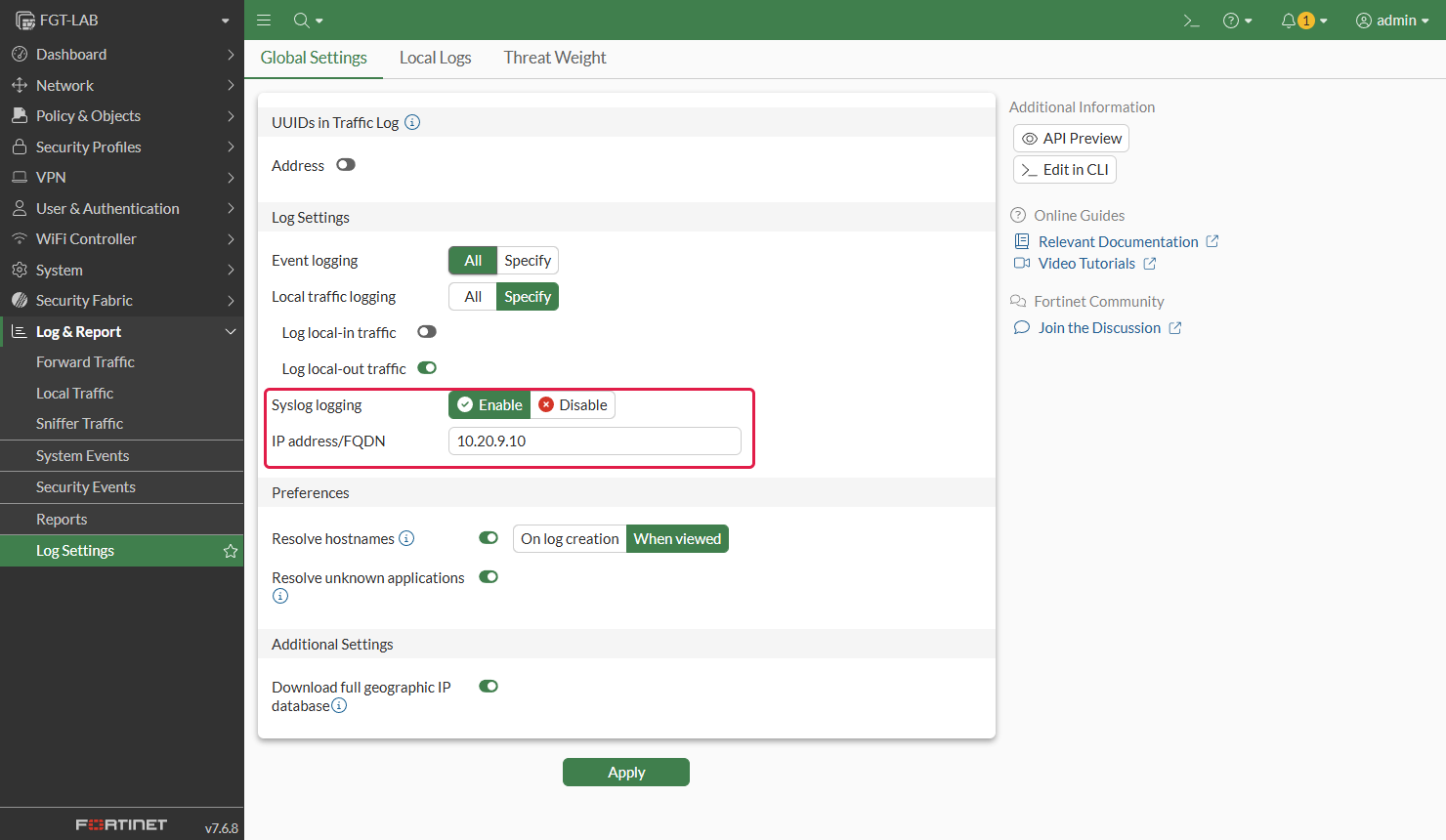
format default sends FortiOS’s native key=value format, which is what SecureAI reads. If you already send syslog
to another server, use log syslogd2 (up to syslogd4) to leave it alone.
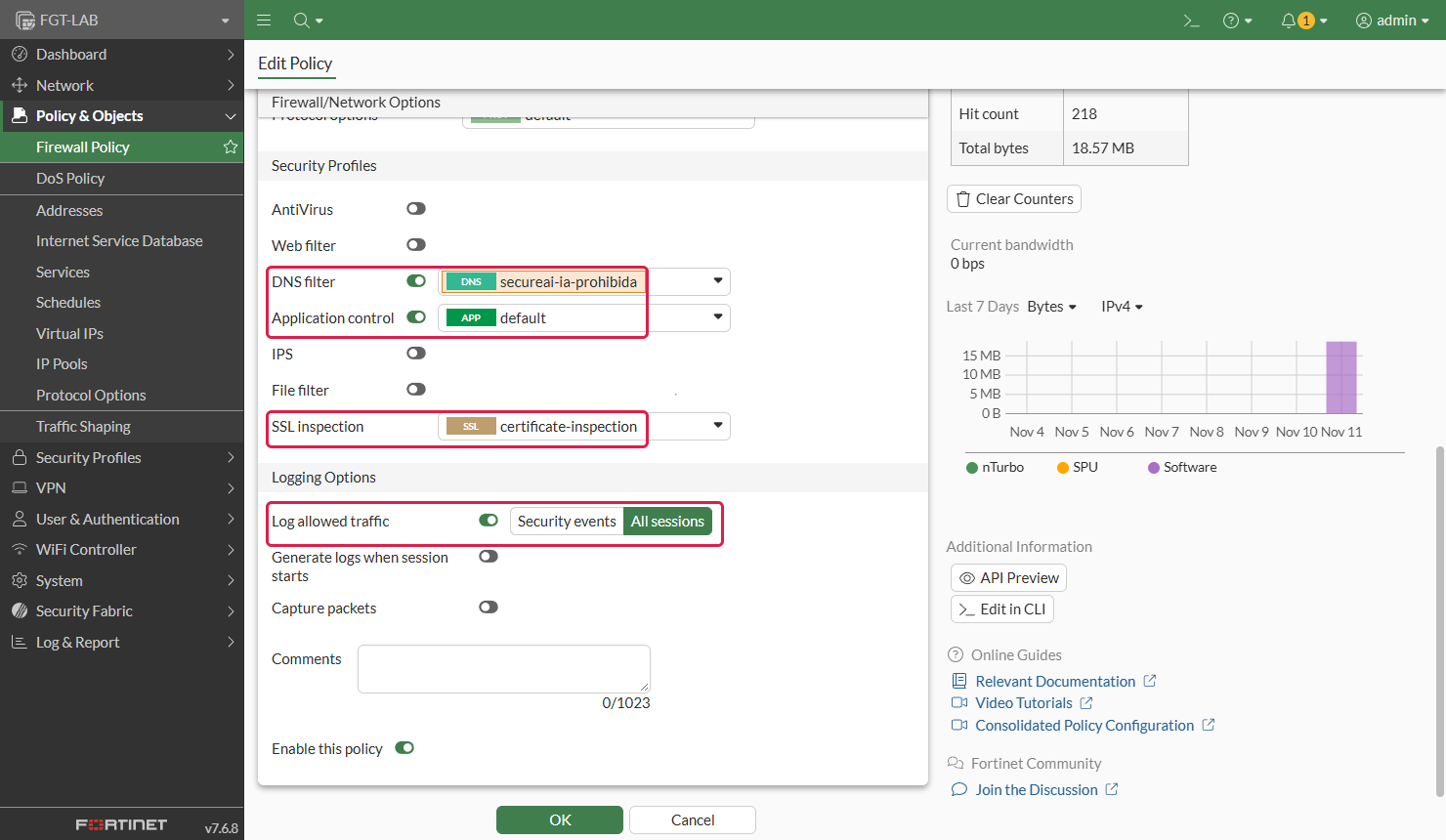
The policies that carry traffic to the internet need:
- Log Allowed Traffic set to All Sessions (
set logtraffic all) or Security Events (set logtraffic utm); - an SSL Inspection profile, even
certificate-inspection, so FortiOS reads the destination name (SNI) of HTTPS connections; - Application Control with the
defaultprofile or your own. FortiGuard classifies generative AI asGenAI; - the DNS Filter profile from step 4, with Log all DNS queries and responses.
User instead of IP
SecureAI shows the person when the FortiGate log carries the user. FortiOS writes it on sessions of a policy that identifies users: a policy with a user group (Source → User) whose logon comes from FSSO, RSSO (RADIUS accounting from a NAC, a VPN or a Wi-Fi controller) or the FortiGate’s own authentication. Before you add the group to a policy that is already in production, check what happens to devices that do not identify themselves: that policy no longer covers them, and depending on your other policies they may lose access. SecureAI doesn’t change any of this; it only reads the user the FortiGate already writes.4. Block with the SecureAI feed
The panel’s CLI creates thesecureai-ia-prohibida External Connector with the feed URL and token, and sets it to
Block in the default DNS Filter profile. If your policies use another profile, replace default with yours
before pasting it. In the GUI:
-
Security Fabric → External Connectors → Create New → Threat Feeds → Domain Name:
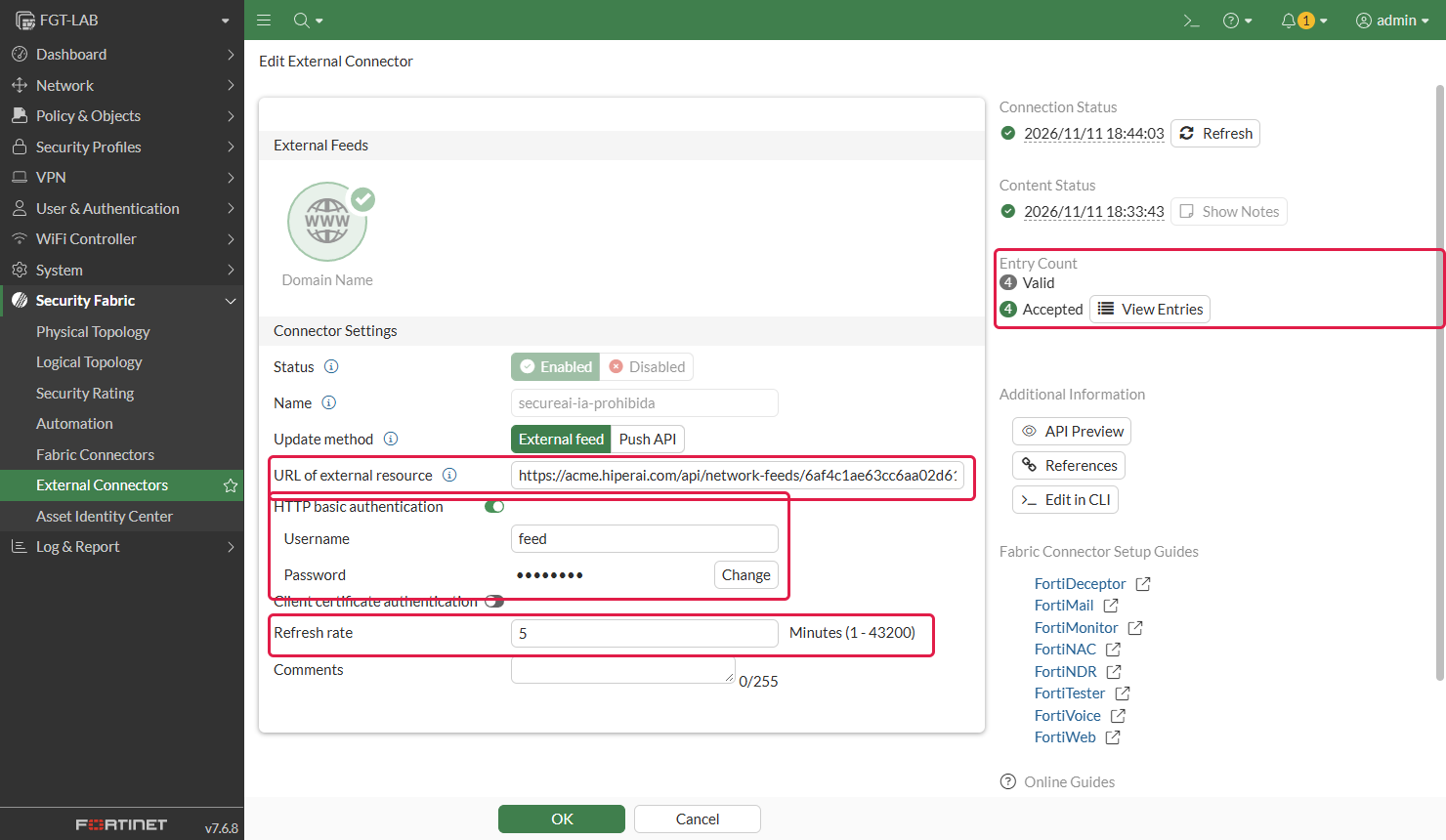
chatgpt.comand*.chatgpt.com, to cover the domain and its subdomains. Until you block something, the list is empty.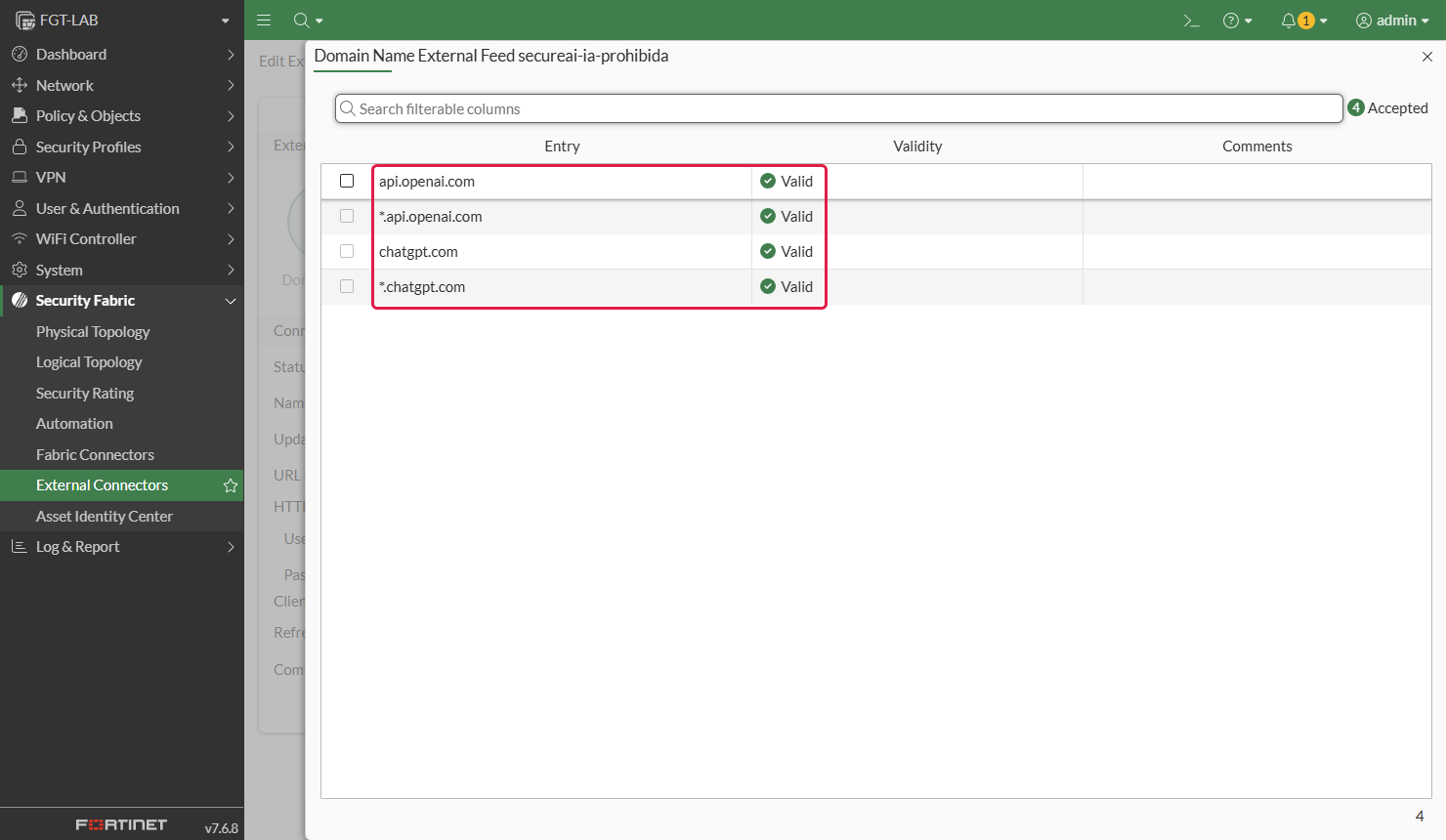
-
In the DNS Filter profile your policies use (Security Profiles → DNS Filter), the connector’s category shows
up under Remote Categories. Set it to Block and keep Redirect to Block Portal.
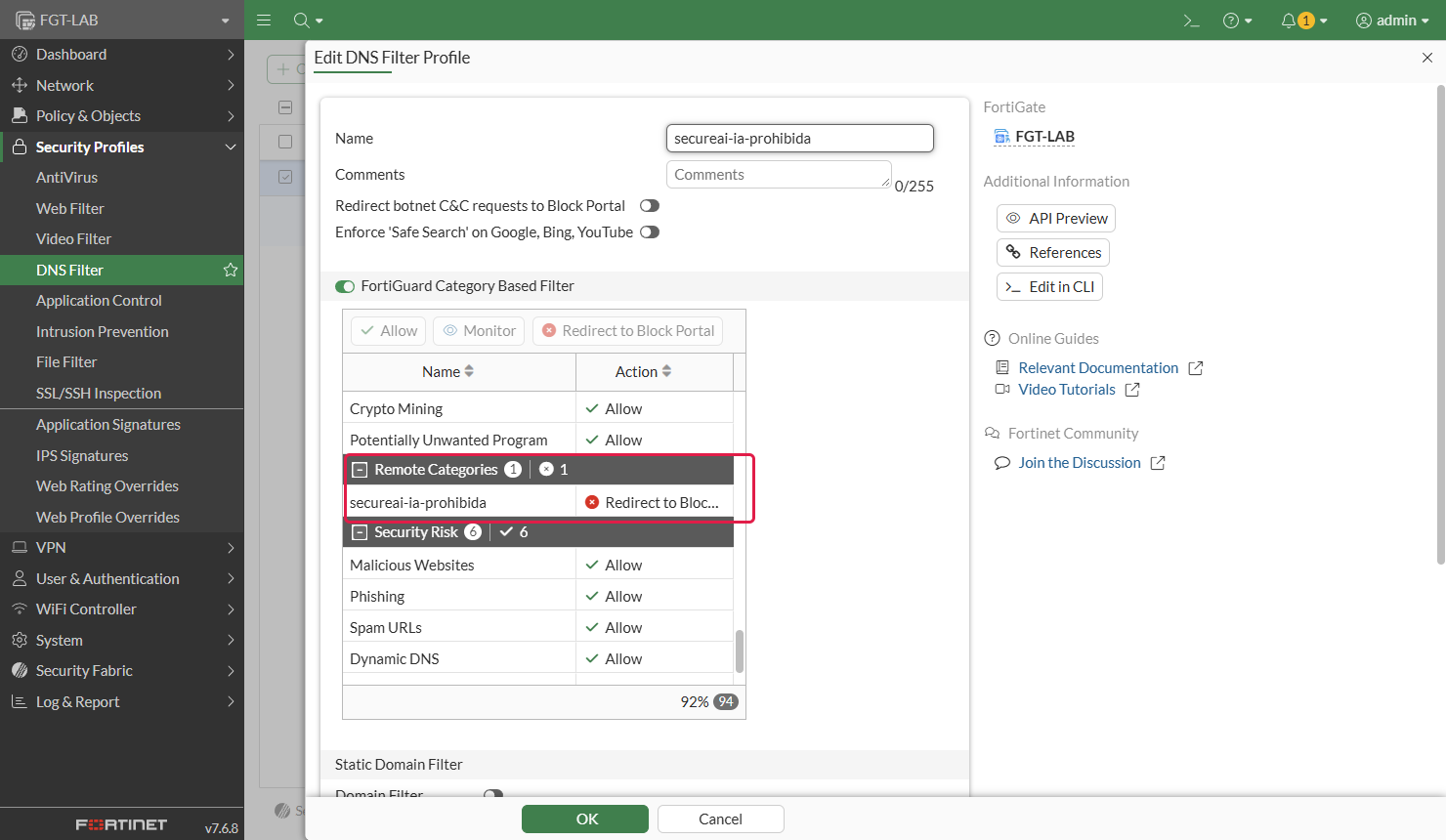
-
Under Options, at the end of the profile, turn on Allow DNS requests when a rating error occurs and
Log all DNS queries and responses.
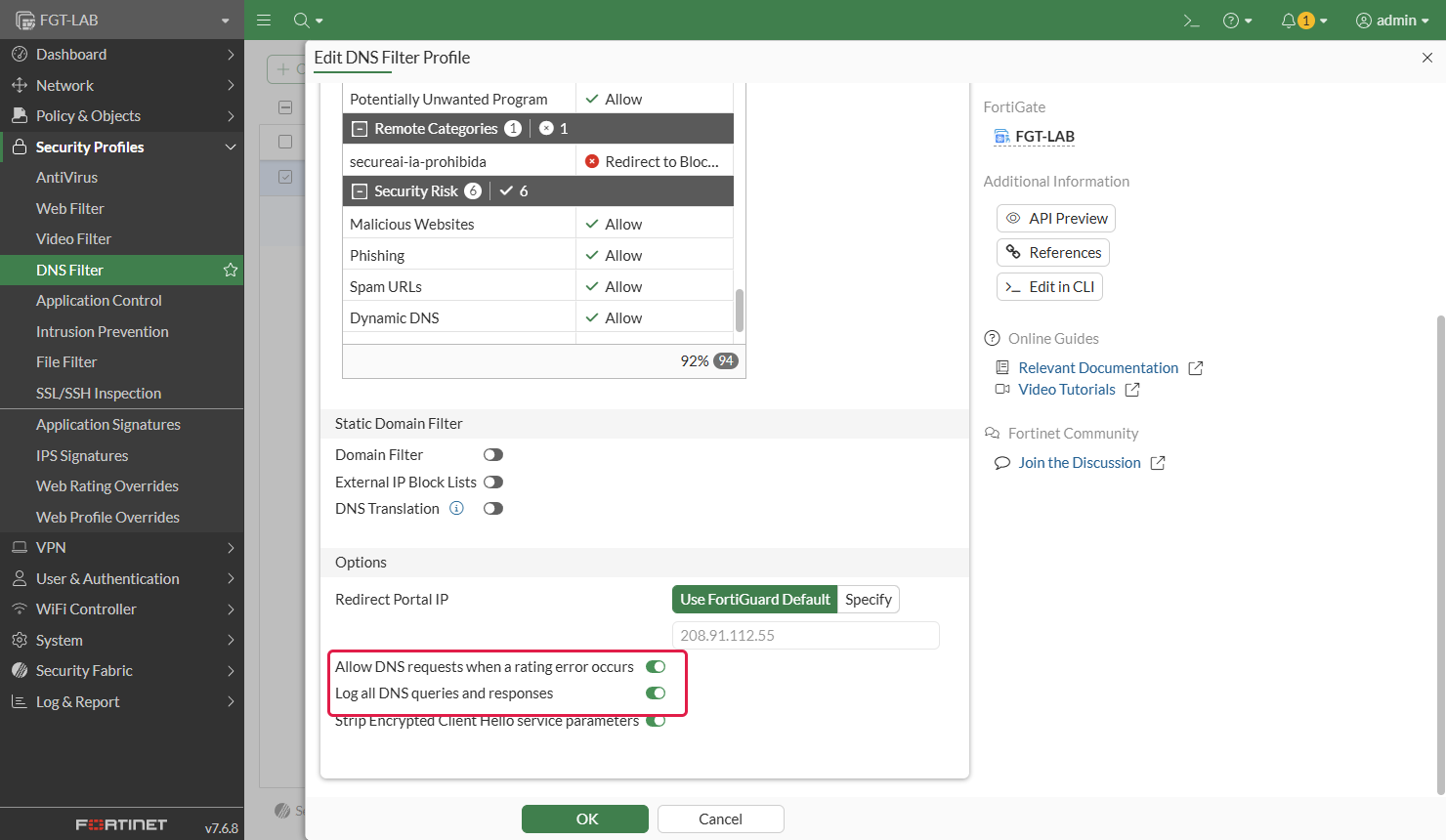
show system external-resource whether another
connector already uses it; if one does, change both 221s to a free one between 192 and 220. FortiOS accepts two
connectors on the same category, but DNS Filter blocks with only one of their lists and doesn’t warn you.
DNS Filter acts on the DNS queries that go through the FortiGate: those from devices that use it as their DNS
server, or those that cross a policy with the profile. A device that resolves another way (the browser’s DNS over
HTTPS, a resolver that doesn’t go through the FortiGate) isn’t blocked this way. For those devices, add the Web
Filter block.
Block over HTTPS too (Web Filter)
Web Filter looks at the site name in the HTTPS connection (SNI), so it reaches devices that resolve DNS another way. It uses the same feed with a second connector:- Security Fabric → External Connectors → Create New → Threat Feeds → FortiGuard Category, with the same URI, user and token as the domain connector. Its category has to be a different, free one.
- In the Web Filter profile of your policies (Security Profiles → Web Filter), the connector’s category shows up under Remote Categories: set it to Block. Without FortiGuard’s Web Filter subscription, also turn on Allow websites when a rating error occurs, for the same reason as in DNS Filter.
- The policy needs the Web Filter profile and SSL Inspection, even if it’s
certificate-inspection.
certificate-inspection the FortiGate can’t see inside TLS: it cuts the connection with its own certificate,
and the browser shows a certificate error instead of the block page. With deep inspection it shows the page. The
Web Filter log comes back to SecureAI and adds to the confirmed block.
5. Check
-
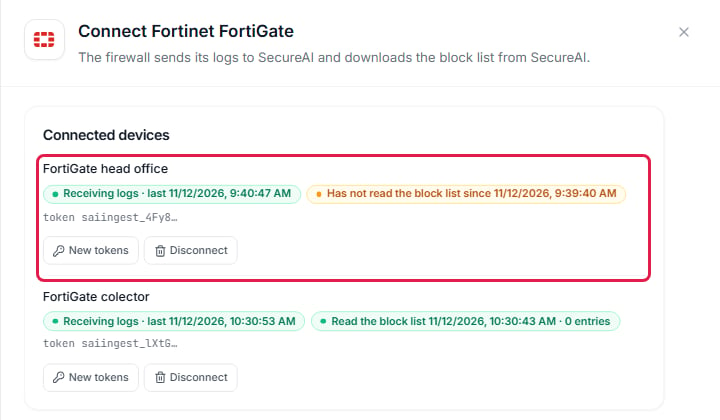
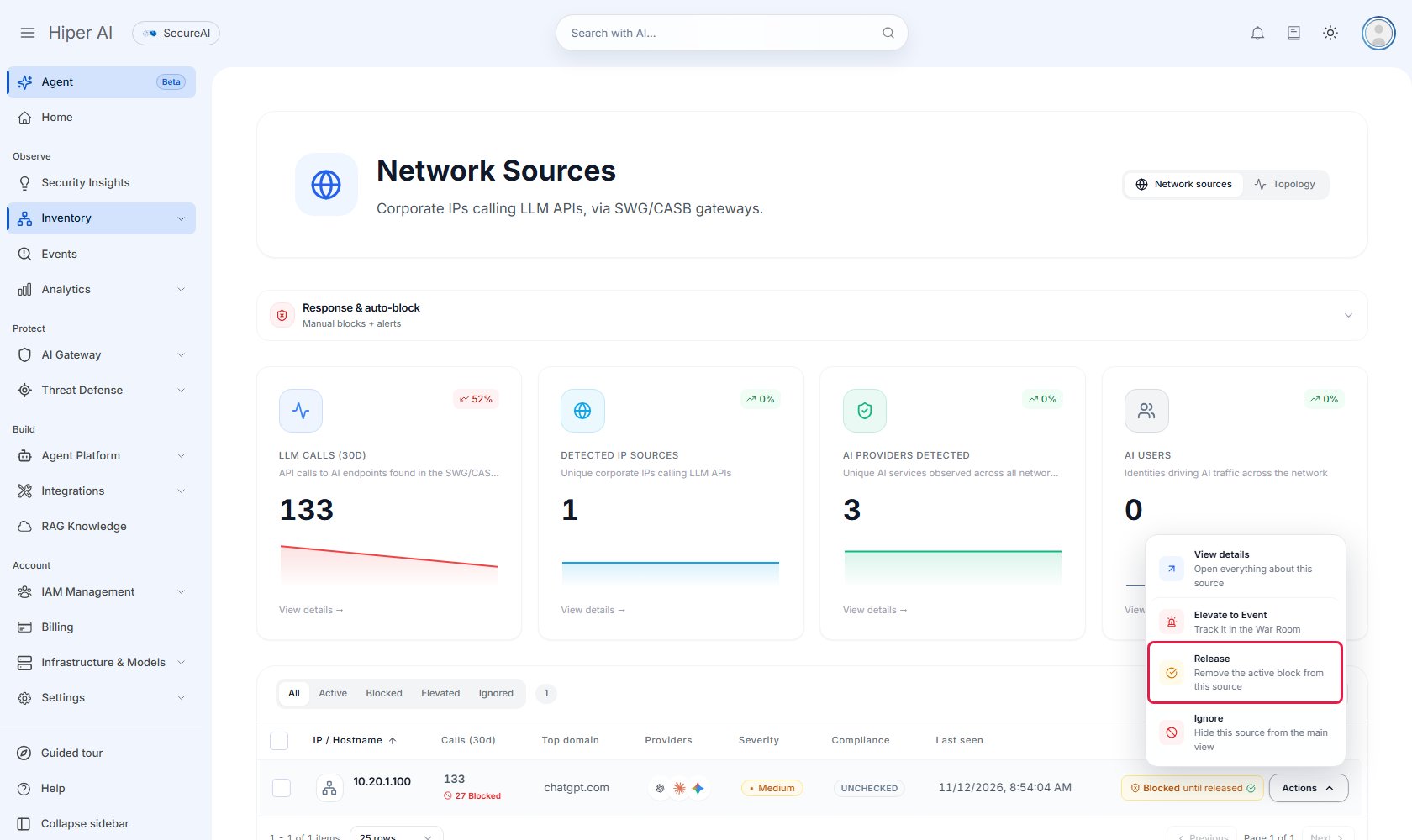
From a device behind the FortiGate, open chatgpt.com. Within a minute or two the device shows up under
Inventory → Network Sources, with its calls, the providers and, if the FortiGate knows it, the user.
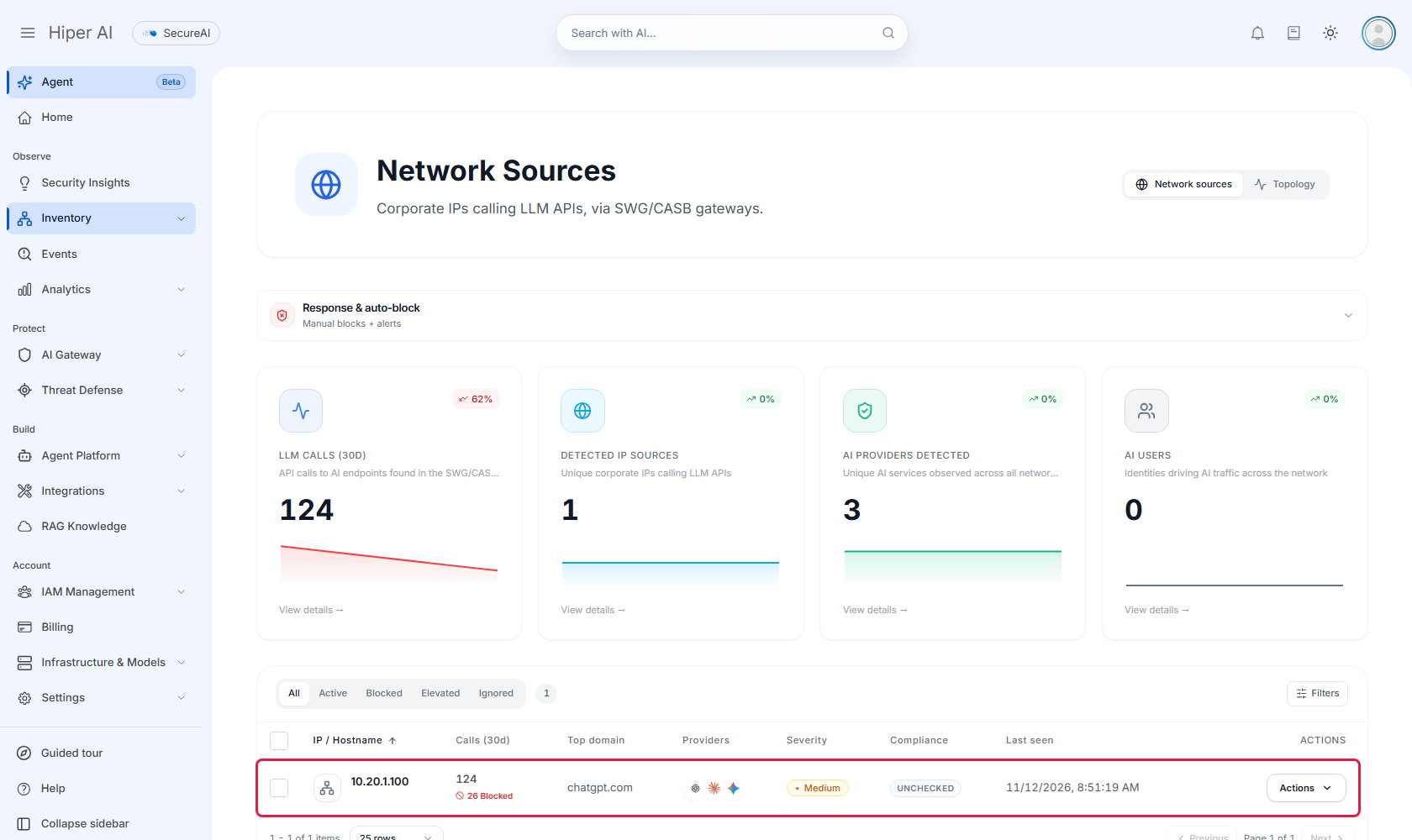
fortinet-fortigateand Gateway enforcement offers to block through the firewall feed.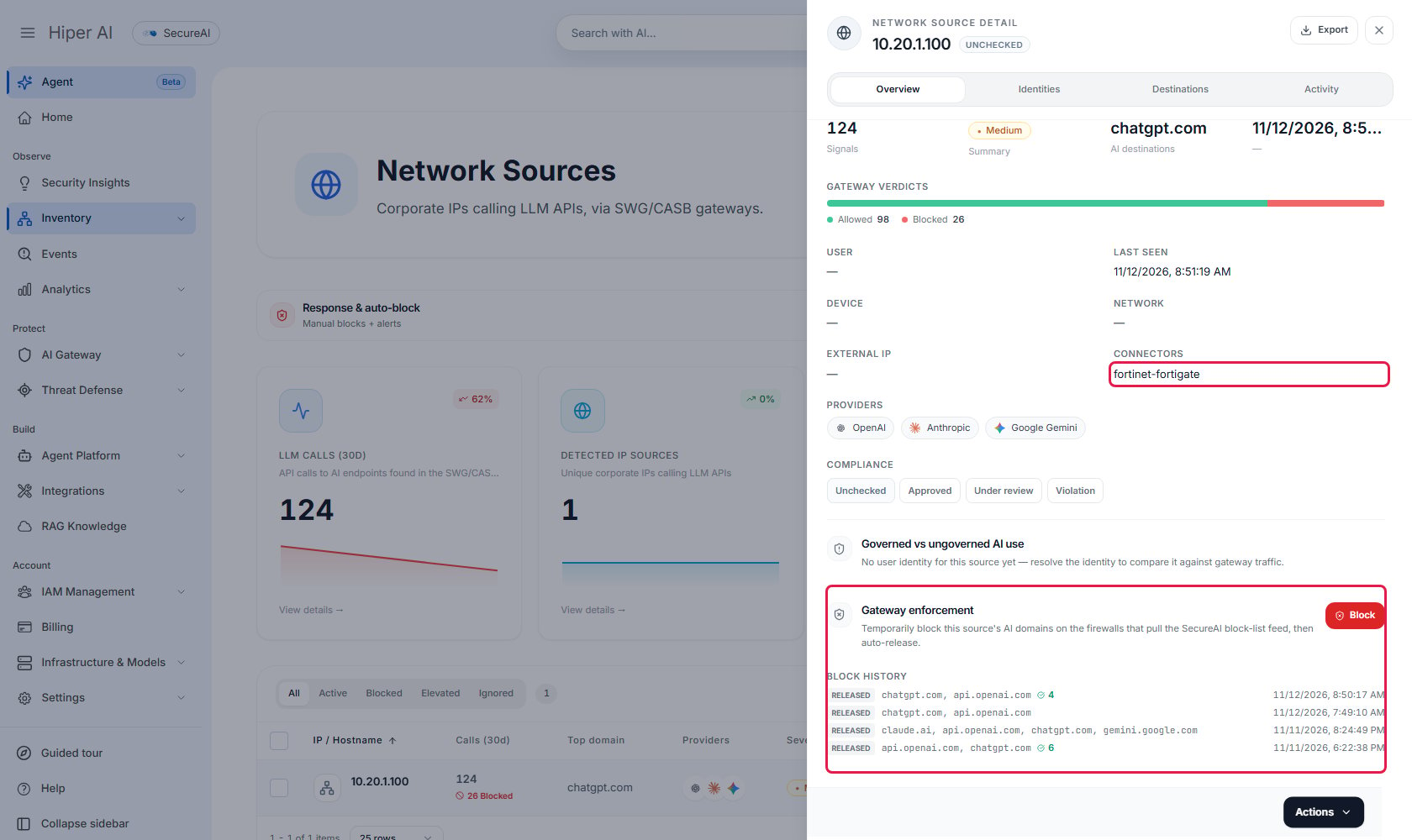
-
On the device’s row, open Actions and pick Block.
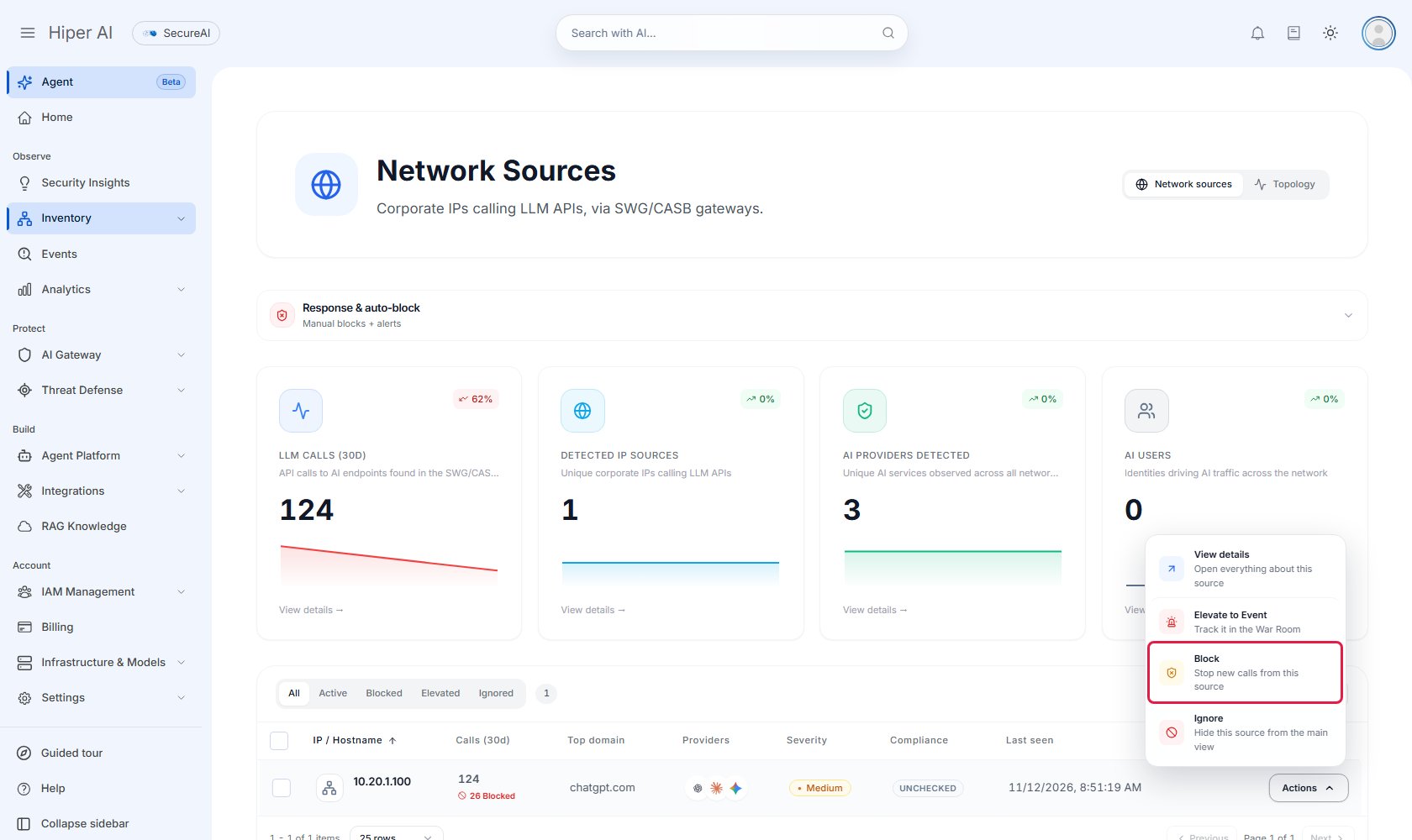
-
Check the domains (for example
chatgpt.comandapi.openai.com), pick the duration (30 minutes up to Until released) and enter the reason. Enforced via must read Firewall block-list feed.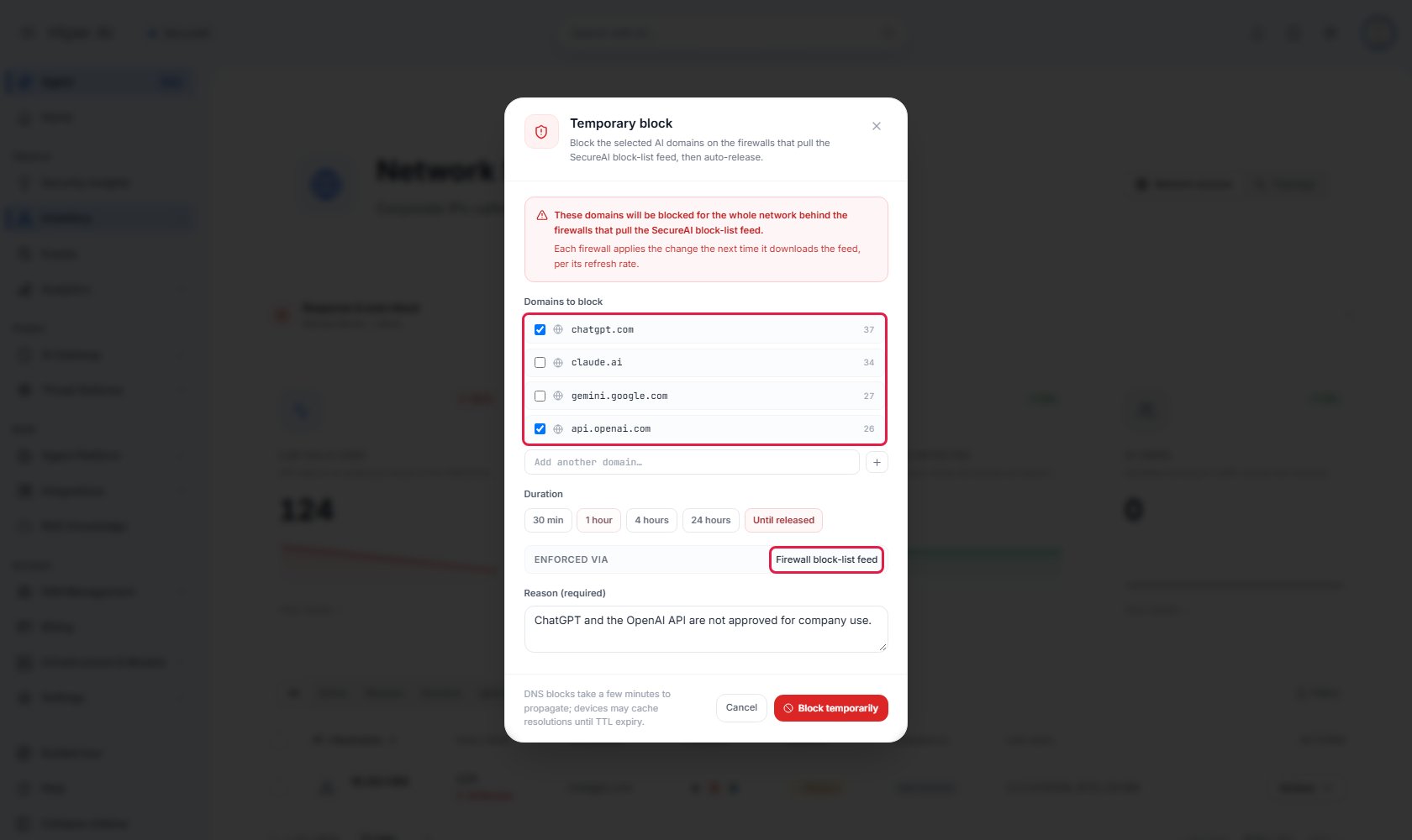
-
On the connector’s next refresh,
nslookup chatgpt.comfrom the device returns 208.91.112.55, the FortiGuard block portal IP, and the browser can’t get through. Under Log & Report → Security Events → DNS Query, thechatgpt.comresponse has Actionredirect.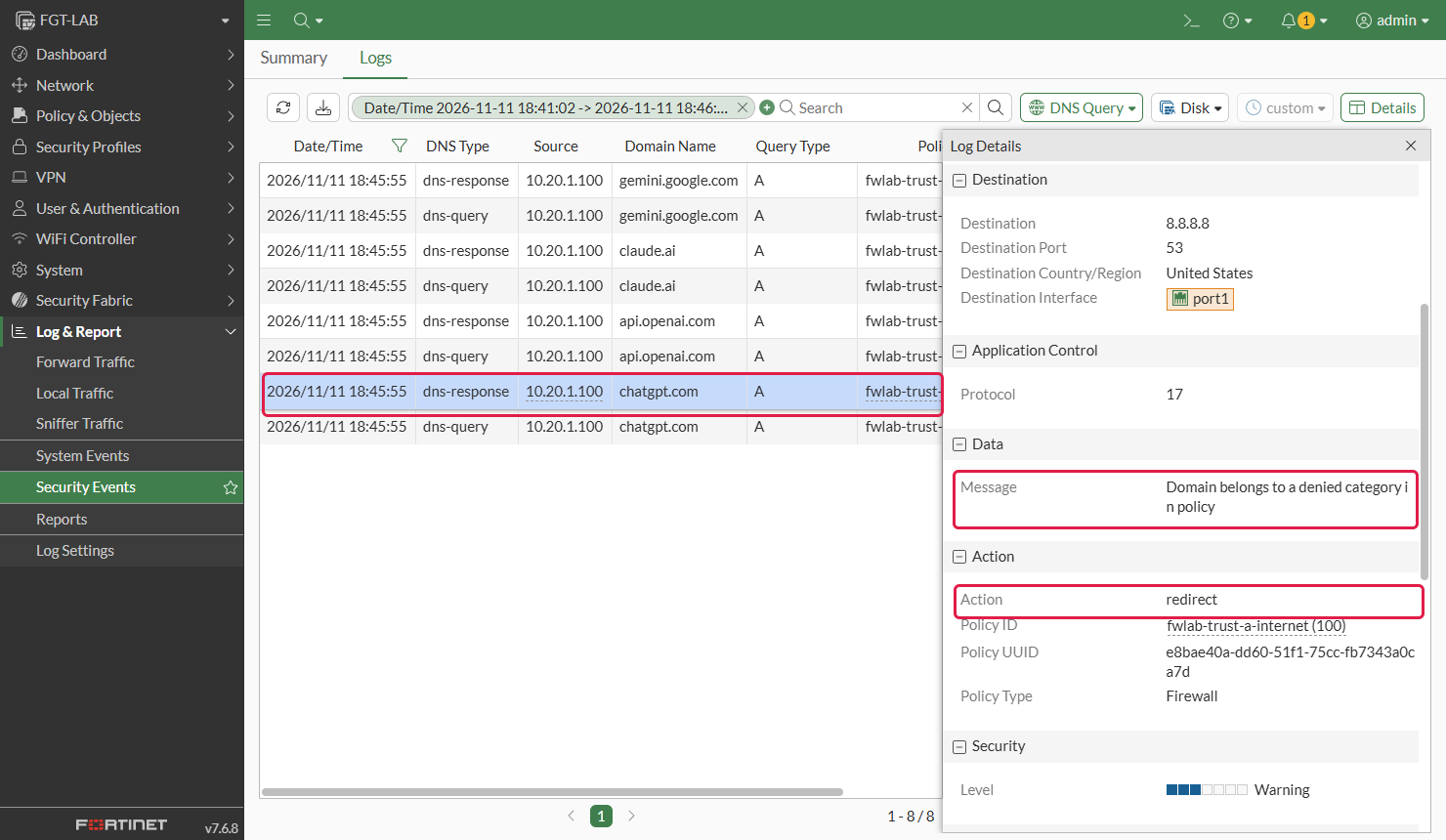
-
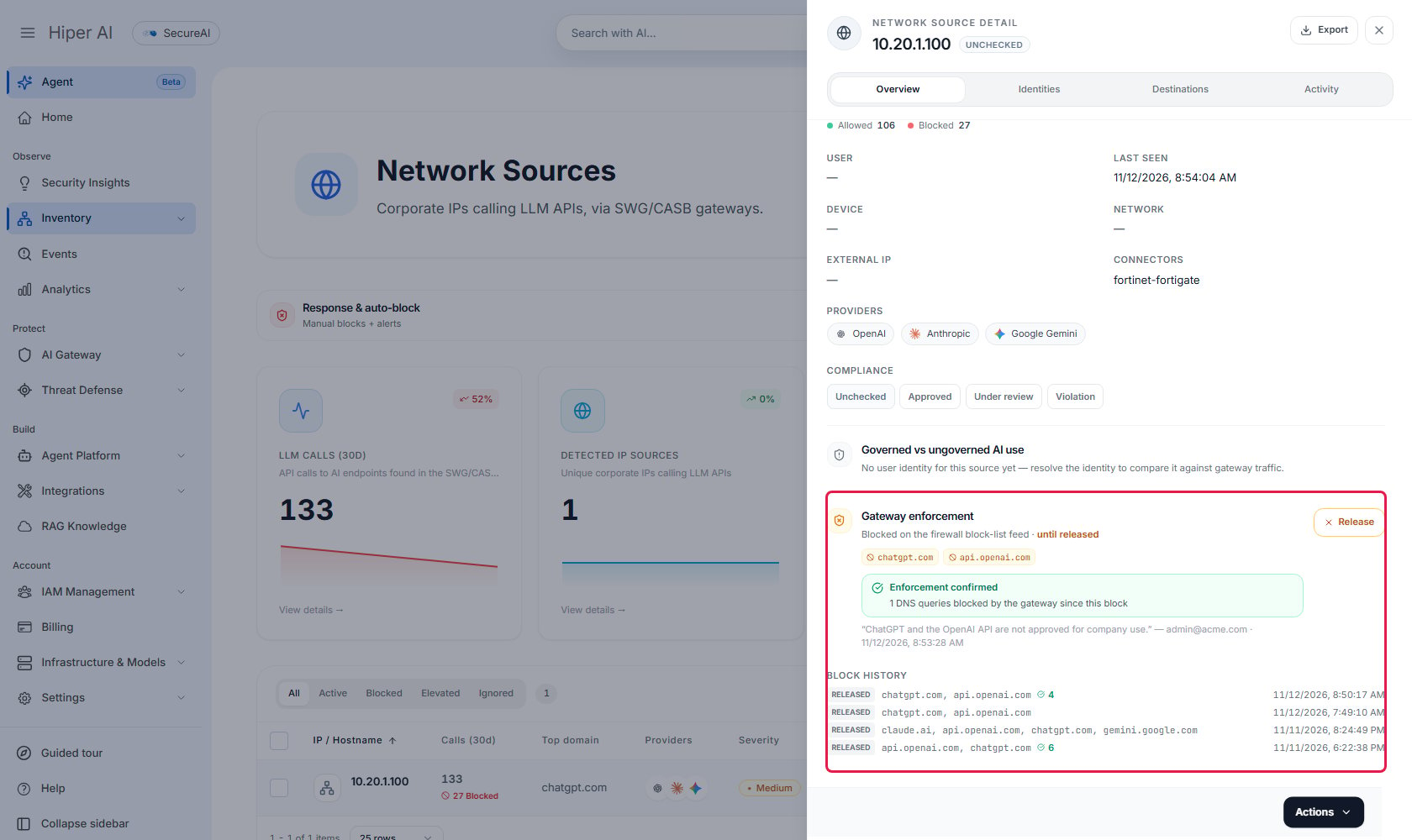
That log comes back to SecureAI. In the source detail, Gateway enforcement switches to Enforcement
confirmed and counts the queries the FortiGate blocked since you created the block.
-
To lift it, pick Actions → Release on the row. SecureAI takes the domains out of the feed and the FortiGate
resolves them again on its next refresh.
Automatic blocking
In Response & auto-block, above the Network Sources list, turn on Auto-block sources that exceed the threshold and set the call threshold (per day or per 7 days), how long the block lasts and how many automatic blocks can be active at once. When a source crosses the threshold, SecureAI puts its AI domains in the feed and takes them out when the block expires. Saving these settings asks for your second factor.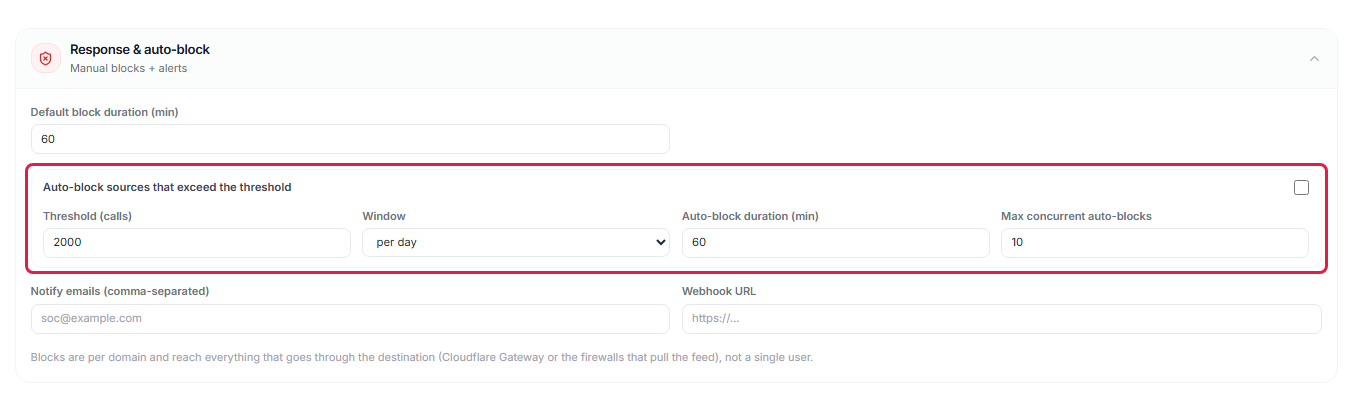
Limits
- Without TLS inspection, the FortiGate sees the destination name, not the content. SecureAI knows someone used ChatGPT, from which device and how many times; not what they wrote.
- The connector uses
https://. Withhttp://the feed token travels in clear text. - Disabling or deleting the feed doesn’t unblock anything. The FortiGate keeps the last list it downloaded. To unblock, use Release or take the category out of the DNS Filter profile.
- A domain the FortiGate already resolved can take a while to be blocked or released. Besides the connector’s refresh (5 minutes), the FortiGate keeps DNS answers for a while. In our lab, the block portal answered between 1 and 8 minutes after the block.
- The collector processes about 3,000 events per second per vCPU. Above that, UDP syslog is dropped without warning.
- Each connector needs its own remote category. With two connectors on the same category, the FortiGate downloads both lists but blocks with only one, and doesn’t warn you.
- A block reaches the whole network behind the FortiGate, not a user or an IP: the feed is a list of domains.
- If your tenant also has Cisco Umbrella or Cloudflare Gateway blocking, blocks go there and not to the feed. To send them to the FortiGate, ask support to set the block destination to the feed.
- Counters are approximate. FortiOS logs the same session in the security log and in the traffic log. SecureAI counts it once, unless the service restarts in between.
- If SecureAI can’t build the list, it answers with an error and the FortiGate keeps the previous one. It never gets an empty list because of an error.