> ## Documentation Index
> Fetch the complete documentation index at: https://docs.hiperai.com/llms.txt
> Use this file to discover all available pages before exploring further.
# Custom SIEM / Webhook Integration
> Generic SIEM (HTTP/Webhook) integration for sending SecureAI security logs to any custom HTTP endpoint
# Generic SIEM (HTTP/Webhook) Integration
## Overview
The Generic SIEM (HTTP/Webhook) integration allows you to send SecureAI security logs to any custom HTTP endpoint. This is perfect for integrating with SIEM systems that don't have native support, custom security tools, or any HTTP-based logging system.
## Use Cases
* **Custom SIEM Systems**: Send logs to your in-house security monitoring tools
* **Third-party Security Platforms**: Integrate with security tools that accept webhooks
* **Custom Dashboards**: Build your own security event visualization
* **Testing & Development**: Use webhook testing services to verify log delivery
* **Legacy Systems**: Connect to older security tools that only support HTTP endpoints
## Configuration Steps
### 1. Get a Test Endpoint
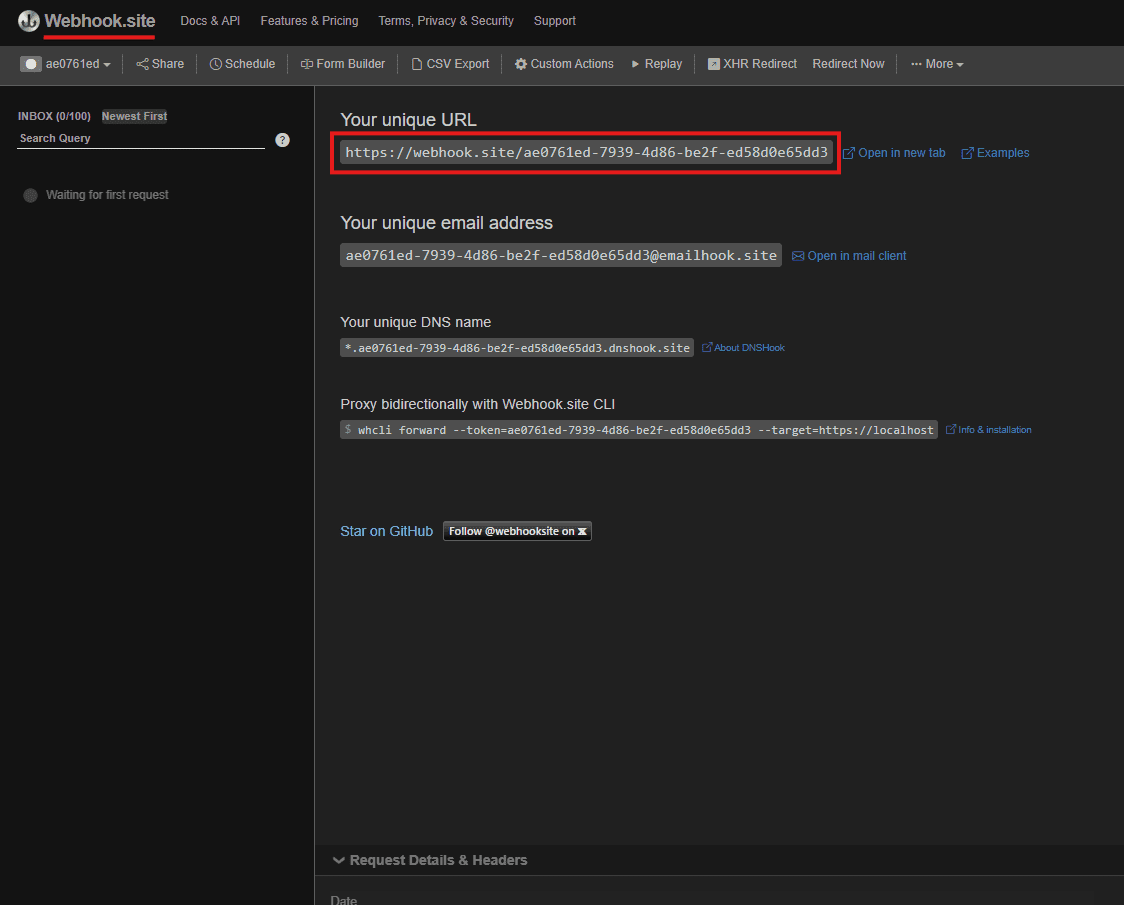
For testing purposes, we recommend using webhook.site:
1. Visit [https://webhook.site](https://webhook.site)
2. Copy your unique URL (e.g., `https://webhook.site/ae0761ed-7939-4d86-be2f-ed58d0e65dd3`)
3. Keep this page open to monitor incoming webhooks
### 2. Configure the Integration
1. Navigate to **Integrations** in your SecureAI admin panel
2. Find **"Generic SIEM (HTTP/Webhook)"** in the SIEM category
3. Click **"Connect Integration"**
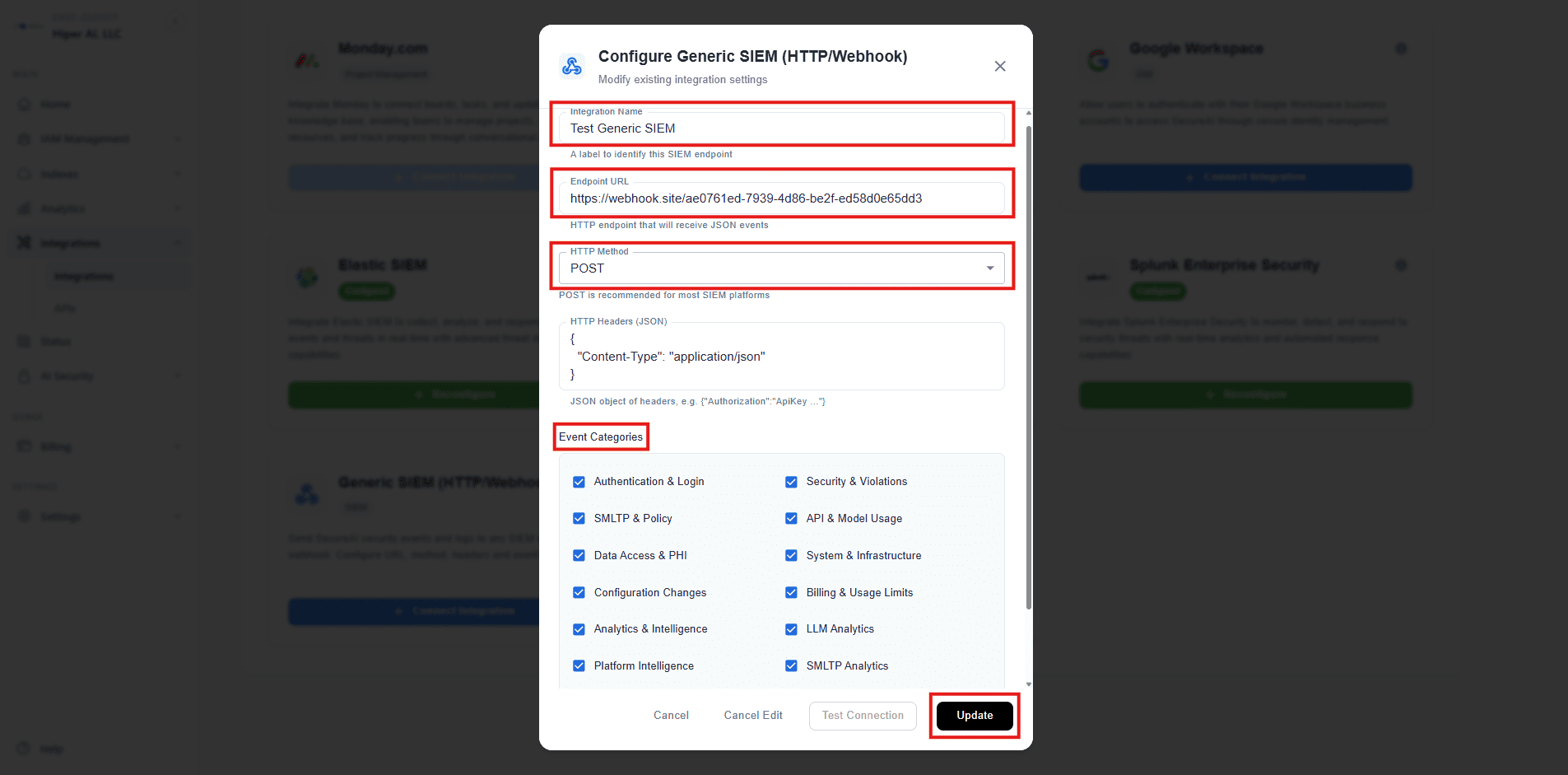
### 3. Fill in the Configuration
#### Basic Settings
* **Integration Name**: `Test Generic SIEM` (or any descriptive name)
* **Endpoint URL**: `https://webhook.site/ae0761ed-7939-4d86-be2f-ed58d0e65dd3`
* **HTTP Method**: `POST` (recommended for most SIEM platforms)
* **HTTP Headers**: `{"Content-Type": "application/json"}`
#### Event Categories
Select which types of events to forward:
✅ **Recommended for Testing:**
* Authentication & Login
* API & Model Usage
* Data Access & PHI
* SMLTP & Policies
* Billing & Usage Limits
* Analytics
⚠️ **Optional (may generate high volume):**
* Security & Violations
* System & Infrastructure
* Configuration Changes
### 4. Test the Connection
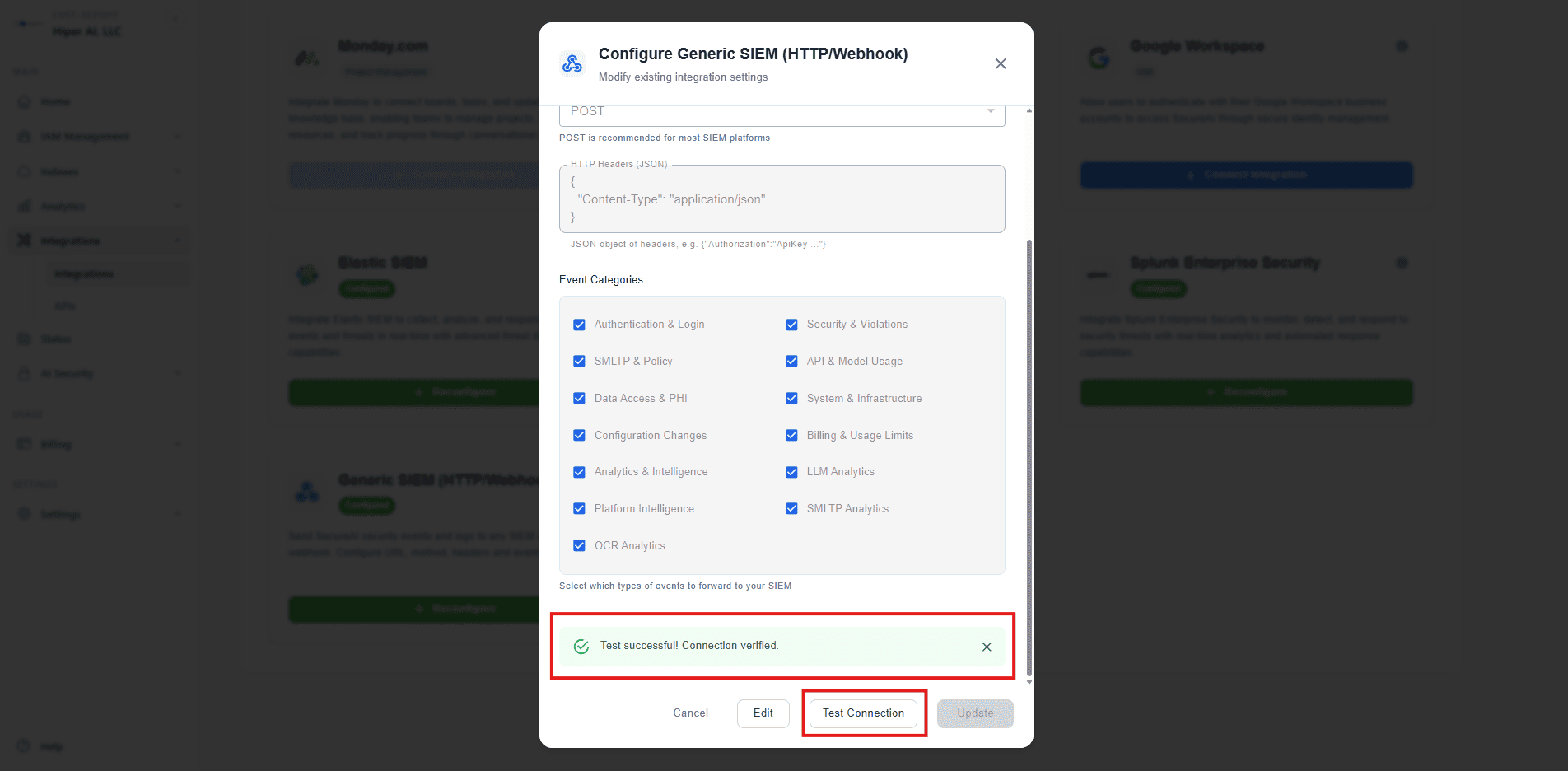
1. Click **"Test Connection"** to verify connectivity
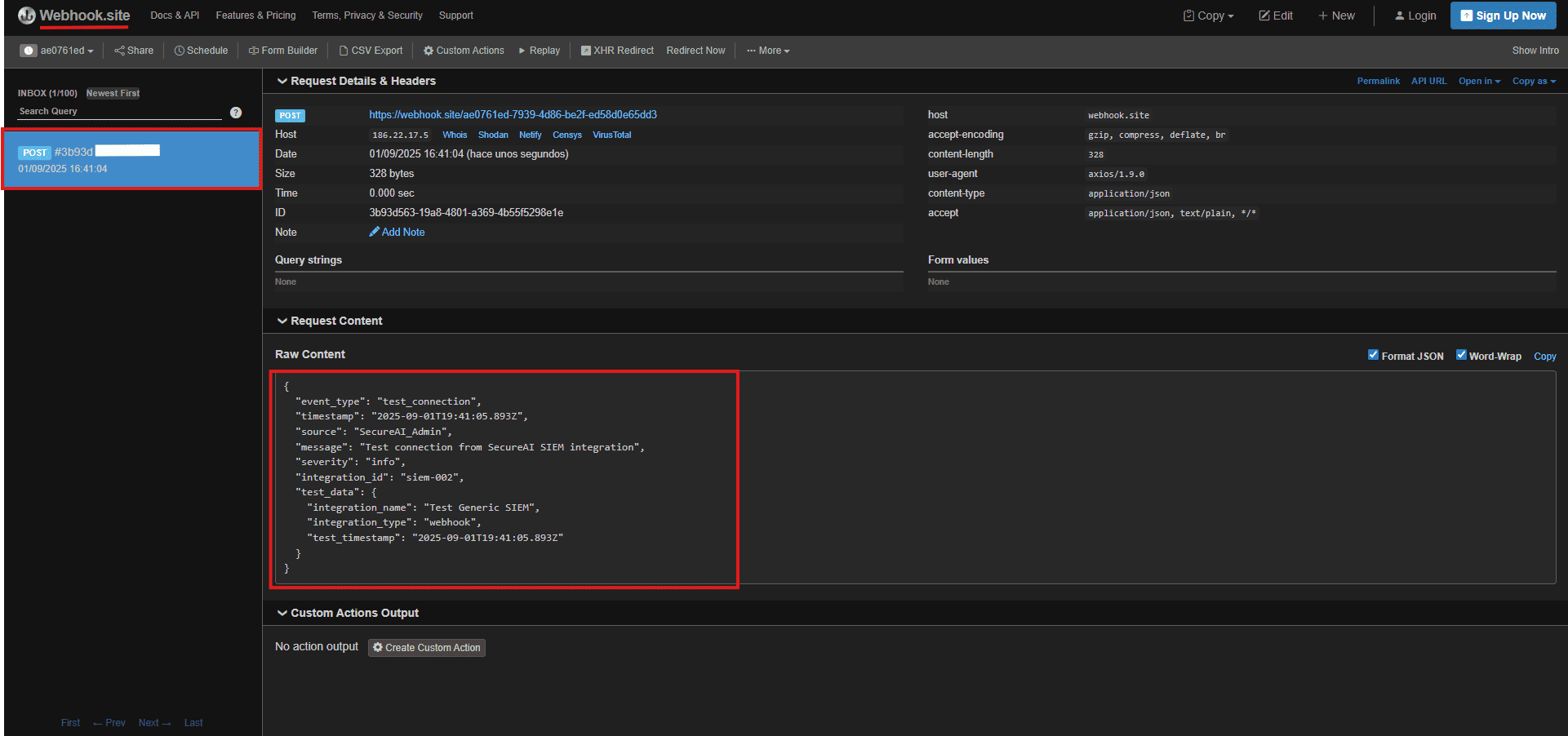
2. Check webhook.site - you should see a test request
3. Verify the response shows success
### 5. Save and Monitor
1. Click **"Connect"** to save the configuration
2. Perform actions in your SecureAI system (login, API calls, etc.)
3. Monitor webhook.site to see real-time logs
## Advanced Configuration
### Custom Headers
You can add custom headers for authentication or specific requirements:
```json theme={null}
{
"Content-Type": "application/json",
"Authorization": "Bearer your-api-key",
"X-Custom-Header": "custom-value"
}
```
### When to Use Custom SIEM
The Custom SIEM integration is particularly useful in these scenarios:
* **No SIEM System**: If you don't currently use any SIEM platform, this provides a simple way to start collecting security logs
* **Additional Data Destinations**: Send data to multiple locations simultaneously (e.g., your primary SIEM + a backup system)
* **Custom Tools**: Integrate with specialized security tools, data centers, or custom dashboards
* **Communication Platforms**: Send alerts to Teams channels, Slack, or other collaboration tools
* **Legacy Systems**: Connect to older security tools that only support HTTP endpoints
* **Testing & Development**: Use webhook testing services to verify log delivery before production deployment
**Note**: If you already have a supported SIEM (Splunk, Microsoft Sentinel, Elastic), we recommend using our native integrations for optimal performance and features.
## Troubleshooting
### Common Issues
1. **Connection Timeout**: Check if the endpoint is accessible and responding
2. **Authentication Errors**: Verify API keys and authentication headers
3. **SSL/TLS Issues**: Ensure proper certificate validation for HTTPS endpoints
### Monitoring
* Check the integration status in your SecureAI admin panel
* Monitor webhook delivery success rates
* Review failed webhook attempts in the logs
* Verify endpoint availability and response times
## Security Considerations
* **HTTPS Only**: Always use HTTPS endpoints in production
* **Authentication**: Implement proper authentication for your webhook endpoints
* **Rate Limiting**: Configure appropriate rate limits on your endpoints
* **Log Retention**: Implement proper log retention policies for compliance
* **Access Control**: Restrict access to webhook endpoints to authorized systems only
## Best Practices
1. **Start Small**: Begin with essential event categories and expand gradually
2. **Test Thoroughly**: Use webhook.site or similar services for initial testing
3. **Monitor Performance**: Watch for webhook delivery delays or failures
4. **Document Configuration**: Keep detailed records of your webhook setup
5. **Regular Review**: Periodically review and update webhook configurations
6. **Backup Plans**: Have alternative logging methods in case webhooks fail
## Done!
With these steps, your Custom Webhook instance is fully configured to integrate with SecureAI 😎.