> ## Documentation Index
> Fetch the complete documentation index at: https://docs.hiperai.com/llms.txt
> Use this file to discover all available pages before exploring further.
# Google Vertex AI — Inference on your account
> Run SecureAI's LLM traffic on your own Google Cloud account: pay Google with your committed spend (CUDs) while SecureAI keeps enforcing DLP, policies, and signed receipts.
# Google Vertex AI — Inference on your account
With this integration, SecureAI's large language model (LLM) calls run in **your own Google Cloud project** instead of on SecureAI-managed providers. Usage is billed directly to your Google account, so you can use your committed spend (CUDs) and negotiated discounts.
SecureAI stays in the path of every request: **DLP, model policies, data residency, and signed receipts** apply exactly as they do with any other provider.
**Not to be confused with the other Google Cloud card.** This page connects Vertex AI as an **inference provider** (Admin → Integrations → **AI providers**). The **Google Cloud — Discovery** card (**Cloud** category) only inventories the project in read-only mode and never sends a prompt; it is described in [Google Cloud — Discovery](/en/integrations/cloud/gcp-vertex-ai). You can use both on the same project, but they are independent and ask for different permissions.
## What runs on Vertex and what does not
| Runs on your Vertex | Stays on SecureAI-managed providers |
| - | - |
| Chat and agents (models from the families you choose) | Embeddings (document and index search) |
| Teams meeting summaries (Gemini model) | Search re-ranking |
| Grammar check, translation, and other internal background tasks, when you choose **Remap everything** | Document OCR |
| | Admin assistant |
| | Image generation and realtime voice |
| | Self-hosted models and the Claude Code proxy |
Models available today: **Gemini** and the open models served as MaaS on Vertex (**gpt-oss, DeepSeek, Llama, and Qwen**). **Claude and Mistral on Vertex are not supported yet**; those models are handled according to the fallback setting (see below).
## Prerequisites
* A **Google Cloud project** with billing enabled.
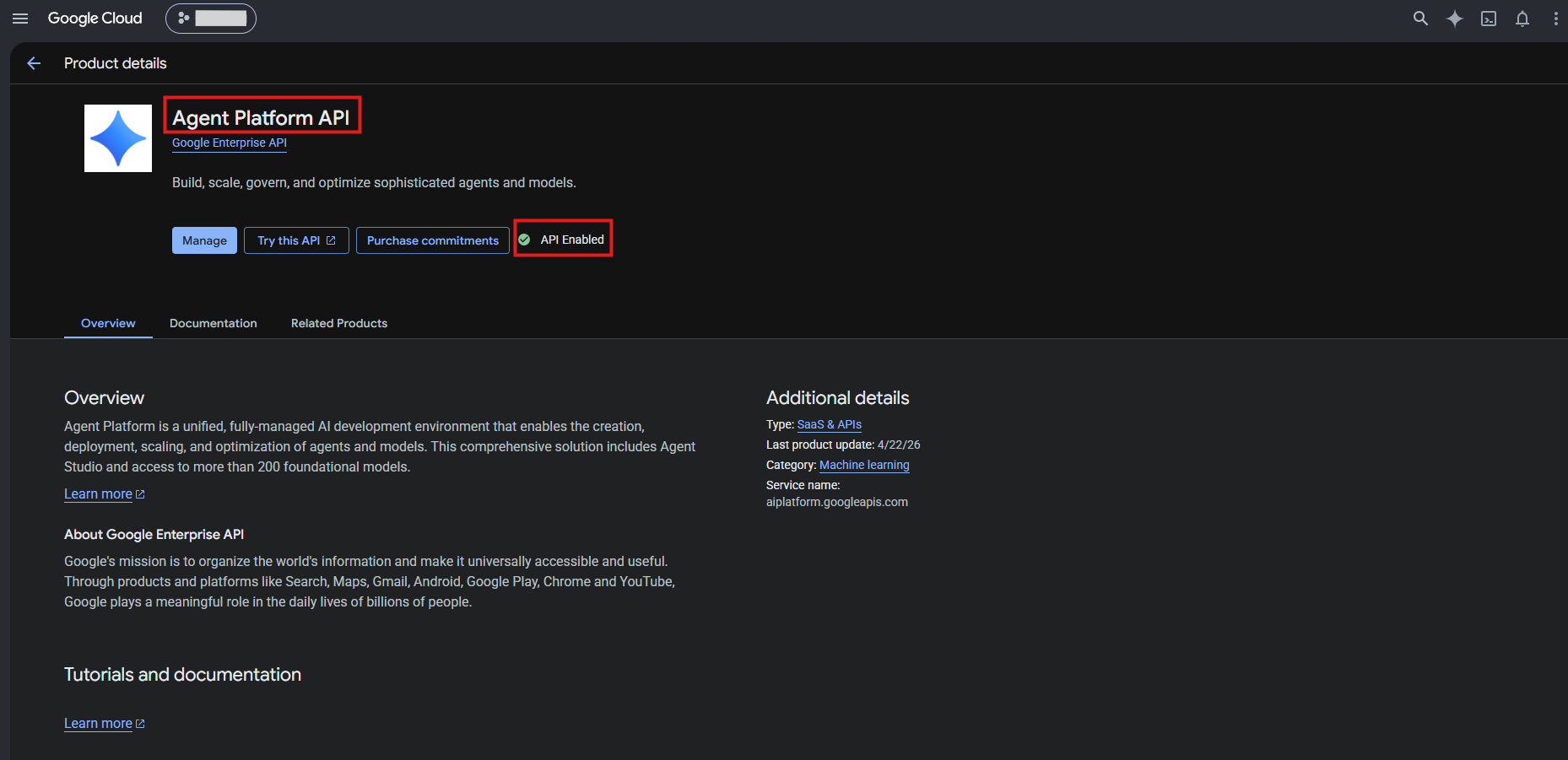
* The **Agent Platform API** enabled on that project (the `aiplatform.googleapis.com` service).
* A **service account** in your project with the **Agent Platform User** role (`roles/aiplatform.user`) and a **JSON key** for that account.
* **Admin** permission on the Integrations section of SecureAI. With read permission you can view the configuration but not change it.
## Step 1. Prepare the project in Google Cloud
You can do it from the command line (quick) or from the console (with screenshots).
From [Cloud Shell](https://shell.cloud.google.com/) or with `gcloud` installed. Replace `MY_PROJECT` with the real project ID:
```bash theme={null}
gcloud config set project MY_PROJECT
# 1. Enable the Agent Platform API
gcloud services enable aiplatform.googleapis.com
# 2. Create a dedicated service account for SecureAI
gcloud iam service-accounts create secureai-vertex --display-name="SecureAI Vertex"
# 3. Grant it the minimum role to invoke models
gcloud projects add-iam-policy-binding MY_PROJECT \
--member="serviceAccount:secureai-vertex@MY_PROJECT.iam.gserviceaccount.com" \
--role="roles/aiplatform.user"
# 4. Generate the JSON key
gcloud iam service-accounts keys create key.json \
--iam-account=secureai-vertex@MY_PROJECT.iam.gserviceaccount.com
```
1. In the [Google Cloud console](https://console.cloud.google.com/), select your project and open **APIs & Services → Library**. Search for **Agent Platform API** and click **Enable**. If it already shows **API Enabled**, there is nothing to do.
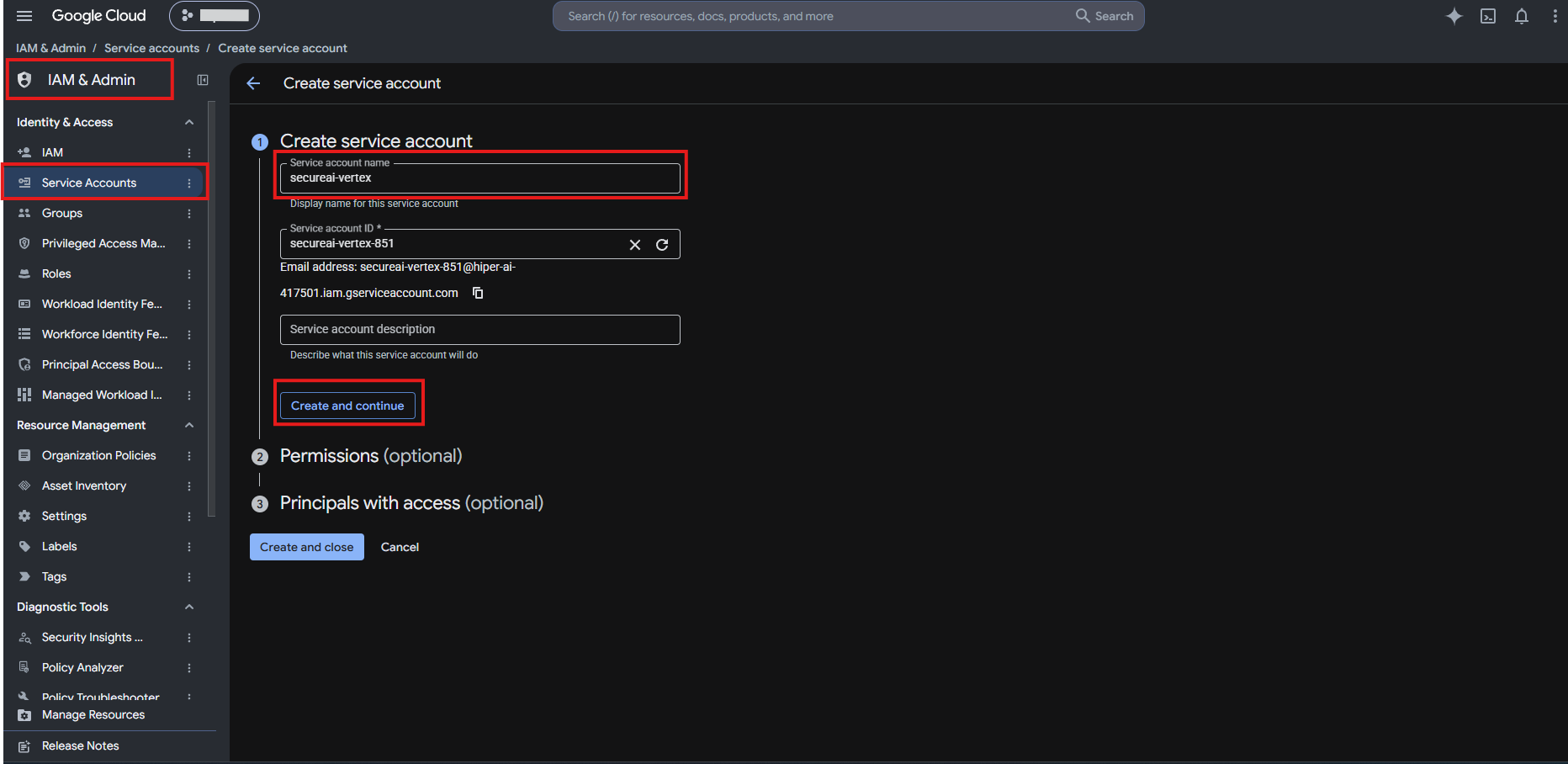
2. Go to **IAM & Admin → Service Accounts → Create service account**. Give it a name (for example `secureai-vertex`).
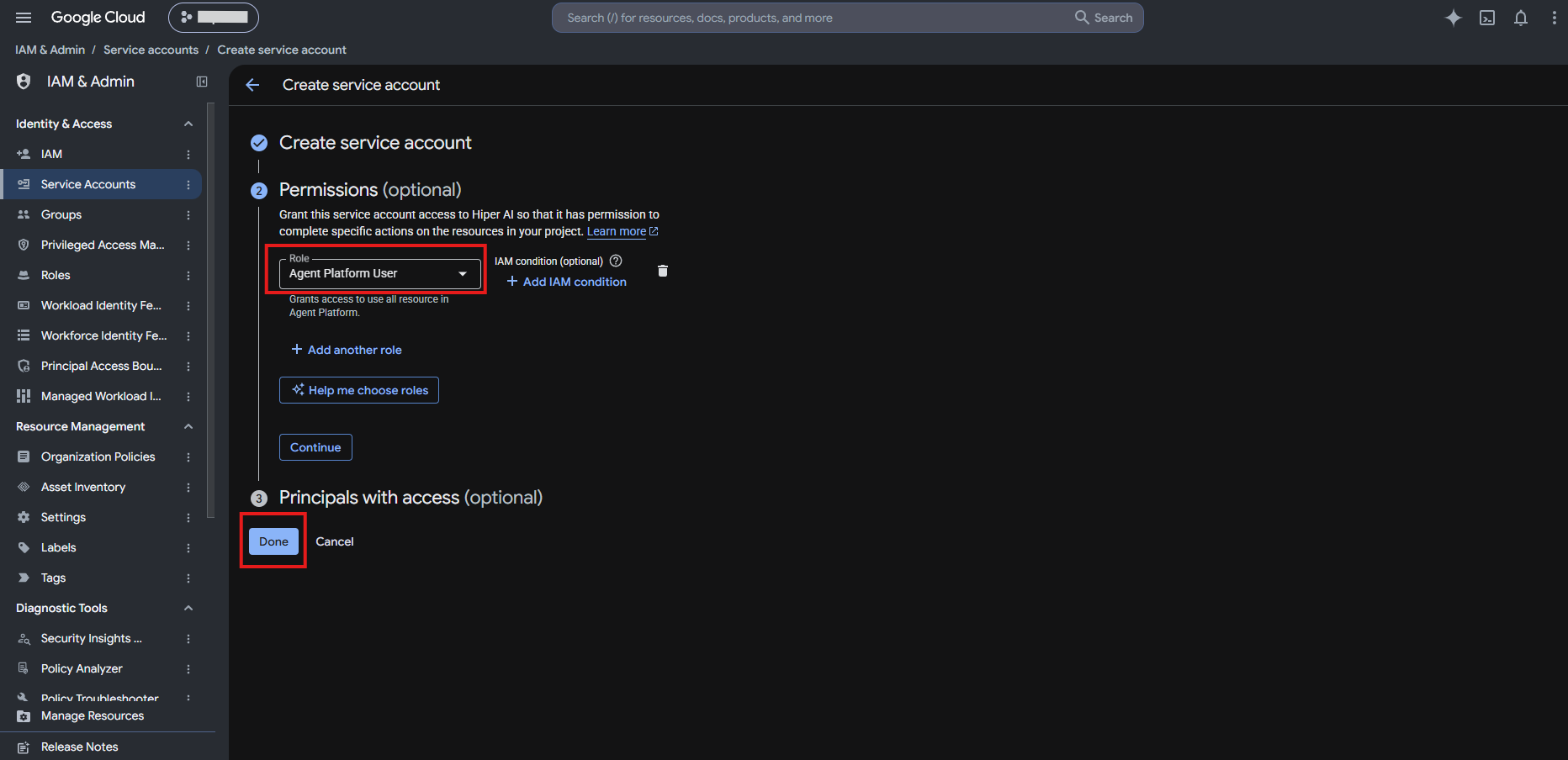
3. Under **Permissions**, grant the **Agent Platform User** role (`roles/aiplatform.user`) on the project and click **Done**. No other role is needed for inference.
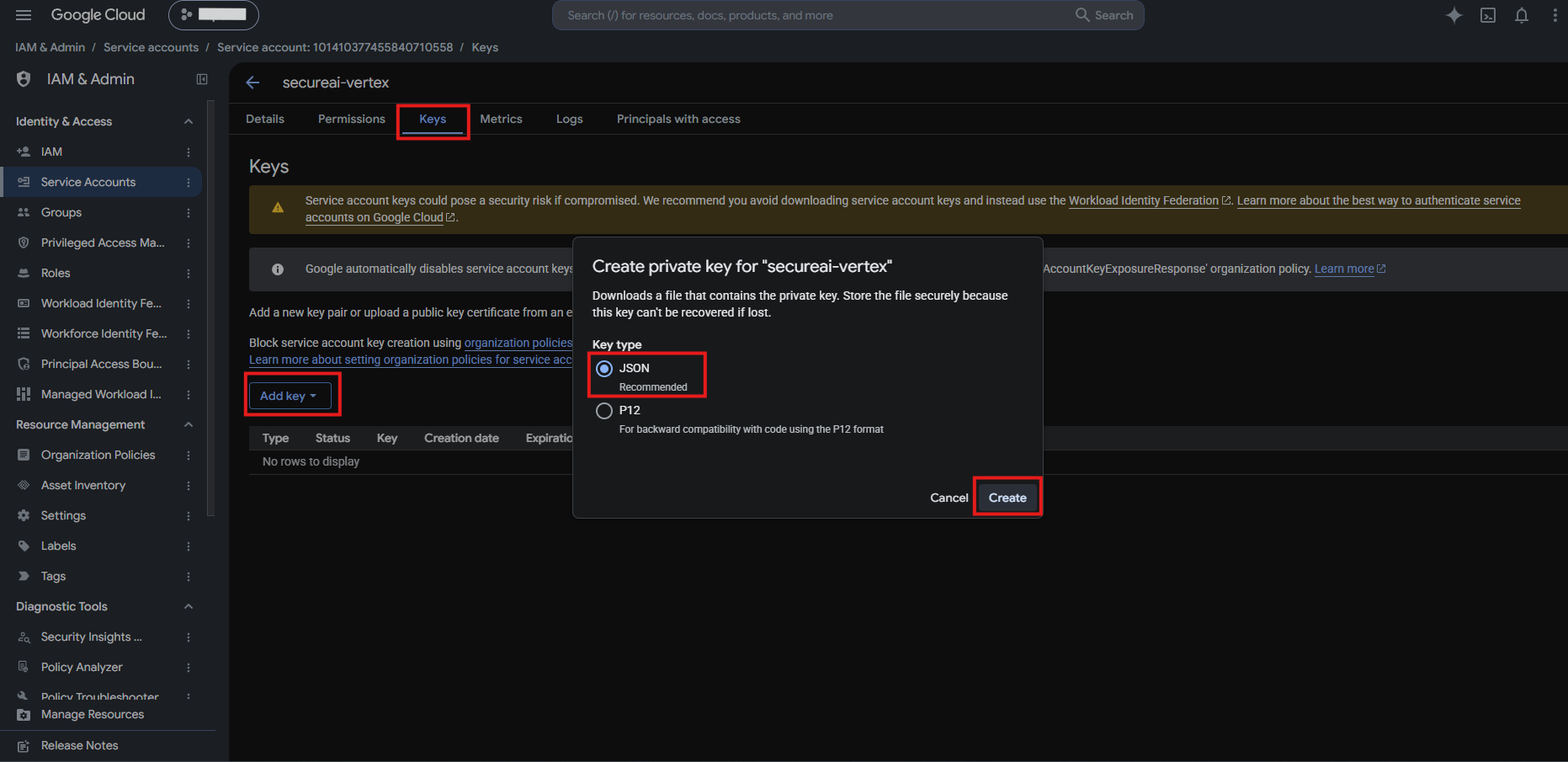
4. Open the service account, go to the **Keys** tab → **Add key → Create new key**, choose the **JSON** key type, and click **Create**. The file is downloaded only once.
Treat the JSON file like a password. SecureAI stores it **encrypted** and never shows it again, but the downloaded file (`key.json`) stays on your computer: paste its contents into SecureAI and then **delete it**, or keep it in a secrets manager.
**If you cannot create the key.** If step 4 fails with `iam.disableServiceAccountKeyCreation`, your Google Cloud organization's policy forbids service-account keys (it is the default on new organizations). This integration needs the JSON key, so an organization policy administrator must allow key creation for that project (the `iam.disableServiceAccountKeyCreation` constraint) before you continue.
### Open models (Llama, DeepSeek, Qwen, gpt-oss)
**Gemini needs nothing more.** To also use Llama, DeepSeek, Qwen, or gpt-oss, first accept each model's terms in **Vertex AI → Model Garden**. These open models need a specific **region** (for example `us-central1`); with `global` they may not be available.
## Step 2. Connect the project in SecureAI
1. Go to **Admin → Integrations**, open the **AI providers** category, and click the **Google Vertex AI — Inference on your account** card.
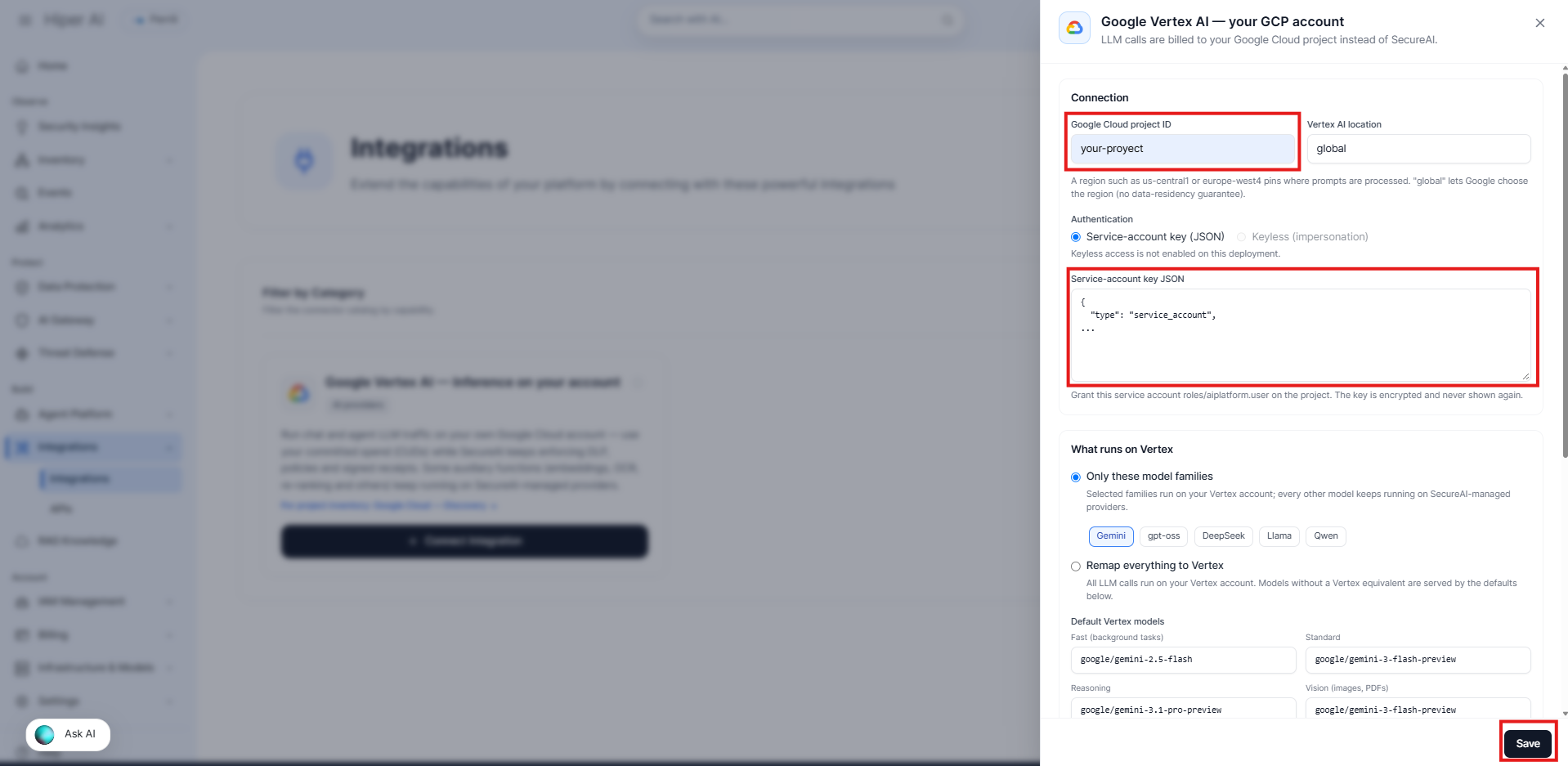
2. Under **Connection**, fill in:
| Field | What to enter |
| - | - |
| **Google Cloud project ID** | The project ID (for example `my-project-123`), not its display name. |
| **Vertex AI location** | To start, leave `global`: that is where the Gemini 3 *preview* default models live. If you need **data residency**, enter a region (`us-central1`, `europe-west4`…): it pins **where prompts are processed**, whereas `global` lets Google choose and does not guarantee it. Open models need a region. |
| **Authentication** | Keep **Service-account key (JSON)** selected and paste the **full** contents of `key.json`. |
3. Click **Save**. No traffic is routed yet: the integration is saved turned off so you can test it first.
**Recommendation for day one:** keep the **Only these model families** mode with **Gemini** only, the default models unchanged, and fallback and quotas off. It is the most predictable setup. Leave **Remap everything** for when this has been validated.
The pasted key is never shown again. To replace it, paste a new one; if you leave the field empty when saving, the current key is kept.
## Step 3. Choose what runs on Vertex
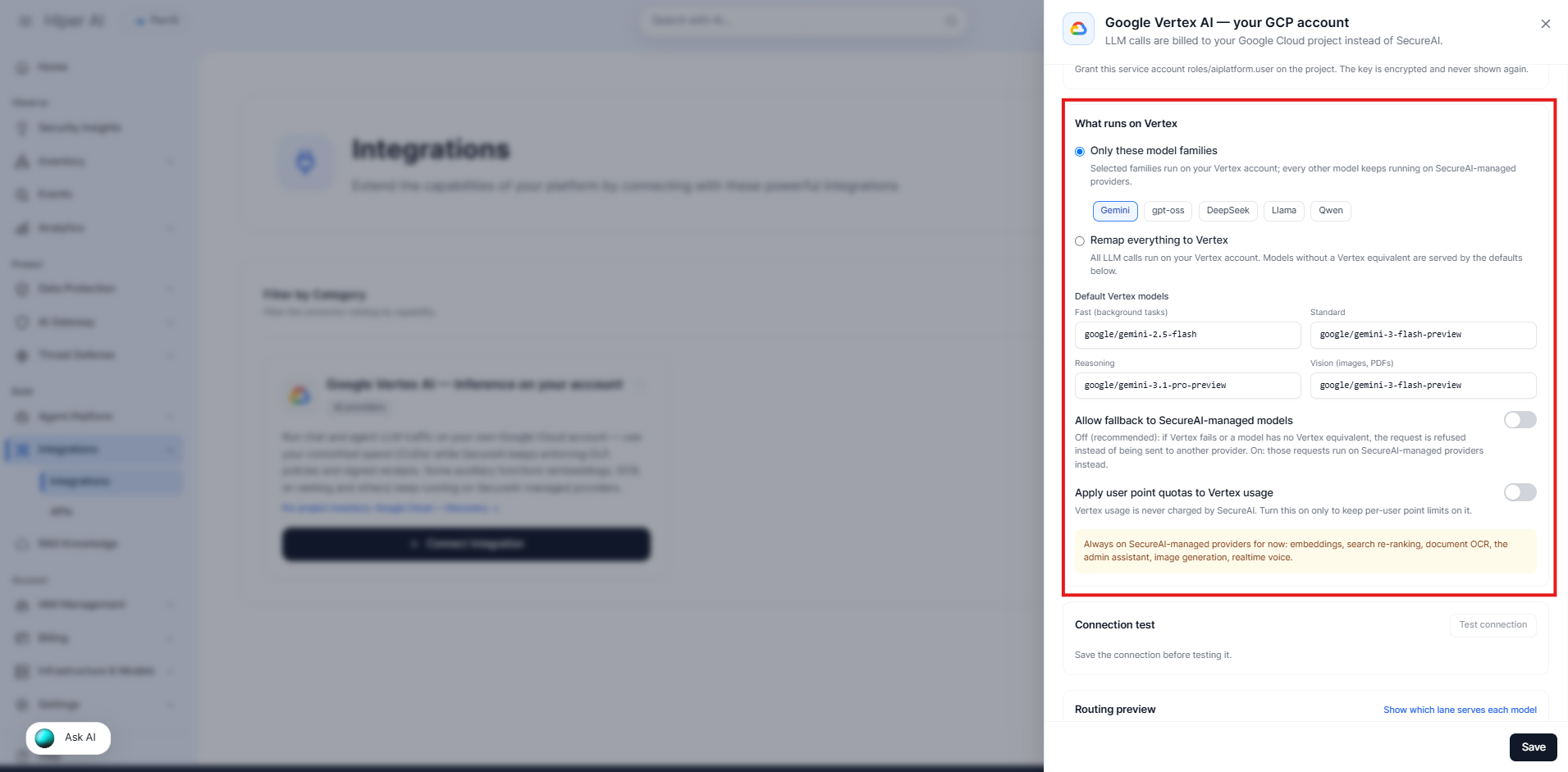
Under **What runs on Vertex** there are two modes:
* **Only these model families** — the families you tick (Gemini, gpt-oss, DeepSeek, Llama, Qwen) run on your Vertex; every other model keeps running on SecureAI's providers. This is the most conservative way to start (default: Gemini only).
* **Remap everything to Vertex** — all LLM calls run on your Vertex. Models with no Vertex equivalent are served by a **default model**.
**Default Vertex models** (editable):
| Tier | Used for | Default |
| - | - | - |
| **Fast** | Background tasks and utilities (grammar, translation, Teams) | `google/gemini-2.5-flash` |
| **Standard** | Models with no equivalent | `google/gemini-3-flash-preview` |
| **Reasoning** | Reasoning models with no equivalent | `google/gemini-3.1-pro-preview` |
| **Vision** | Requests with images or PDFs | `google/gemini-3-flash-preview` |
There are also two options:
| Option | Off (recommended) | On |
| - | - | - |
| **Allow fallback to SecureAI-managed models** | If Vertex fails or a model has no equivalent, the request is **refused** instead of being sent to another provider. | Those requests are retried **once** on SecureAI-managed providers. The retry is audited. |
| **Apply user point quotas to Vertex usage** | Vertex usage does not consume users' points. | Per-user point limits also apply to Vertex. |
Available models depend on the **location**. The default models (several of them *preview*) may not exist in every region. If the connection test returns **Model not available in this location**, choose another region or replace the default models with ones your region serves. Open models (MaaS) require accepting their terms in Vertex AI Model Garden and a specific region.
## Step 4. Test the connection
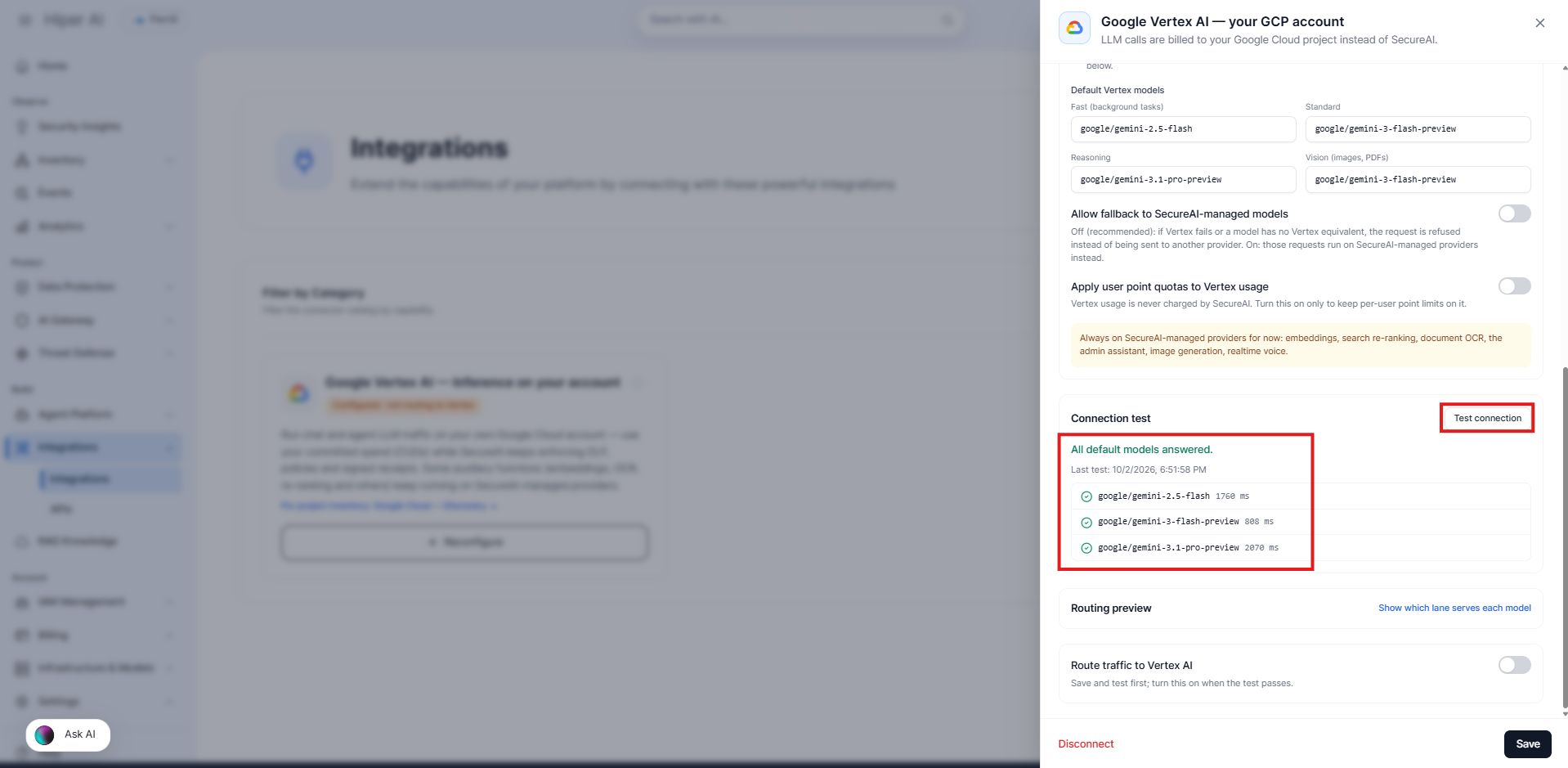
1. With the integration saved, under **Connection test** click **Test connection**.
2. SecureAI sends a minimal request to each default model, **through the same path real traffic will use** (gateway, policies, and receipts included), and shows each result with its latency.
3. If a model fails, the panel shows the reason. See the **Troubleshooting** section at the end of this page.
The test sends a few one-token requests and **is billed to your Google account** (cents).
## Step 5. Review the routing and turn it on
1. Open **Routing preview → Show which lane serves each model**. For every catalog model it shows whether **your Vertex** will serve it (and with which Vertex model) or **SecureAI** will, and which ones will be **hidden from users**. The preview simulates the integration being on, so you can review the effect before enabling it.
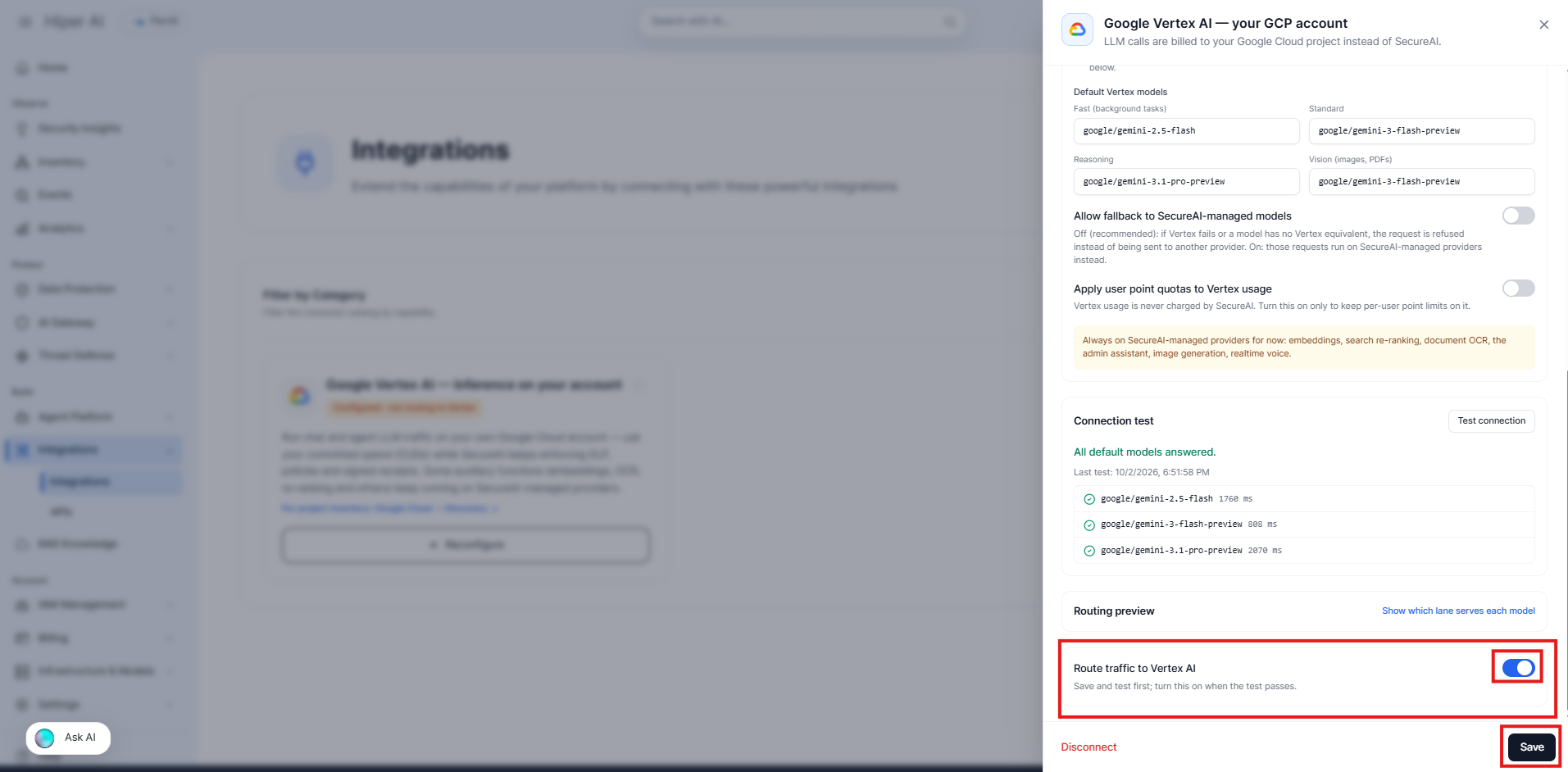
2. When the test passes, turn on **Route traffic to Vertex AI** and click **Save** again. **If you do not save, the switch does not stay on.** To turn it on, a project and a credential must be configured.
3. The card turns green: **Routing to Vertex**. If it is saved but off, it shows amber **Configured · not routing to Vertex**.
The change applies immediately on the server where it was saved and within 30 seconds at most on the others.
## Step 6. Verify in the model selector
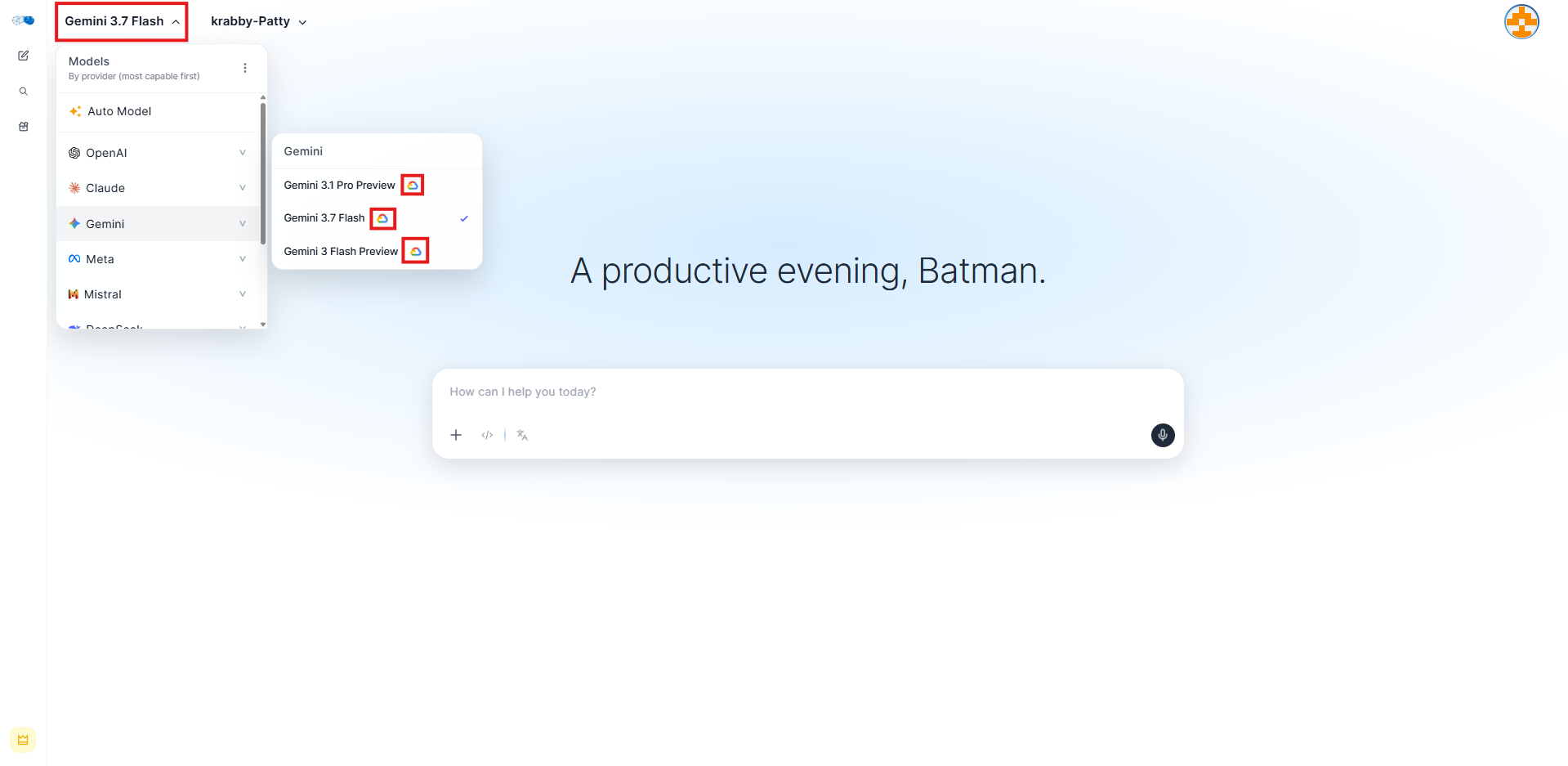
When the integration is active, models that run on your Vertex show the **Google Cloud logo** next to their name in the chat model selector. Hovering it says the model runs on your organization's Vertex AI account.
In **Remap everything** mode without fallback, the selector **only offers** models your Vertex serves. A model with no equivalent would be answered by a different model than the one chosen, so it is hidden.
## What is billed, and to whom
* **LLM usage is billed by Google to your account**, not by SecureAI. You will see the charge in your Google Cloud billing, with your discounts and CUDs applied.
* SecureAI shows the cost of turns served on Vertex as a **list-price estimate** for analytics only. It is a reference: it **does not include** your discounts, so Google's actual figure may be lower.
* Turns on Vertex **do not deduct points** from users, unless you turn on **Apply user point quotas**.
## Security and compliance
* **Encrypted credentials.** The service-account key is stored encrypted (AES-256-GCM) and is never returned to the browser, not even to an administrator. The screen only shows the account's email.
* **The path stays protected.** Every call goes through SecureAI's SMLTP gateway: DLP, a signed per-request authorization token, and a verifiable **signed receipt**.
* **Data residency.** With a pinned region (for example `europe-west4`), prompts are processed in that region and your organization's residency policies apply.
* **Fails closed.** If the configuration cannot be read or Google's token cannot be obtained, the request is refused; it is not sent to another provider unless you allowed fallback.
* **Audit.** Saving, testing, or disconnecting the integration is recorded in the activity log, with the names of the fields changed and never the key.
* **Minimal permissions.** `roles/aiplatform.user` is enough for inference; the integration does not need to read your IAM or billing.
## Disconnect
**Disconnect** (panel footer) deletes the configuration and the stored key. From that moment, **all traffic returns to SecureAI-managed providers**. You can also turn off only the **Route traffic to Vertex AI** switch to pause routing while keeping the connection.
If you stop using the key, **also revoke it in Google Cloud** (Service Accounts → Keys).
## Troubleshooting
These are the reasons **Test connection** can show:
| Reason | Likely cause | What to do |
| - | - | - |
| Credential rejected or unusable | Incomplete or invalid JSON, or a revoked key | Paste the full JSON again or create a new key. |
| Unauthenticated | Google rejected the token | Check that the service account exists and is active. |
| The Vertex AI API is not enabled on the project | Step 1.1 missing | Enable the **Agent Platform API** (`aiplatform.googleapis.com`) on the project. |
| Missing roles/aiplatform.user | Insufficient permission | Grant the **Agent Platform User** role (`roles/aiplatform.user`) to the service account on that project. |
| Model not available in this location | The model does not exist in the chosen region, or it is an open model whose terms were not accepted in Model Garden | Change the region or that default model; for open models, accept the terms in Model Garden. |
| Quota exceeded | Vertex quota exhausted | Review the project's quotas or ask Google for an increase. |
| Google returned an error | Failure on Google's side | Retry; if it persists, check Google Cloud status. |
| Blocked by your SMLTP model policy | SecureAI's policy does not allow the model | Add the model to the allowed policy. |
| Vertex SMLTP gateway unreachable / TLS error | SecureAI infrastructure issue | Contact support. It does not depend on your Google project. |
Errors users may see in the chat:
| Code | Meaning |
| - | - |
| `SAI-VERTEX-001` | The chosen model has no Vertex equivalent and fallback is off. Pick another model, or allow fallback. |
| `SAI-VERTEX-002` | Google access could not be obtained (invalid or revoked key). Renew the credential. |
| `SAI-VERTEX-005` | The configuration could not be read and the request was refused for safety. Retry in a few seconds. |
## Current limitations
* **Claude and Mistral on Vertex** are not supported (they use a different API).
* **Embeddings, re-ranking, OCR, the admin assistant, image generation, and realtime voice** stay on SecureAI-managed providers.
* **One connection** per organization (one project and one location at a time).
* Authentication is **by service-account JSON key only**.
* The **Claude Code** proxy uses Anthropic directly and does not go through Vertex.
## Related
* [Google Cloud — Discovery](/en/integrations/cloud/gcp-vertex-ai) — inventory of the project's agents, models, identities, and costs.
* [Cloud AI Providers Overview](/en/integrations/cloud/overview)
* [Signed receipts](/en/api/receipts)
This documentation is built and hosted on [Mintlify](https://mintlify.com), a developer documentation platform.